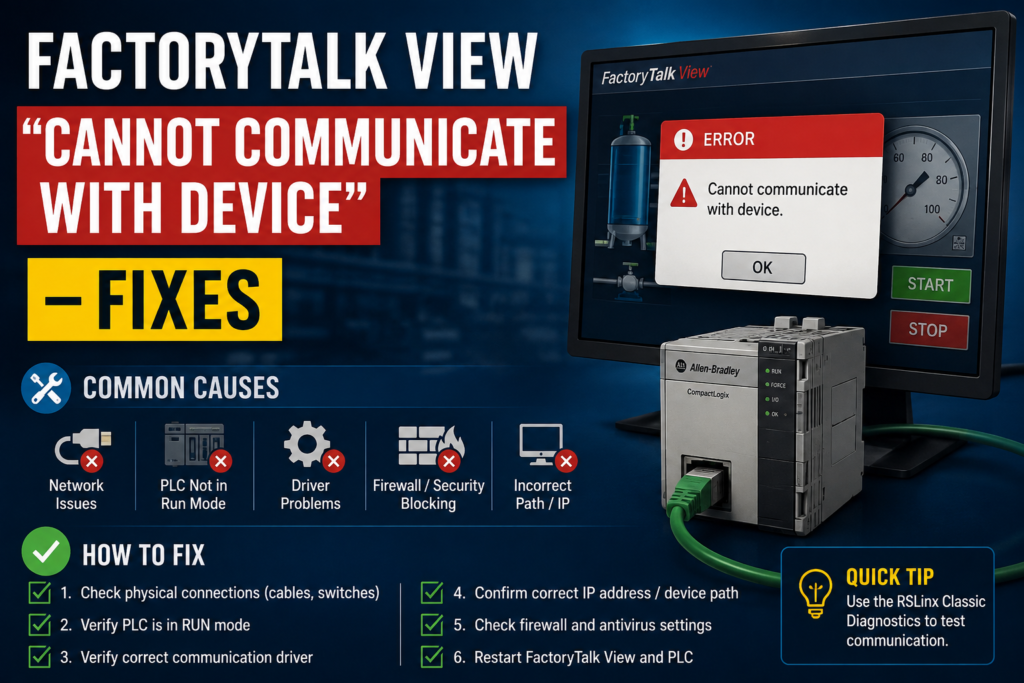
The HMI loads normally. Buttons and graphics appear. Then the live values turn into question marks, asterisks or error indicators, and FactoryTalk View reports that it cannot communicate with the device.
It is tempting to blame the PLC.
Quite often, the controller is perfectly healthy.
The problem may be a broken FactoryTalk Linx shortcut, an incorrect controller path, a missing Runtime configuration, the wrong Ethernet adapter, a stopped communication service or a PanelView terminal sitting on the wrong IP network.
The key is to identify where communication stops instead of rebuilding the entire HMI application and hoping for the best.
Safety warning: Restoring HMI communication may immediately restore operator commands, displayed values and control functions. Confirm that the machine is in a safe state before testing buttons, changing setpoints or restarting communication services.
What Does “Cannot Communicate With Device” Mean?
FactoryTalk View normally accesses controller data through a FactoryTalk Linx device shortcut.
The shortcut links a name used by the HMI application to a communication path leading to the PLC. If that shortcut does not exist, points to the wrong controller or cannot reach the configured device, the application cannot resolve its controller tags correctly. FactoryTalk Linx uses the shortcut’s associated communication path to locate the data source.
For example, an HMI application may use a shortcut called:
PLCObjects throughout the application then reference tags through that shortcut.
The shortcut must point to the correct controller. Not merely the correct Ethernet network, chassis or communication module—the actual controller containing the tags.
First Determine Where the Error Occurs
Before changing anything, identify where communication fails:
- FactoryTalk View Studio while browsing tags
- Test Display
- Test Application on the engineering computer
- FactoryTalk View ME Station on a computer
- A PanelView Plus terminal
- A FactoryTalk View SE client
This matters because FactoryTalk View Machine Edition has two separate communication configurations:
- Design (Local): used by the development computer
- Runtime (Target): used by the PanelView or other runtime device
Rockwell’s Communication Setup editor provides both tabs for ME applications. The Design configuration is used while developing and testing locally, while Runtime identifies the communication path used by the deployed application.
Therefore:
- If local testing fails, inspect Design (Local).
- If Studio testing works but the PanelView fails, inspect Runtime (Target) and the terminal network settings.
That one distinction solves a surprising number of communication problems.
Step 1: Confirm That the PLC Is Reachable
Start outside FactoryTalk View.
From the computer or terminal network, confirm:
- The PLC is powered
- Ethernet link lights are active
- The controller IP address is correct
- The computer or PanelView is on a compatible subnet
- No duplicate IP address exists
- The controller responds to network tests where permitted
From a Windows computer, open Command Prompt and test:
ping 192.168.1.10Replace the address with the PLC’s actual IP address.
A successful ping does not prove that the HMI shortcut is configured correctly, but it confirms basic IP connectivity. When ping fails, there is little point rebuilding FactoryTalk tags yet.
Check the laptop’s Ethernet configuration:
PLC:             192.168.1.10
Engineering PC:  192.168.1.50
Subnet mask:     255.255.255.0
In this example, both devices are on the same local subnet.
Also disconnect unnecessary VPN connections. VMware, VirtualBox, Wi-Fi adapters, docking stations and VPN clients can create additional network interfaces, making FactoryTalk Linx browse through an unintended adapter.
Step 2: Open FactoryTalk Linx Communication Setup
In FactoryTalk View Studio, expand the application tree and locate:
FactoryTalk Linx
    Communication Setup
Older projects or software versions may refer to the communication server as RSLinx Enterprise. FactoryTalk Linx is its current name.
Double-click Communication Setup.
The window contains:
- Device Shortcuts
- A communication topology
- Shortcut properties
- Status messages
- Design and Runtime tabs for ME applications
- A Verify function
The Verify function opens the Shortcut Verifier and summarizes shortcut assignments and related status messages.
Step 3: Check the Device Shortcut
Select the shortcut used by the HMI application.
Common shortcut names include:
PLC
CLX
CompactLogix
Controller
MachinePLC
The exact name is not important. What matters is that the shortcut name referenced by the HMI objects exists and is assigned to the correct device.
With the shortcut highlighted:
- Find the controller in the communication tree.
- Select the controller itself.
- Click Apply.
- Click Verify.
- Read the status message before closing the window.
Simply highlighting the controller is not always enough. You must click Apply to associate the selected path with the shortcut. Rockwell’s configuration process requires creating shortcuts that point to the target devices from which the application collects data.
ControlLogix path example
For a ControlLogix system, the path may look like:
Ethernet driver
    192.168.1.20 — 1756-EN2T
        Backplane
            Slot 0 — ControlLogix controller
Select the controller in its chassis slot—not only the 1756-EN2T Ethernet module.
CompactLogix path example
A CompactLogix controller with embedded Ethernet may appear directly below the Ethernet driver:
Ethernet driver
    192.168.1.10 — CompactLogix controller
Select the controller and apply the shortcut.
Common shortcut mistakes
The shortcut may be:
- Assigned to an old PLC address
- Pointing to the Ethernet module instead of the controller
- Pointing to the wrong controller slot
- Associated with a controller from another machine
- Present under Design but missing under Runtime
- Renamed without updating tag references
- Left unassigned after restoring or converting an application
A project copied from another machine may still contain valid-looking shortcuts that lead to entirely different equipment. Check the full path, not only the shortcut name.
Step 4: Fix the Design and Runtime Configurations
For FactoryTalk View ME, local communication and terminal communication can be configured independently.
Design (Local)
This tab represents communication from the development computer.
Configure the shortcut here when you need to:
- Browse online PLC tags
- Run Test Display
- Run Test Application locally
- Verify values from the engineering workstation
Runtime (Target)
This tab represents communication from the PanelView or other runtime device.
The target path must make sense from the runtime terminal’s network position. A path that works from the engineering laptop does not automatically mean the PanelView can use it.
Rockwell’s recommended workflow is to create the communication configuration under Design and copy it to Runtime when preparing the .mer runtime, provided the same topology is suitable for the target.
To copy it:
Copy from Design to RuntimeThen select the shortcut under Runtime, confirm that it points to the correct controller and click Apply.
Be careful when copying
Copying from Design to Runtime replaces the existing Runtime topology and shortcut connections with an exact copy of the Design configuration. Do not use it blindly when the PanelView communicates through a different path or when someone configured the terminal specifically for its installed network.
For example, the laptop may connect directly through a maintenance network while the PanelView communicates through another switch, gateway or routed network.
In that case, configure Runtime separately.
Step 5: Recreate and Transfer the Runtime Correctly
After correcting Runtime communication:
- Validate the HMI application.
- Create a new
.merruntime file. - Transfer it to the correct PanelView.
- Decide carefully whether to replace the terminal’s current communication configuration.
- Restart the runtime application.
A PanelView terminal can use communication settings configured directly on the terminal, or settings included inside the downloaded .mer file. When transferring the runtime, you may choose whether the communication configuration in the file should overwrite the terminal’s existing configuration.
Do not automatically overwrite terminal communications.
The terminal may contain a working site-specific configuration that differs from the engineering computer’s Design path. Rockwell explicitly warns users to confirm that overwriting the terminal configuration is appropriate before doing so.
Step 6: Check the PanelView Network Settings
When Studio communicates correctly but the PanelView does not, check the PanelView itself.
From the terminal’s Configuration Mode, inspect:
Terminal Settings
    Networks and Communications
Confirm:
- Terminal IP address
- Subnet mask
- Default gateway
- Ethernet link status
- PLC IP address
- FactoryTalk Linx communication path
- Loaded runtime application
FactoryTalk View ME terminals allow communication settings to be reviewed through:
Terminal Settings
    Networks and Communications
        FactoryTalk Linx Communications
Rockwell notes that the terminal interface can be used to configure or review runtime communication, although devices cannot be added to the communication tree from that particular terminal dialog.
Try pinging the PanelView from the engineering computer. When possible, test the PLC from another device located on the same network as the PanelView.
A laptop plugged into a completely different switch can communicate perfectly while the PanelView remains isolated by:
- A bad switch port
- Incorrect VLAN
- Wrong gateway
- Damaged cable
- Duplicate IP address
- Incorrect subnet mask
Step 7: Check Whether the Problem Affects Every Tag
The fault pattern tells you a lot.
Every PLC value is bad
When every value from one controller fails, suspect:
- The FactoryTalk Linx shortcut
- The controller path
- Runtime communication configuration
- PLC or PanelView network settings
- FactoryTalk Linx service
- Firewall or routing
One display is bad
When only one screen fails, inspect:
- The display’s tag references
- Parameter files
- Global object parameters
- Display shortcuts
- Tag placeholders
One tag is bad
When most values work but one object shows an error, the network is probably not the main problem.
Check whether:
- The PLC tag was renamed
- The tag was deleted
- The program-scoped path is incorrect
- The array index is invalid
- The HMI references the wrong shortcut
- The object uses a malformed parameter substitution
- The controller project no longer contains that member
Do not rebuild the Ethernet driver because one numeric display is broken.
Step 8: Test Tags Through the Tag Browser
Open a graphic object that references the controller and launch the Tag Browser.
Try browsing through the intended shortcut.
When the controller tags appear and live values can be selected, the Design shortcut is probably working.
When the shortcut exists but cannot be expanded:
- Verify its controller assignment.
- Check whether FactoryTalk Linx can browse the controller.
- Check the Linx service.
- Review FactoryTalk Diagnostics.
- Confirm that security permissions permit browsing and configuration.
FactoryTalk View applications can be tested using Test Display or Test Application after the data source and object connections have been configured.
Step 9: Review FactoryTalk Diagnostics
FactoryTalk Diagnostics often contains a much more useful message than the HMI screen.
Open:
Start
    Rockwell Software
        FactoryTalk Tools
            Diagnostics Viewer
Reproduce the fault and look for messages referring to:
- Shortcut not found
- Communication path unavailable
- Item or tag not found
- Failed to resolve item ID
- Device timeout
- Server unavailable
- Access denied
- FactoryTalk Directory unavailable
FactoryTalk Diagnostics stores errors, warnings and status messages from FactoryTalk-enabled components in a central event log. Rockwell recommends reviewing events leading up to the problem to isolate communication issues.
The wording often reveals whether you have:
- A network problem
- A shortcut problem
- A missing tag
- A server problem
- A security problem
That is considerably more useful than repeatedly clicking Refresh.
Step 10: Restart the FactoryTalk Linx Service
After deleting, replacing or significantly changing a shortcut, FactoryTalk Linx may need to be restarted before the change takes effect.
On a Windows computer:
Windows key + R
services.msc
Find:
FactoryTalk LinxRight-click it and select:
RestartRockwell recommends restarting the FactoryTalk Linx service after shortcut changes, particularly when a shortcut has been deleted or reassigned to another device. The service may also appear internally as RSLinxNG.
Restarting FactoryTalk Linx interrupts communication for applications using that service. Do not restart it on a production HMI server without coordinating the interruption.
When the service is not running, the FactoryTalk Linx Network Browser cannot update the network topology and reports errors when users attempt to interact with devices.
Step 11: Check the Ethernet Driver and Network Adapter
FactoryTalk Linx may browse through the wrong network interface when the computer has several adapters.
Open Communication Setup or FactoryTalk Linx Network Browser and inspect the Ethernet driver.
Confirm that it uses the correct physical adapter or appropriate subnet configuration.
Possible conflicting adapters include:
- Wi-Fi
- VPN
- VMware
- VirtualBox
- USB Ethernet
- Docking-station Ethernet
- A second plant network card
Temporarily disable unused adapters while testing.
FactoryTalk Linx Ethernet browsing uses EtherNet/IP services, including port 44818. Rockwell states that EtherNet/IP devices use UDP port 44818 for network browsing, and its firewall reference lists TCP 44818 for the FactoryTalk Linx service executable.
If devices disappear only when Windows Firewall or security software is enabled, check the approved Rockwell firewall rules instead of disabling protection permanently.
Step 12: Add the PLC Manually When Browsing Fails
Automatic Ethernet browsing does not always work across routed networks, VPNs or VLAN boundaries.
When the PLC responds to ping but does not appear automatically, add an Ethernet driver or device entry using its IP address.
For example:
192.168.1.10Then browse the manually configured device, expand its path and assign the shortcut to the controller.
A device shown with a red X indicates that FactoryTalk Linx currently cannot recognize or communicate with it. The browser keeps topology information and marks unavailable devices when communication is lost.
Step 13: Check FactoryTalk View SE Components
FactoryTalk View SE adds several possible failure points:
- FactoryTalk Directory server
- FactoryTalk Linx data server
- HMI server
- SE client
- Primary and secondary communication servers
- Network security and name resolution
For a distributed SE application, verify that the computer hosting FactoryTalk Directory is powered, reachable and configured correctly.
Open the FactoryTalk Linx data server’s Communication Setup and confirm that the shortcut exists on the correct server. For redundant configurations, the Primary and Secondary shortcuts must both lead to the same physical data source, even when their communication routes differ.
If an SE client fails while the server itself communicates normally, investigate:
- Client-to-server connectivity
- FactoryTalk Directory connection
- Windows firewall rules
- Computer name resolution
- FactoryTalk services
- User permissions
Do not rebuild the PLC shortcut until you know whether the fault occurs at the server or only at one client.
A Fast Troubleshooting Sequence
Use this order:
1. Confirm PLC power and Ethernet link.
2. Check PLC, computer and PanelView IP settings.
3. Ping the controller where permitted.
4. Open FactoryTalk Linx Communication Setup.
5. Select the HMI shortcut.
6. Assign it to the actual controller.
7. Click Apply.
8. Click Verify.
9. Test the Design configuration locally.
10. Check or copy the Runtime configuration.
11. Create a new MER file.
12. Transfer it with the correct communication option.
13. Review FactoryTalk Diagnostics.
14. Restart FactoryTalk Linx only when necessary.
Quick Checklist
[ ] PLC is powered and running
[ ] Ethernet link indicators are active
[ ] PLC IP address is correct
[ ] HMI and PLC are on compatible networks
[ ] No duplicate IP address exists
[ ] Correct FactoryTalk Linx shortcut exists
[ ] Shortcut name matches the HMI references
[ ] Shortcut points to the controller, not only the Ethernet module
[ ] Correct ControlLogix chassis slot is selected
[ ] Apply was clicked after assigning the shortcut
[ ] Shortcut Verifier reports a valid assignment
[ ] Design (Local) communication works
[ ] Runtime (Target) contains the correct path
[ ] MER file was recreated after communication changes
[ ] PanelView communication configuration was handled correctly
[ ] FactoryTalk Linx service is running
[ ] Correct Ethernet adapter is being used
[ ] Firewall allows required FactoryTalk and EtherNet/IP traffic
[ ] Diagnostics Viewer has been checked
Final Thoughts
When FactoryTalk View reports that it cannot communicate with a device, begin with the communication chain:
HMI object
    → Device shortcut
        → FactoryTalk Linx
            → Ethernet network
                → Controller
                    → PLC tag
Find the first point where that chain breaks.
When every tag fails, start with the shortcut and network. When only the PanelView fails, inspect Runtime communication. When only one tag fails, inspect the tag reference rather than the Ethernet cable.
Most FactoryTalk communication faults are not solved by reinstalling the software or recreating every display.
Usually, one path is wrong.
The job is to find which one.