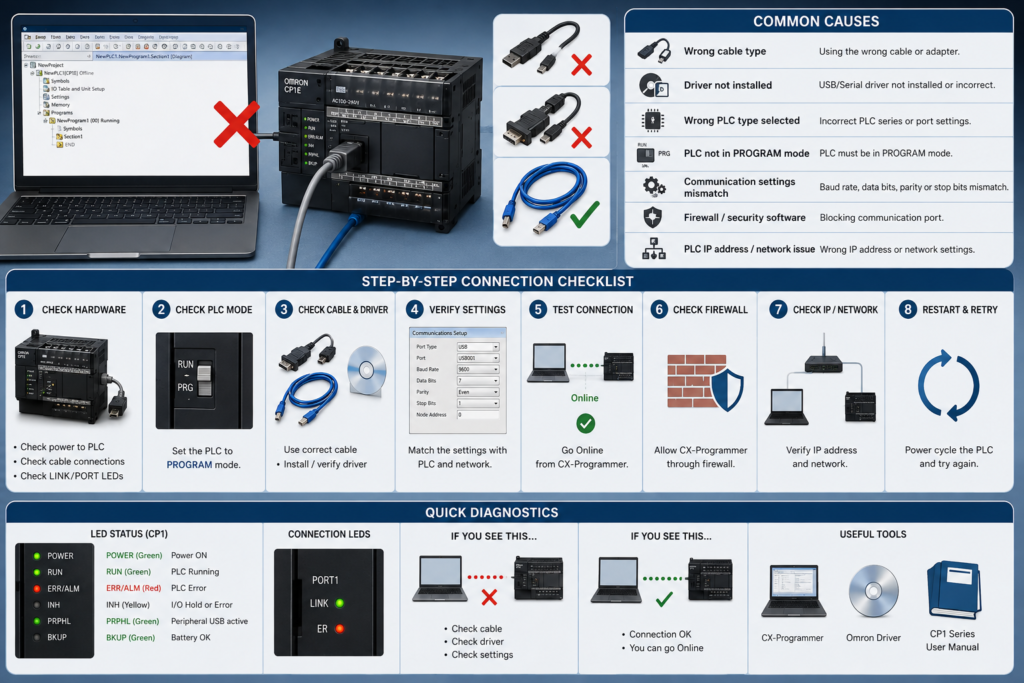
CX-Programmer refuses to connect to an Omron CP1 PLC.
The controller is powered. The USB cable is connected. Windows may even make the familiar device-connected sound—but CX-Programmer still reports a communication error.
The fault is usually found in one of five places:
- Wrong PLC model selected in the project
- Incorrect CX-Programmer network type
- Missing or damaged USB driver
- Incorrect serial or Ethernet settings
- An old CX-One installation that does not support the controller or operating system correctly
The quickest repair is not to change every setting randomly. First identify the exact CP1 model and the connection method being used.
Safety warning: Connecting online is normally a monitoring operation, but downloading, changing operating mode or writing values can affect the machine immediately. Confirm the correct PLC and save a backup before transferring anything to the controller.
Quick Troubleshooting Table
| Symptom | Most likely cause | First check |
|---|---|---|
| USB cable connected but PLC not detected | Driver, cable or USB service problem | Windows Device Manager |
| Auto Online finds nothing | Wrong interface or missing driver | Select USB or correct serial port |
| Existing project will not go online | Wrong PLC or network type | Change PLC settings |
| “PLC type does not match” | Incorrect CPU model selected | Exact CP1E, CP1L or CP1H model |
| Serial connection times out | Wrong COM port or Host Link settings | COM number, baud rate and unit number |
| PLC responds to ping but CX-Programmer fails | Wrong Ethernet/FINS settings | Network type, IP and FINS node |
| Direct Ethernet connection fails | Wrong CX-Programmer connection option | Use CP1/CP2 Built-in Ethernet Online |
| CP1W-CIF41 cannot be found | Wrong PC subnet or unknown board IP | Default address and board indicators |
| Upload is blocked | PLC read protection | Obtain the correct password |
| Connection works on an old laptop only | Software or Windows compatibility | Update CX-One and communication components |
Step 1: Identify the Exact PLC Model
Do not begin with “It is an Omron CP1.”
Read the complete number from the CPU label, for example:
CP1E-N30DR-A
CP1L-M40DR-A
CP1L-EM40DT-D
CP1H-X40DT-D
The suffix matters because it identifies the CPU type, I/O arrangement, power supply and communication options.
The three main families are:
- CP1E: Entry-level compact PLC
- CP1L: Mid-range compact PLC, including versions with built-in Ethernet
- CP1H: Higher-performance CP-series controller
CX-Programmer must be configured for the correct device family and CPU type. Selecting CP1L for a CP1E, or selecting the wrong CPU variant, can prevent the project from connecting or correlating correctly.
Also check that your CX-Programmer version supports the CPU. Omron lists different minimum versions for different CP1E models, and using a CP1W-CIF41 Ethernet option board with a CP1E requires CX-Programmer 9.12 or later.
Step 2: Check PLC Power and Indicators
Before troubleshooting software, inspect the controller.
Confirm:
- POWER or PWR indicator is on
- No fatal ERR/ALM condition is present
- The PLC is not repeatedly restarting
- USB or Ethernet connector is physically secure
- Ethernet LINK indicator turns on when connected
- The power supply voltage is stable
- Expansion and option boards are installed correctly
A PLC with unstable 24 V DC power may connect briefly and disappear again. Measure the supply at the CPU terminals rather than assuming that an illuminated power-supply LED proves the voltage is healthy.
For Ethernet, no link light normally points toward the cable, switch port, connector or network interface—not a CX-Programmer project setting.
USB Connection Problems
USB is usually the easiest way to connect to a CP1E, CP1L or CP1H. It is also where many first-time connection attempts go wrong.
Use the Correct USB Cable
CP-series CPUs with a peripheral USB port use a standard USB connection:
Computer: USB Type A
PLC:      USB Type B
This is the traditional square-ended USB printer cable.
Omron specifies a commercially available USB A-to-B cable and a maximum length of 5 m for CP1E peripheral USB connections.
Avoid:
- Charge-only USB cables
- Damaged printer cables
- Unpowered USB hubs
- Long extension cables
- Loose front-panel USB ports
- Low-quality USB-to-USB adapters
Connect directly to the computer where possible. A docking station or hub introduces another device into the communication path.
Fastest USB Method: Auto Online
Close any project that may contain incorrect communication settings, connect the PLC by USB and start CX-Programmer.
Then select:
PLC
→ Auto Online
→ Direct Online
Depending on the CX-Programmer version, you may also have an Auto Online toolbar button.
Select the USB connection and start the search.
CX-Programmer’s Auto Online function searches for the connected PLC, identifies its type and communication settings and then establishes an online connection. When successful, it transfers available PLC data such as the program, PLC settings and I/O configuration from the controller.
This makes Auto Online particularly useful when:
- You do not know the exact CPU model
- You do not trust the existing project settings
- You arrived at a machine without the original project
- Someone changed the communication configuration
- You want to confirm that the USB driver works
Save the uploaded project under a new name:
MachineName_uploaded_2026-08-06.cxpDo not overwrite the only existing offline file.
Comments, symbols and other documentation will only be recovered when they were stored in the PLC. A running program can therefore upload successfully while still appearing poorly documented.
Configure an Existing Project for USB
When using an existing project, right-click the PLC in the project workspace and open the PLC settings or Change PLC dialog.
Confirm:
Device Type:  Exact CP1 model
CPU Type:     Exact installed CPU
Network Type: USB
Open the USB network settings and select a direct connection where that option is shown.
Then select:
PLC
→ Work Online
CX-Programmer’s normal Work Online command connects using the PLC and network settings stored in the current project.
When Auto Online works but the existing project does not, the physical USB connection is probably fine. Compare the automatically detected PLC type with the project’s configured PLC and network type.
Windows Does Not Detect the PLC
Open Windows Device Manager.
Connect and disconnect the USB cable while watching the device list. Something should appear or disappear.
Possible results include:
Nothing changes
Suspect:
- Damaged USB cable
- Charge-only cable
- Damaged computer port
- Damaged PLC USB socket
- Unpowered PLC
- USB hub problem
Try a known-good cable and another direct USB port.
An unknown device appears
The physical connection is working, but the correct Omron driver is missing or damaged.
Repair the CX-One installation or reinstall the appropriate USB driver from the installed Omron software package. Omron’s connection guidance states that a driver must be installed before a PLC USB connection can be used.
The Omron device appears correctly, but CX-Programmer still fails
Check:
- CX-Programmer network type is USB
- Correct PLC model is selected
- Another Omron program is not using the same connection
- CX-Programmer is not still configured for a simulation
- Omron USB connection services are running
- CX-One communication components are current
Omron’s communication middleware includes the OMRON USB Connection Manager and OMRON USB Serial Connection Manager services. Its update history also records several fixes aimed at improving USB connectivity and resolving failed USB connections after software changes.
Open Windows Services:
Windows key + R
services.msc
Look for the relevant Omron connection services. Restarting them may restore communication, but disconnect from any other Omron equipment first.
USB Worked Before but Suddenly Stopped
Try this order:
- Close CX-Programmer and other CX-One applications.
- Disconnect the USB cable.
- Wait several seconds.
- Reconnect directly to the computer.
- Confirm the device appears correctly in Device Manager.
- Restart the Omron USB connection service.
- Reopen CX-Programmer.
- Use Auto Online.
- Restart Windows if communication remains unavailable.
Avoid reinstalling the complete software package before testing another cable. Printer-style USB cables fail more often than most people expect, especially after years inside a maintenance laptop bag.
Serial RS-232 Connection Problems
Some CP1 installations use a serial connection instead of USB.
Depending on the CPU, this may involve:
- Built-in RS-232C port
- CP1W-CIF01 RS-232C option board
- USB-to-serial converter
- Omron programming cable
- Connection through an HMI or another device
Omron lists Host Link connections through the RS-232C port and specifies cables such as the XW2Z-200S-CV and XW2Z-500S-CV for applicable CP1 configurations.
Select the Correct COM Port
Open Windows Device Manager and find:
Ports (COM & LPT)Record the COM number assigned to the physical or USB serial port:
USB Serial Port (COM5)In CX-Programmer, configure the serial network and select the same port.
Auto Online can search available serial ports. Omron notes that newer CX-Programmer versions automatically detect the computer’s available serial ports, although the default Auto Online serial port is COM1 when one must be selected manually.
A common problem is that the adapter used COM4 yesterday and appears as COM7 today after being connected to another USB socket.
Check Host Link Settings
The PC and PLC must use matching communication settings.
Check:
- Baud rate
- Data bits
- Stop bits
- Parity
- Host Link unit number
- Communication mode
- Correct PLC port
- Correct cable wiring
A typical mismatch might look like:
CX-Programmer: 9600, 7, E, 2
PLC port:      115200, 8, N, 1
No amount of repeatedly clicking Work Online will make those settings communicate.
When the current port settings are unknown, Auto Online is worth trying first. If that fails, inspect the PLC setup in a verified project or connect using another known-working interface such as USB.
Do Not Use a Generic Null-Modem Cable
A D-sub connector fitting into the socket does not mean the cable is wired correctly.
Omron Host Link cables may use a specific pin arrangement. A generic straight-through or null-modem cable may not match the required interface.
Check the applicable CP1 manual and cable number rather than testing random serial cables from a drawer.
USB-to-Serial Converter Problems
When using a converter:
- Confirm its driver is installed
- Check the COM number
- Avoid extremely high COM numbers if older software behaves poorly
- Disable serial power-saving where relevant
- Use a reputable industrial converter
- Confirm RS-232 versus RS-422/485 interface type
A converter appearing in Device Manager only proves that Windows sees the converter. It does not prove that the cable from the converter to the PLC is correct.
Built-In Ethernet Connection Problems
Some CP1L controllers, including CP1L-EM and CP1L-EL models, have built-in Ethernet.
These should be approached differently from a CP1W-CIF41 option board and differently from a CJ2 EtherNet/IP connection.
Use the CP1/CP2 Built-In Ethernet Online Function
In CX-Programmer, select:
PLC
→ Auto Online
→ CP1/CP2 Built-in Ethernet Online
The dialog normally offers:
- Direct Connection: PC connected directly to the PLC
- Hub Connection: PC and PLC connected through an Ethernet network
Omron’s CX-Programmer manual specifically provides the CP1/CP2 Built-in Ethernet Online command for CP-series CPUs with a built-in Ethernet port.
Do not automatically select EtherNet/IP Node Online simply because the cable is Ethernet. That function is documented primarily for applicable CJ2 EtherNet/IP controllers, while CP1/CP2 built-in Ethernet has its own connection command.
Direct Ethernet Connection
For a direct cable connection:
- Disable Wi-Fi and unnecessary VPN adapters temporarily.
- Connect the computer directly to the PLC.
- Open CP1/CP2 Built-in Ethernet Online.
- Select Direct Connection.
- Set an unused workstation node number.
- Click Connect.
CX-Programmer’s direct CP1/CP2 Ethernet function can connect even when the PC and PLC IP addresses are not in the same subnet. Omron also states that this direct mode uses port 9600.
This is useful when you do not know the PLC’s IP address.
It does not mean normal HMI, SCADA or routed Ethernet communication will work with incompatible addressing. It is a maintenance connection feature.
Hub or Network Connection
For a connection through a switch:
- Confirm the PLC’s IP address.
- Give the laptop a compatible static IP.
- Confirm the subnet mask.
- Test the physical network.
- Select Hub Connection.
- Enter or browse for the PLC.
- Set an unused workstation node number.
- Connect.
Example:
PLC:         192.168.10.20
Laptop:      192.168.10.50
Subnet mask: 255.255.255.0
Avoid assigning the laptop the same address as the PLC or another device.
CX-Programmer supports browsing for connectable CP1/CP2 PLCs in Hub Connection mode.
Ping Works but CX-Programmer Does Not
A successful ping confirms basic IP communication. It does not verify the FINS communication path used by CX-Programmer.
Check:
- Correct CX-Programmer network type
- CP1/CP2 built-in Ethernet option selected
- Correct PLC IP address
- Correct port number
- Workstation node is not duplicated
- Windows Firewall
- VPN and virtual network adapters
- Correct Ethernet interface
- FINS node and IP-address relationship
- PLC read or write protection
Temporarily disabling every firewall is not a suitable permanent repair. Add the necessary approved rules after confirming that firewall filtering is the cause.
CP1W-CIF41 Ethernet Option Board Problems
The CP1W-CIF41 is an Ethernet option board used with supported CP-series controllers.
It communicates using FINS over UDP or TCP. Omron lists default FINS ports of 9600 and a maximum Ethernet segment distance of 100 m between a node and switching hub.
Check Compatibility First
For CP1E applications:
- CP1W-CIF41 must be version 2.0 or later
- CX-Programmer must be version 9.12 or later
Omron explicitly lists these requirements for supported CP1E CPU Units.
An old option board or old CX-Programmer installation may therefore fail even when the addressing appears correct.
Default CP1W-CIF41 Address
An out-of-box CP1W-CIF41 uses the default address:
192.168.250.1To access it initially, configure the laptop on the same subnet, for example:
Laptop:      192.168.250.20
Subnet mask: 255.255.255.0
Then test:
ping 192.168.250.1Omron’s setup guidance identifies 192.168.250.1 as the default web address and explains that the option board can be configured through its web interface.
Be careful before connecting a factory-default board to an existing control network. Another device may already use that address.
IP Address Changes Do Not Remain
The CP1W-CIF41 can obtain its address from its own web settings or from assigned PLC DM areas, depending on its configuration.
Omron explains that when the board’s web-configured IP address is not 0.0.0.0, the related PLC DM locations act as display values only. Changing those DM words will not permanently alter the board’s IP address because they are overwritten during startup.
This produces a confusing symptom:
- Technician changes the IP-related DM values.
- The displayed values appear correct.
- Power is cycled.
- The old address returns.
The actual configuration source must be changed correctly.
Omron also warns that an address disagreement can occur when the FINS node number does not correspond with the host portion of the IP address while automatic address generation is selected.
CP1W-CIF41 Indicators
Inspect:
- Ethernet link indicator
- 10/100 Mbps indication
- Communication error indicator
- Board power and installation
A link indicator that remains off suggests:
- Bad Ethernet cable
- Inactive switch port
- Damaged connector
- Option board not seated correctly
- Controller or board power problem
A communication-error indication with an active physical link points more toward addressing, FINS or configuration.
The Project Connects to the Wrong PLC
A successful connection is not automatically the correct connection.
Before uploading, downloading or changing values, verify:
- PLC model
- CPU serial or identifying information where available
- Machine name
- IP address
- Program name
- I/O configuration
- Production line
- Physical location
Similar machines often contain nearly identical CP1 controllers. A maintenance network may expose several of them at once.
Use a clear project name:
Line3_CasePacker_CP1L_2026-08-06.cxpNot:
newproject2_final_latest.cxp“PLC Type Does Not Match”
This normally means the CPU selected in the project does not match the connected controller.
Fix it by:
- Recording the exact CPU catalog number.
- Opening Change PLC.
- Selecting the correct CP1 family.
- Selecting the correct CPU variant.
- Confirming the network type.
- Trying Work Online again.
Do not change the offline project type and immediately download it. First determine whether the offline project really belongs to that controller.
Using Auto Online and uploading into a separate project is safer when the controller’s current program is uncertain.
Password and Protection Problems
Some CP-series projects can be protected against reading or writing.
Symptoms may include:
- Connection succeeds but upload is denied
- Program sections cannot be displayed
- Transfer is blocked
- Password dialog appears
- PLC data is shown as protected
Protection is not a communication failure.
You need the authorised password or an approved original project. Do not clear PLC memory simply to bypass an unknown password; doing so can erase the machine program and settings.
PLC Mode Problems
An Omron CP PLC can normally be in:
- PROGRAM
- MONITOR
- RUN
The communication connection may work in all three modes, but the permitted actions differ.
CX-Programmer’s documentation describes:
- PROGRAM: Program is not executed; used for downloads and configuration work
- MONITOR: Program executes while monitoring and supported online edits are possible
- RUN: Program executes normally; software writing operations are restricted
Do not switch a running machine into PROGRAM mode merely because a transfer command is unavailable. PROGRAM mode stops normal PLC execution and can change the state of outputs.
Coordinate the mode change, place the machine safely and understand its output-holding configuration first.
Update CX-One and CX-Programmer
Old software is a frequent cause of CP1 connection problems on newer computers.
Omron currently supports Windows 11 with newer CX-One Version 4 releases, while older versions have more limited operating-system support.
CX-One includes an automatic update function that can update selected tools and communication components without reinstalling the complete suite.
As of July 2026, Omron continues to publish CX-One Version 4 auto-updates, including communication middleware and Windows-related improvements.
Before blaming the PLC:
- Record the current CX-One and CX-Programmer versions.
- Run CX-One Auto Update.
- Install communication middleware updates.
- Restart Windows.
- Reconnect the PLC.
- Test Auto Online again.
Be cautious when updating a production engineering laptop. Preserve licences, project backups and a recovery plan.
Common Error Messages
“Failed to Connect to PLC”
Check:
[ ] PLC power
[ ] USB or Ethernet cable
[ ] Windows driver
[ ] Exact PLC type
[ ] Correct network type
[ ] Correct IP or COM port
[ ] Omron communication services
[ ] Password protection
“The Specified Port Does Not Exist”
The selected COM port is no longer assigned.
Open Device Manager, identify the current COM number and update the serial connection settings.
“The PLC Type Is Different”
The project CPU and physical CPU do not match.
Use Auto Online to identify the connected controller or read the complete model from its label.
“Communication Timeout”
For serial connections, check baud rate, format, unit number and cable.
For Ethernet connections, check IP addressing, port 9600, firewall, FINS node values and network type.
For USB connections, check the driver and Omron USB connection service.
“Cannot Go Online While Simulator Is Running”
Disconnect from CX-Simulator:
PLC
→ Work Online Simulator
Then select the physical USB, serial or Ethernet connection.
A project can remain configured for simulation even though a real PLC is now connected.
Safe Upload Procedure
When the machine is running and you do not trust the offline file:
- Confirm the exact PLC and machine.
- Place the equipment in a safe maintenance condition.
- Connect using USB or verified Ethernet.
- Use Auto Online where practical.
- Upload the current PLC data.
- Save it under a new dated filename.
- Compare it with the existing project.
- Preserve both versions.
- Do not download until the differences are understood.
Remember:
Upload:
PLC → Computer
Download:
Computer → PLCA download can overwrite the current machine program.
Do not use Download as a connection test.
Fast Troubleshooting Sequence
Use this order:
1. Read the exact CP1 CPU model.
2. Confirm PLC power and status LEDs.
3. Identify USB, serial or Ethernet connection.
4. Test a known-good physical cable.
5. Check Windows Device Manager.
6. Update or repair the Omron driver.
7. Use CX-Programmer Auto Online.
8. Compare detected PLC type with the project.
9. Confirm the CX-Programmer network type.
10. Check USB service, COM settings or IP/FINS settings.
11. Upload and save the current PLC program.
12. Change mode or download only after verification.
Complete Checklist
[ ] Exact CP1E, CP1L or CP1H model recorded
[ ] PLC has stable power
[ ] No fatal controller error is active
[ ] Correct USB, serial or Ethernet cable used
[ ] Cable tested or replaced
[ ] Device appears correctly in Windows
[ ] Omron USB driver is installed
[ ] Omron communication services are running
[ ] CX-One is updated
[ ] Correct PLC device type selected
[ ] Correct CPU variant selected
[ ] Correct network type selected
[ ] Correct COM port selected
[ ] Serial format matches the PLC
[ ] Laptop and PLC Ethernet settings checked
[ ] CP1/CP2 Built-in Ethernet Online used where appropriate
[ ] FINS node and port settings checked
[ ] CP1W-CIF41 version is compatible
[ ] VPN and virtual adapters checked
[ ] Firewall reviewed
[ ] PLC protection status checked
[ ] Auto Online tested
[ ] Current controller program uploaded and saved
[ ] Download avoided until project is verified
Final Thoughts
Omron CP1 connection problems become much easier when the communication path is separated into layers:
CX-Programmer project
→ PLC and network selection
→ Omron communication driver
→ Windows interface
→ USB, serial or Ethernet cable
→ CP1 controller
For USB problems, begin with the cable, Device Manager and Auto Online.
For serial problems, check the COM port, Host Link settings and cable wiring.
For built-in Ethernet, use the dedicated CP1/CP2 Ethernet connection function.
For a CP1W-CIF41, check its version, address source and FINS configuration.
Most importantly, do not press Download because Work Online failed.
A connection problem is inconvenient.
Overwriting the only working PLC program turns it into a breakdown.