Bringing together the understanding of identity and the startup
sequence, this chapter presents a practical decision path for the common
situation of a device that will not come online — a systematic way to
work from symptom to cause. Rather than checking things at random, you
follow a logical path that eliminates possibilities in a sensible order,
and understanding this path gives you a reliable method for one of the
most common PROFINET faults.
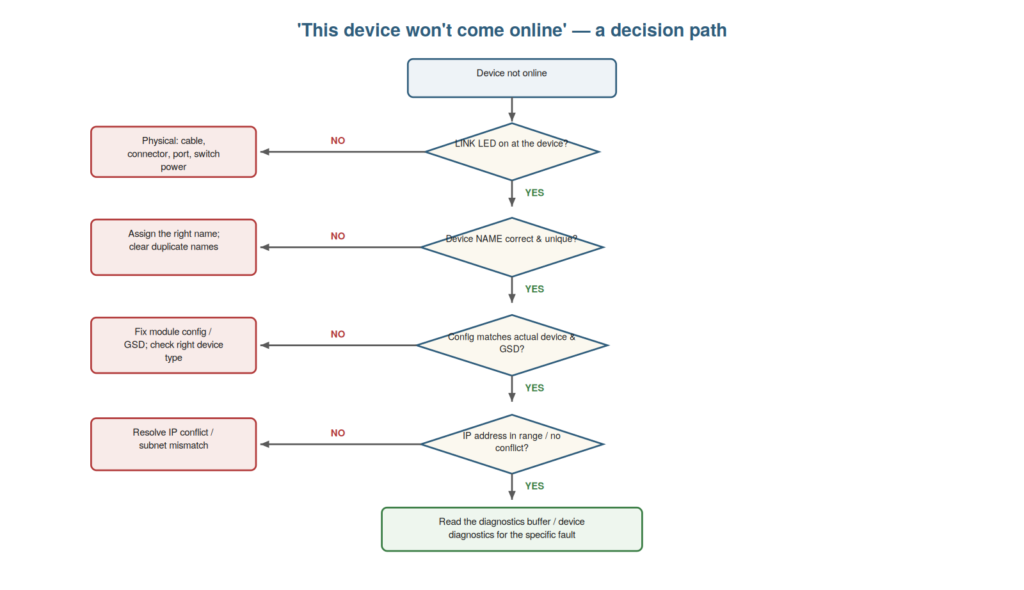
check the LINK LED (physical), then the device name (correct and
unique), then the configuration and GSD match, then the IP (in range, no
conflict). At each ‘no’, you have found the area; if all pass, read the
specific diagnostics.
Working the decision path
The decision path works through the possible causes in order from
most physical and fundamental to more specific, and understanding this
order makes your diagnosis systematic and efficient. You start with the
most fundamental check: is the LINK LED on? If not, the fault is
physical (cable, connector, port, power), and you have localized it
without going further. If the link is up, you check the device name: is
it correct and unique? A wrong, missing, or duplicate name is a common
cause, quickly checked. If the name is right, you check the
configuration: does the configured device and its GSD match the actual
hardware? A mismatch here blocks the connection. If the configuration
matches, you check the IP: is it in range and free of conflicts?
Finally, if all these pass, you read the specific diagnostics for the
detailed fault. So the path proceeds link, name, configuration, IP, then
detailed diagnostics — a sensible order that checks the common,
fundamental causes first. Understanding how to work the decision path —
in order from physical to specific — makes diagnosing a won’t-connect
fault systematic. It reinforces that the decision path checks link,
name, configuration, and IP in order, localizing the fault at the first
failing check, which is a systematic method. Understanding how to work
the decision path — checking the LINK LED, then the name, then the
configuration and GSD, then the IP, in that sensible order from physical
to specific — makes diagnosing a device that will not connect systematic
and efficient, so that instead of checking possibilities at random, you
eliminate them in an order that catches the common, fundamental causes
first, localizing the fault at the first check that fails and reaching
the specific diagnostics only if the common causes are all ruled out,
which is a reliable method for this very common PROFINET fault.
The most common culprits
Knowing the most common culprits behind won’t-connect faults helps
you anticipate the likely cause and check it early, and understanding
them sharpens your diagnosis. In practice, a few causes account for most
won’t-connect situations. A physical link problem — a cable, connector,
or port fault — is extremely common, which is why the LINK LED is the
first check. A device name problem — especially after a device
replacement, where the new device has no name — is the classic cause of
a device not connecting. A configuration mismatch — the wrong device
type or GSD, or a module setup that does not match — commonly blocks
connection after configuration changes or wrong replacements. IP
conflicts are less common (since IPs are assigned from names) but do
occur. So the common culprits are, roughly in order: physical link,
device name, configuration mismatch, then IP. Anticipating these lets
you check the likely causes early. Understanding the most common
culprits — physical link, name, configuration, IP — helps you anticipate
and check the likely cause first. It reinforces that most won’t-connect
faults come down to a physical link problem, a name problem (especially
after replacement), or a configuration mismatch, with IP conflicts less
common, so you check these likely causes early. Understanding the most
common culprits behind won’t-connect faults — the physical link, the
device name (especially the missing name after a replacement), the
configuration or GSD mismatch, and less often the IP — helps you
anticipate and check the likely cause early, so that while the decision
path ensures you are systematic, knowing the common culprits lets you
move efficiently through it with a sense of what you are most likely to
find, which speeds the diagnosis of this common fault by focusing
attention on the causes that most often prove responsible.
After a change versus out of the blue
A useful distinction when diagnosing a won’t-connect fault is whether
it appeared after a change or arose out of the blue, because this
strongly hints at the cause. If the device stopped connecting right
after someone made a change — a device replacement, a configuration
download, a name or IP change, physical work on the machine — the change
is the prime suspect: a replaced device likely needs its name, a
configuration change may have introduced a mismatch, physical work may
have disturbed a cable. So a fault following a change points you first
at what the change might have done. If instead the fault arose out of
the blue, with nothing changed, it more likely points to something
failing on its own — a cable or connector degrading to failure, a device
developing a fault, an intermittent problem worsening. So the timing
relative to changes hints at the cause: after a change, suspect the
change; out of the blue, suspect a developing failure. Understanding
this distinction — after a change versus out of the blue — sharpens your
diagnosis by directing suspicion appropriately. It reinforces that a
won’t-connect fault appearing after a change points to the change
(replacement, config, physical work), while one arising out of the blue
points to a developing failure, which directs the diagnosis.
Understanding the distinction between a fault that appeared after a
change and one that arose out of the blue — the former pointing to the
change (a replacement needing a name, a configuration mismatch,
disturbed cabling) and the latter to a developing failure (a degrading
cable, a failing device) — sharpens your diagnosis by directing your
suspicion appropriately, so that you always ask what, if anything,
changed before the fault appeared, using the answer to focus on the most
likely cause, which is a simple but powerful diagnostic habit for
won’t-connect and indeed most faults.
The accessible-devices scan
A specific and powerful tool for won’t-connect faults is the
accessible-devices scan, and understanding what it tells you helps you
distinguish name problems from deeper ones. The accessible-devices scan
(in the engineering tool) finds all the devices physically reachable on
the network and reports them, regardless of their configured names — it
uses the discovery protocol to see what is actually out there. This is
powerful for diagnosis: if a device that will not connect appears in the
scan (found on the network, perhaps with no name or a wrong name), you
know the physical connection is good and the problem is the name or
configuration — and you can assign the right name. If the device does
not appear in the scan at all, the problem is more fundamental —
physical (no link) or the device is not powered or reachable. So the
scan divides won’t-connect faults: appearing (physical OK, suspect
name/config) versus not appearing (physical or power problem).
Understanding the accessible-devices scan — what appearing or not
appearing tells you — helps distinguish name problems from deeper ones.
Understanding the accessible-devices scan — the tool’s discovery of all
physically reachable devices regardless of name — helps you distinguish
name problems from deeper ones, so that a won’t-connect device appearing
in the scan tells you the physical connection is good and the fault is
the name or configuration (which you can then fix), while a device
absent from the scan points to a more fundamental physical or power
problem, which makes the scan a valuable early step that quickly
separates the common name-and-configuration faults from the physical
ones.
Scenario: the decision path in action
A scenario shows the won’t-connect decision path working smoothly. A
device would not come online, and the technician worked the decision
path in order. First check: was the LINK LED on? Yes — so not a physical
link problem, move on. Second check: was the device name correct and
unique? He checked, and found the device had no name — it was a recent
replacement that had never been named. That was the fault. He assigned
the correct device name, and the controller immediately found the
device, assigned its IP, parameterized it, and brought it online. The
decision path had led him efficiently to the cause — a missing name —
without wasted effort, checking the physical link first (ruling it out)
and then the name (finding the fault). This scenario shows the decision
path leading efficiently to a missing-name fault. Understanding the
decision path let the technician rule out the physical link and find the
missing name efficiently, in order. It reinforces that the decision path
leads systematically to the fault, here ruling out the link and finding
the missing name. The scenario reinforces the value of the decision
path: the technician found a missing-name fault efficiently by working
the path in order — confirming the link, then checking the name —
illustrating how the systematic path leads to the cause without wasted
effort, catching the common missing-name fault (here after a
replacement) quickly by checking the fundamental causes in a sensible
order rather than searching at random.
Ruling out the tool and the controller
A nuance when a device will not connect is remembering to rule out
your own tool and the controller, because occasionally the problem is
not the device at all. Usually a won’t-connect fault is the device, its
name, its configuration, or its link — but not always. Sometimes the
issue is elsewhere: your engineering tool’s connection to the network
(are you actually connected and on the right subnet?), or the controller
itself (is it running and healthy?). If your tool cannot see anything on
the network, the problem may be your own connection, not the device. If
the controller is stopped or faulted, devices may not connect for that
reason. So when diagnosing a won’t-connect fault, it is worth a quick
check that your tool is properly connected and the controller is
healthy, ruling out these before focusing entirely on the device.
Understanding to rule out the tool and controller — that the problem
occasionally lies there, not in the device — prevents chasing the device
when the cause is elsewhere. Understanding to rule out your own tool and
the controller — checking that your engineering tool is properly
connected and on the right subnet, and that the controller is running
and healthy — prevents chasing the device when the problem is actually
elsewhere, so that when a device will not connect, you spare a quick
check that your tool’s connection and the controller are not the real
issue before focusing entirely on the device, which occasionally saves
you from a fruitless investigation of a healthy device when the fault is
in your connection or the controller, a nuance that keeps your diagnosis
from fixating wrongly on the device.
Confidence with the most common fault
To close, it is worth recognizing that mastering the won’t-connect
diagnosis gives you confidence with one of the most common PROFINET
faults, because this confidence makes a frequent situation routine. A
device that will not come online is among the faults a maintenance
technician meets most often — after replacements, changes, or on new
installations — and having a reliable decision path for it (link, name,
configuration, IP, then detailed diagnostics) turns a potentially
frustrating fault into a routine, methodical diagnosis. This confidence
matters: a common fault handled routinely, rather than with uncertainty,
saves time and stress across many occurrences. So mastering the
won’t-connect diagnosis is high-value precisely because the fault is so
common: the reliable method makes a frequent situation something you
handle with assured competence. Understanding that mastering this common
fault gives confidence — turning a frequent situation routine — shows
the value of the decision path. Understanding that mastering the
won’t-connect diagnosis gives you confidence with one of the most common
PROFINET faults — turning a frequent, potentially frustrating situation
into a routine, methodical diagnosis via the reliable decision path —
shows the high value of this method, so that because a device that will
not connect is among the faults you meet most often, having an assured
way to diagnose it (link, name, configuration, IP, then diagnostics)
makes a common situation something you handle with competent confidence
rather than uncertainty, saving time and stress across the many
occurrences of this frequent fault.