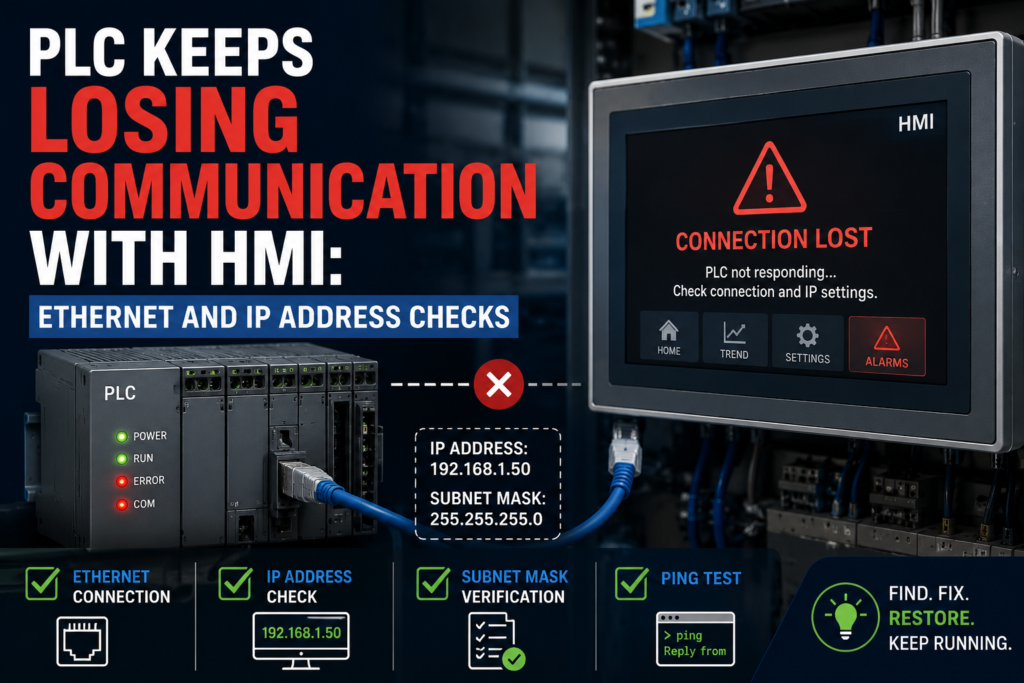
A PLC and HMI connection should be boring.
That is the dream, anyway.
The operator presses a button on the screen, the PLC receives the command, values update, alarms appear properly, and everyone forgets the Ethernet cable even exists.
Then one day the HMI starts showing “PLC communication error.”
Maybe it reconnects after a few seconds. Maybe it freezes completely. Maybe values stop updating but the machine keeps running. Maybe the HMI only loses communication when the motor starts, when the panel door closes, or when someone plugs in a laptop.
These faults are annoying because they are half electrical, half network, half software.
Yes, that is three halves. That is how it feels.
When a PLC keeps losing communication with the HMI, the problem is usually somewhere in the chain: power, Ethernet cable, switch, IP address, subnet, duplicate IP, HMI driver settings, PLC communication settings, network noise, or unstable 24V supply.
The trick is not to panic and start changing random IP addresses.
Start simple.
First: What Exactly Is Losing Communication?
Before touching cables, define the problem.
Ask:
- Does the HMI lose connection to the PLC only?
- Does the whole HMI restart?
- Does the PLC go offline too?
- Do values freeze, or does the HMI show an error?
- Does the fault happen all the time or randomly?
- Does it happen after power-up?
- Does it happen when the machine starts?
- Does it happen when a VFD runs?
- Does it happen after a recent program download?
- Was the HMI, PLC, switch, or Ethernet cable replaced?
This matters.
If the HMI screen goes black or reboots, that may be a power supply problem, not Ethernet.
If the HMI stays on but values freeze, then communication is more likely.
If both PLC and HMI disappear from the network, check the switch, power, or upstream network.
If only the HMI cannot talk to the PLC, check IP settings, driver settings, firewall/router settings, and the cable path between them.
Same alarm text.
Different fault.
Common Symptoms of PLC-HMI Communication Problems
A PLC-HMI communication fault can show up in different ways:
- HMI displays “PLC no response”
- HMI shows “connection failed”
- HMI values freeze
- Buttons on HMI do nothing
- Alarms stop updating
- HMI shows question marks or blank values
- PLC online diagnostics show HMI disconnected
- HMI reconnects every few seconds
- Communication works after reboot, then fails later
- Fault happens when machine vibrates
- Fault happens when a VFD starts
- Fault happens after changing IP addresses
- HMI connects from engineering software but not during runtime
- Runtime project uses old PLC IP address
- Ping works, but HMI still does not communicate
That last one is common.
Ping only proves the network can reach an address. It does not prove the HMI driver, PLC connection resource, rack/slot setting, tag mapping, protocol, or project configuration is correct.
Ping is useful.
It is not a magic truth machine.
1. Check HMI and PLC Power First
This sounds boring, so people skip it.
Do not skip it.
If the HMI loses power for half a second, it may look like a communication fault. If the PLC restarts, the HMI will also show communication loss.
Check:
- HMI 24V DC supply
- PLC 24V DC supply
- 0V common
- Power supply load
- Loose power terminals
- Fuses or electronic breakers
- Voltage drop during machine start
- HMI power connector
- PLC power connector
- Control panel temperature
Good signs:
- HMI stays powered
- PLC RUN light stays on
- 24V remains stable
- No module restart
- No flickering power LEDs
Bad signs:
- HMI reboots
- PLC RUN light disappears
- 24V drops when outputs energize
- Power supply cycles
- Loose 0V terminal
- HMI power connector loose
- Communication fault appears with other 24V faults
Measure the 24V during the fault, not only when the machine is idle.
A 24V supply can look perfect while nothing is moving, then drop when contactors, solenoids, valve islands, or brake coils energize.
If the HMI restarts, do not troubleshoot Ethernet first.
Find out why it lost power.
2. Check the Ethernet Cable
The Ethernet cable is the simplest suspect.
Also one of the most common.
Check:
- RJ45 connector fully clicked in
- Broken locking tab
- Loose M12 Ethernet connector
- Cable crushed by cabinet door
- Cable pulled too tight
- Cable damaged near moving parts
- Oil or coolant inside connector
- Cable routed near VFD motor cables
- Wrong cable type
- Patch cable quality
- Shield connection, if industrial shielded cable is used
Good signs:
- Link LED is on at both ends
- Activity LED blinks normally
- Connector locks firmly
- Cable jacket is not damaged
- Fault does not change when cable is gently moved
Bad signs:
- Link LED goes off randomly
- RJ45 plug feels loose
- Broken clip
- Cable works only in one position
- Connector oily or wet
- Cable crushed
- Fault appears with vibration
- HMI reconnects when cable is touched
Try a known-good cable if possible.
Not as a permanent repair thrown across the panel like spaghetti, but as a test.
If the fault disappears with a temporary known-good cable, you learned something important.
And if it does not disappear, good. Move to the next part of the chain.
3. Check Ethernet Link LEDs
Ethernet ports usually have LEDs.
They are small, but useful.
Look at:
- PLC Ethernet port LED
- HMI Ethernet port LED
- Switch port LED
- Link LED
- Activity LED
- Speed LED, if available
Good signs:
- Link LED stays on
- Activity LED blinks
- Switch port remains stable
- LEDs do not drop when machine moves
Bad signs:
- Link LED turns off during fault
- Switch port LED flickers off
- Port repeatedly connects/disconnects
- LED changes when cable is moved
- No LED on one side
If the link LED disappears, you have a physical layer problem.
That means cable, connector, port, switch, power, or hardware.
Do not spend one hour changing HMI driver settings if the link LED is not even stable.
That is like editing a phone contact while the phone cable is cut.
4. Check the Ethernet Switch
Many PLC-HMI systems go through an industrial Ethernet switch.
If the switch loses power or has a bad port, the HMI may lose communication even though PLC and HMI are both fine.
Check:
- Switch power LED
- Port LEDs
- Uplink port
- 24V supply to switch
- Loose switch power terminal
- Switch temperature
- Fault/alarm LED
- Managed switch diagnostics, if available
- Ring network status, if used
- Port errors
- Cable connected to correct port
Good signs:
- Switch powered
- PLC port link active
- HMI port link active
- No alarm LED
- No port flapping
- Switch temperature normal
Bad signs:
- Switch restarts
- Switch power flickers
- One port drops randomly
- Several devices lose communication together
- Switch very hot
- Alarm LED active
- Loose 24V connector
- Bad uplink cable
If both the HMI and other devices lose communication at the same time, suspect the switch or network power.
If only one port drops, swap the cable to another known-good port and test carefully.
Sometimes the problem is not the HMI.
It is one tired switch port.
5. Check PLC IP Address
The HMI must know where the PLC is on the network.
Check the PLC IP address.
Example:
PLC IP address: 192.168.0.10
Subnet mask:    255.255.255.0
Then check whether the HMI project is configured to communicate with that exact PLC address.
Common mistakes:
- PLC IP changed but HMI project still uses old IP
- HMI points to wrong PLC
- PLC replaced and left with default IP
- PLC project downloaded with different network settings
- Wrong subnet mask
- Duplicate IP address
- Engineering laptop temporarily changed settings
Good signs:
- PLC IP matches documentation
- HMI project points to same IP
- PLC responds consistently
- No IP conflict warning
- Network scanner shows correct device
Bad signs:
- HMI points to old IP
- PLC has default IP
- PLC IP changed after download
- Two devices share same IP
- PLC and HMI are in different subnets
- IP list does not match real machine
Do not trust the old drawing blindly.
Check the actual PLC online settings.
Drawings are helpful. Old drawings are sometimes historical fiction.
6. Check HMI IP Address
The HMI also needs a correct IP address.
Example:
HMI IP address: 192.168.0.20
Subnet mask:    255.255.255.0
PLC IP address: 192.168.0.10
Subnet mask:    255.255.255.0
These two devices are in the same subnet, so they can communicate directly.
But if the HMI is set like this:
HMI IP address: 192.168.1.20
Subnet mask:    255.255.255.0
then it is on a different subnet from the PLC.
Unless routing is configured properly, communication may fail.
Check:
- HMI IP address
- HMI subnet mask
- Gateway, if required
- HMI runtime network settings
- Engineering software settings
- Whether IP is fixed or DHCP
- Whether the HMI returns to default after reset
Good signs:
- HMI and PLC are in same network range
- HMI IP is unique
- Subnet mask correct
- Runtime uses correct adapter
Bad signs:
- HMI in wrong subnet
- HMI has same IP as PLC
- HMI uses DHCP when fixed IP is expected
- HMI has different runtime IP than engineering project
- Gateway missing when PLC is on routed network
For machine networks, fixed IP addresses are common.
DHCP can work in some systems, but if the machine was designed for fixed addresses, random DHCP behavior can create confusion.
Industrial machines generally prefer boring fixed settings.
Boring is good.
7. Check for Duplicate IP Addresses
Duplicate IP addresses can create very strange communication faults.
The HMI may connect, disconnect, reconnect, freeze, or talk to the wrong device.
Signs of duplicate IP:
- Communication works sometimes
- Ping replies are unstable
- HMI loses connection when another device powers up
- Fault appears after connecting laptop
- Network scanner shows two devices with same IP
- Managed switch shows conflict
- PLC goes offline randomly
- HMI values freeze randomly
Common causes:
- Replacement PLC or HMI copied with same IP
- Laptop set to PLC IP by mistake
- New device installed with default IP
- Two machines connected together
- Old spare device connected to network
- IP list not updated
Good signs:
- Every device has unique IP
- Network scan matches documentation
- No conflict warnings
- Communication stable
Bad signs:
- Two devices respond to same address
- Conflict appears when laptop connected
- Device disappears when another one starts
- HMI randomly reconnects
A troubleshooting laptop can cause this.
Yes, really.
Someone sets the laptop to 192.168.0.10 to reach a device, then forgets that the PLC is also 192.168.0.10.
Now the laptop is the fault.
Slightly embarrassing. Happens anyway.
8. Use Ping as a Basic Test
Ping is useful for checking basic network reachability.
From a laptop on the same network, try:
ping 192.168.0.10If the PLC replies, the laptop can reach that IP.
Good result:
Reply from 192.168.0.10Bad result:
Request timed out
Destination host unreachable
But remember:
Ping is not enough.
The PLC may reply to ping, but the HMI may still fail because:
- Wrong HMI driver
- Wrong PLC protocol
- Wrong rack/slot setting
- Wrong connection path
- PLC access protection
- HMI runtime project not updated
- PLC communication resources full
- Firewall/router issue
- Tags addressing wrong memory areas
- HMI points to another IP
Also, some industrial devices may not respond to ping depending on settings.
So use ping as the first simple test.
Not the final verdict.
Ping tells you there is a road.
It does not prove the delivery truck has the right address, permission, and package.
9. Check HMI Driver and PLC Connection Settings
The HMI runtime must use the correct PLC communication driver.
Check:
- PLC brand and model selected
- Correct protocol
- Correct PLC IP address
- Rack and slot settings, if required
- CPU type
- Connection name
- Tag addressing
- Access level/security
- Runtime downloaded after changes
- Correct network adapter selected
- HMI project version matches PLC project
Examples of driver/protocol settings:
- Siemens S7 communication
- Modbus TCP
- Ethernet/IP
- Mitsubishi MC protocol
- Omron FINS Ethernet
- Schneider Modbus TCP
- Allen-Bradley Ethernet/IP
Common mistakes:
- HMI uses wrong driver
- HMI points to old PLC IP
- PLC replaced with different model
- Rack/slot setting wrong
- Runtime was not downloaded after editing
- Tags still use old addresses
- PLC access protection blocks HMI
- Wrong PLC path after network change
Good signs:
- HMI driver matches PLC type
- Connection status healthy
- Tags update
- Buttons write to PLC
- Alarms update normally
Bad signs:
- Ping works but HMI cannot connect
- Only some tags update
- HMI says driver error
- Connection failed after PLC replacement
- Runtime project uses old connection
- Engineering project works but HMI runtime does not
This is where people get fooled.
The Ethernet cable is fine. IP is fine. Ping works.
But the HMI still says no communication because the runtime project has the wrong PLC connection settings.
Physical network OK.
Application communication wrong.
Different layer. Different problem.
10. Check PLC Communication Settings and Access Protection
Some PLCs have security or access settings that can block HMI communication.
Check:
- PLC communication enabled
- HMI connection allowed
- PUT/GET access, for some systems
- Access level/password
- Firewall/security settings
- Connection resources
- Number of allowed HMI connections
- CPU communication load
- PLC mode: RUN/STOP
- PLC diagnostics buffer
Good signs:
- PLC allows HMI communication
- CPU in RUN
- No protection blocking access
- Connection resources available
- Diagnostic buffer clear
Bad signs:
- HMI connection refused
- PLC protection changed
- CPU in STOP
- Communication resources exceeded
- PLC diagnostics show connection errors
- HMI works before download but not after security changes
This often happens after a PLC program update.
Someone downloads hardware configuration or security settings, and the HMI suddenly cannot read tags.
The Ethernet cable did not fail at the exact same magical moment.
Check what changed.
11. Check PLC and HMI Are Using the Same Network
Some HMIs and PLCs have more than one Ethernet port.
A PLC may have:
- Main Ethernet port
- Profinet port
- Service port
- Separate fieldbus port
- Expansion communication module
An HMI may have:
- LAN 1
- LAN 2
- Service port
- Company network port
- Machine network port
Check:
- Correct physical port used
- Correct IP assigned to that port
- Correct adapter selected in HMI runtime
- Correct PLC interface used in project
- Network cable plugged into expected network
- Machine network separated from office network
Good signs:
- Cable connected to intended machine network
- IP settings match that interface
- HMI runtime uses correct adapter
- PLC connection path correct
Bad signs:
- Cable plugged into service port
- HMI has correct IP on wrong adapter
- PLC has multiple IPs and HMI points to wrong one
- HMI connected to office network, PLC on machine network
- Network path changed after maintenance
This is especially common with panels that have both machine Ethernet and plant Ethernet.
One cable in the wrong port can make everything look correct on paper and wrong in real life.
12. Check Communication After PLC or HMI Replacement
A lot of communication faults start after replacing a device.
After replacing an HMI, check:
- IP address
- Subnet mask
- Gateway
- Runtime project downloaded
- Correct PLC connection settings
- Correct HMI model
- Licenses, if needed
- Correct network adapter
- Project version
- Touchscreen system settings
After replacing a PLC, check:
- PLC IP address
- Device name, if Profinet-related
- Hardware configuration
- Security settings
- Program downloaded
- PLC in RUN mode
- HMI connection path
- PLC model compatibility
- Communication module settings
Good signs:
- Replacement device has same network settings
- Runtime/project downloaded correctly
- Communication restored
- No diagnostic errors
Bad signs:
- Device still has factory default IP
- HMI project missing
- PLC in STOP
- Wrong firmware/model
- Wrong connection path
- Old IP used in runtime
- Password/access issue
A new device is not automatically configured.
It may look installed.
It may power on.
It may still know absolutely nothing about your machine.
13. Check If Values Freeze or HMI Fully Disconnects
There is a difference between:
HMI losing PLC connection
and
HMI tag values freezing because the PLC value is not changing.
Check:
- Connection status indicator
- HMI system alarms
- PLC tag values online
- HMI runtime diagnostics
- PLC program logic
- HMI screen refresh
- HMI tag update rate
- Communication error log
If only one value freezes, it may not be communication. The PLC variable may simply not be updating.
If every value freezes and buttons stop working, communication is more likely.
Good signs:
- HMI system status shows connected
- Other tags update
- Buttons write correctly
- PLC values change online
Bad signs:
- All tags freeze
- HMI shows connection error
- Buttons do not affect PLC
- Alarm list stops updating
- HMI diagnostics show timeout
Don’t call every frozen number a network fault.
Sometimes the PLC logic stopped updating that value.
A dead tag is not always a dead connection.
14. Check Communication Timeout and Update Rate
HMI communication settings may include timeout and polling/update rates.
If the HMI polls too many tags too quickly, communication may become unstable, especially on older PLCs or weak networks.
Check:
- HMI tag update rate
- Number of tags on screen
- Alarm polling
- Trend logging
- Historical data logging
- Communication timeout
- PLC scan/communication load
- Multiple HMIs polling same PLC
- SCADA or gateway also connected
Good signs:
- Reasonable update rates
- Communication load normal
- HMI screens update smoothly
- No timeout errors
Bad signs:
- HMI polling hundreds of tags every 100 ms
- Trends/logs overload communication
- Multiple clients connected
- PLC communication load high
- Timeout errors during heavy screens
- HMI disconnects on certain screen only
If communication fails only on one HMI screen, check that screen.
It may contain too many tags, trends, alarms, or scripts pulling data too aggressively.
Sometimes the network is fine.
The HMI screen is just greedy.
15. Check Network Noise and Cable Routing
Industrial Ethernet is tough, but not invincible.
Electrical noise can cause intermittent communication problems, especially with poor cable routing or bad shielding.
Check whether the fault happens when:
- VFD starts
- Servo drive runs
- Large motor starts
- Contactor switches
- Welding equipment operates
- Heater contactors switch
- Machine vibration increases
- Cable chain moves
Inspect:
- Ethernet cable near VFD output cable
- Ethernet cable tied to motor power cable
- Shielded cable used where needed
- Connector shield continuity
- Cabinet grounding
- PE connections
- Cable separation
- Industrial-rated Ethernet cable
- Cable length
Good signs:
- Ethernet cable separated from power cables
- Shielding/grounding correct
- Link stable during motor operation
- No random port drops
Bad signs:
- Communication drops when VFD starts
- Ethernet cable runs beside motor cable
- Link LED flickers during switching
- Poor grounding
- Shield damaged
- Cable routed through noisy area
If the HMI loses communication exactly when a motor starts, do not only check IP addresses.
Look at noise, grounding, power dips, and cable routing.
The network may be getting kicked in the teeth electrically.
16. Check 24V Drops During Machine Start
This deserves its own section because it is so common.
The HMI may show communication loss because the PLC, switch, or HMI loses power for a short moment.
Check 24V during:
- Machine start
- Motor start
- Solenoid activation
- Safety reset
- Contactor pull-in
- Valve island activation
- Brake release
Measure at:
- HMI terminals
- PLC terminals
- Ethernet switch terminals
- Remote I/O terminals
- 24V power supply output
Good signs:
- 24V stays stable
- Devices do not restart
- LEDs stay steady
Bad signs:
- Voltage drops below acceptable level
- Switch restarts
- HMI reboots
- PLC restarts
- Remote I/O drops
- Power supply enters hiccup mode
If the Ethernet switch restarts, everything connected through it may lose communication.
That looks like a network problem.
Actually, it is a 24V power problem wearing a network costume.
17. Check Managed Switch Diagnostics
If the machine uses a managed switch, use it.
Managed switches can show useful information:
- Port up/down history
- Link speed
- Packet errors
- CRC errors
- Broadcast storm
- Duplicate IP/MAC warnings
- Ring faults
- Port overload
- Cable diagnostics
- Temperature
- Power alarms
Good signs:
- No port errors
- Stable link
- Normal traffic
- No ring fault
- No duplicate warnings
Bad signs:
- Port flapping
- High CRC errors
- Broadcast storm
- Duplicate IP warning
- Ring broken
- Port disabled
- Temperature alarm
Port flapping means the Ethernet link keeps going up and down.
That points to cable, connector, port, power, or noise.
A managed switch can save hours here.
An unmanaged switch just blinks at you and refuses to explain itself.
Rude, but common.
18. Check Office Network or Router Problems
Some HMIs connect not only to the PLC but also to a plant network, router, VPN, SCADA system, or remote access device.
If the PLC-HMI traffic goes through routers or plant switches, more things can go wrong.
Check:
- Gateway address
- VLANs
- Firewall rules
- Router power
- NAT settings
- VPN device
- Office network changes
- IP range conflicts
- IT changes
- DHCP server
- Managed switch configuration
Good signs:
- PLC and HMI communicate locally
- Router only used when needed
- Gateway correct
- No IP conflicts with plant network
Bad signs:
- HMI depends on office network to reach local PLC
- IT changed network settings
- Gateway wrong
- VLAN blocks traffic
- DHCP gives unexpected address
- Remote access router conflicts with PLC network
For a simple machine, PLC and HMI should usually be able to communicate locally without needing the office network.
If the machine stops displaying values because an office switch is down, the network design may need review.
Office networks and machine networks should not be casually mixed.
That road gets messy fast.
Quick Checklist: PLC Keeps Losing Communication With HMI
Use this order.
- Check if HMI or PLC is rebooting
- HMI power stable?
- PLC RUN light stable?
- 24V DC stable?
- Check Ethernet link
- Link LED on?
- Activity LED normal?
- Cable fully clicked in?
- M12 connector tight?
- Check Ethernet switch
- Switch powered?
- Ports active?
- Any alarm LED?
- Any port flapping?
- Check PLC IP
- Correct IP?
- Correct subnet?
- Changed after download?
- Default IP after replacement?
- Check HMI IP
- Same subnet as PLC?
- Unique address?
- Fixed IP or DHCP?
- Correct network adapter?
- Check duplicate IPs
- Any laptop/device using same IP?
- New device added?
- Network scan clear?
- Ping test
- Can laptop reach PLC?
- Can laptop reach HMI?
- Does ping drop during fault?
- Check HMI connection settings
- Correct driver?
- Correct PLC IP?
- Correct rack/slot/path?
- Runtime downloaded?
- Check PLC access settings
- Communication allowed?
- Security changed?
- PLC in RUN?
- Connection resources OK?
- Check noise and routing
- Ethernet cable near VFD/motor cable?
- Shielding OK?
- Fault happens when motors start?
- Check update rate
- HMI polling too many tags?
- Timeout too short?
- Only one screen causes fault?
- Check recent changes
- HMI replaced?
- PLC replaced?
- Switch changed?
- IP settings edited?
- Laptop connected?
Good vs Bad Signs
| Check Area | Good Sign | Bad Sign |
|---|---|---|
| HMI power | Stays powered, no reboot | HMI restarts or screen blanks |
| PLC power | RUN LED stable | PLC restarts or goes STOP |
| 24V DC | Stable during machine start | Drops when outputs energize |
| Ethernet cable | Link LED stable, connector tight | Link drops, loose/damaged cable |
| Switch | Ports stable, no alarm | Switch restarts, port flapping |
| PLC IP | Correct and documented | Wrong/default/changed IP |
| HMI IP | Same subnet, unique | Wrong subnet, duplicate IP |
| Ping | Stable replies | Timeouts during fault |
| HMI driver | Correct PLC/protocol settings | Wrong driver/path/IP |
| PLC security | HMI access allowed | Access blocked after download |
| Noise | Cable separated from power wiring | Fault when VFD/motor starts |
| Network load | Normal update rate | Too many tags, timeouts |
Example 1: HMI Shows “PLC No Response” After PLC Replacement
A PLC is replaced after a failure.
The machine powers up, PLC RUN light is on, but the HMI says “PLC no response.”
You check the PLC IP address.
Old PLC IP: 192.168.0.10
New PLC IP: 192.168.0.1
The HMI runtime still points to 192.168.0.10.
Cause: replacement PLC has wrong IP address.
Fix the PLC network settings or update the HMI project properly.
The Ethernet cable was fine.
The HMI was simply calling the old address.
Example 2: Communication Drops When Motor Starts
The HMI communicates normally while the machine is idle.
When the main motor starts, the HMI loses PLC communication for a few seconds.
You check the Ethernet link LED. It drops at the same moment.
The Ethernet cable is routed together with the VFD motor cable inside the panel and along the machine frame.
Cause: likely noise/cable routing issue, possibly combined with grounding or shielding problems.
Fix involves separating Ethernet from VFD output wiring, using proper industrial Ethernet cable, checking grounding, and verifying switch/port stability.
Not an IP problem.
A physical noise problem.
Example 3: HMI Randomly Reconnects Every Few Minutes
The HMI loses connection randomly.
Ping to PLC sometimes replies, sometimes times out.
A network scan shows another device using the same IP as the PLC.
A maintenance laptop was connected with a fixed IP address matching the PLC.
Cause: duplicate IP conflict.
Remove/change the laptop IP and communication becomes stable.
The fault was brought into the network by the troubleshooting tool itself.
Awkward, yes.
Useful lesson, also yes.
Example 4: HMI Freezes but PLC Is Running
The HMI freezes and values stop updating, but the PLC stays in RUN and the machine continues.
The HMI does not reboot.
Switch link LEDs stay on.
You check the HMI diagnostics and see timeout errors only on one screen with many trends and fast-updating values.
Cause: HMI polling/update load too high or timeout too aggressive for that screen.
Fix may involve reducing update rate, optimizing tags, increasing timeout, or cleaning up the HMI screen.
Sometimes one badly designed screen can bully the communication connection.
Example 5: HMI Reboots When Solenoids Turn On
The HMI shows communication loss during startup.
Then you notice the HMI actually restarts.
You measure 24V at the HMI terminals during machine start. It drops to around 16V when several solenoids energize.
Cause: 24V control supply drops under load.
This is not Ethernet.
Check overloaded power supply, shorted solenoid, weak supply, bad wiring, or poor 0V common.
The communication error is only the symptom.
Common Mistakes When Troubleshooting PLC-HMI Communication
The first mistake is changing IP addresses without writing down the original settings.
Now you have two problems.
The second mistake is trusting ping too much.
Ping can work while the HMI driver is wrong.
The third mistake is ignoring power.
A rebooting HMI is not a communication problem. It is a power problem first.
The fourth mistake is blaming the HMI before checking the Ethernet cable.
Loose cables are boring but common.
The fifth mistake is forgetting duplicate IP addresses.
Especially after connecting a laptop.
The sixth mistake is not downloading the updated HMI runtime.
You may edit the project and still run the old settings.
The seventh mistake is routing Ethernet cables beside VFD output cables and then acting surprised when communication drops.
Ethernet is strong.
It is not magic.
Tools for PLC-HMI Ethernet Troubleshooting
Useful tools:
- Multimeter
- Known-good Ethernet cable
- Laptop with engineering software
- Ping command
- Network scanner
- Managed switch diagnostics
- Electrical drawings
- PLC hardware configuration
- HMI project file
- IP address list
- Cable tester
- Thermal camera, if overheating suspected
- 24V DC clamp meter, if power drop suspected
A simple notebook helps too.
Write down:
- PLC IP
- HMI IP
- Subnet mask
- Gateway
- Switch ports
- Cable labels
- Fault time
- What changed before the fault
Troubleshooting without notes becomes memory gambling.
Memory usually loses.
Final Thoughts
When a PLC keeps losing communication with an HMI, do not start by blaming the PLC program.
Start with the basics:
Power → cable → switch → IP address → subnet → duplicate IP → HMI driver → PLC settings → noise/load → recent changes.
If the HMI reboots, check 24V power.
If the link LED drops, check cable, connector, switch, port, vibration, and noise.
If ping works but HMI does not, check the HMI driver, PLC path, access settings, and runtime project.
If communication fails after replacing hardware, check IP addresses and downloaded configuration.
And if the fault appears when a motor or VFD starts, look at cable routing, grounding, shielding, and power dips.
Most PLC-HMI communication faults are not mysterious.
They are usually a broken link somewhere in the chain.
Find where the connection disappears, and the fault starts making sense.