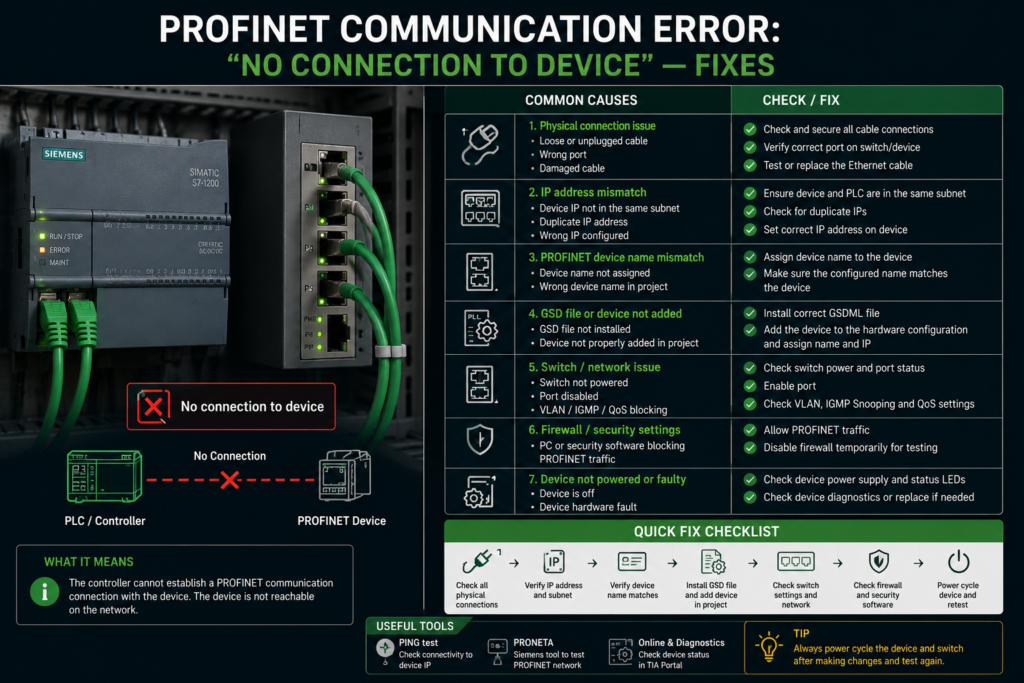
The device sat right there. Powered up, link light on, cable plugged into the switch. And the PLC flatly refused to talk to it — a red icon in the project tree and a diagnostic that just said the connection couldn’t be established.
If you’ve commissioned a PROFINET network, you know this one. “No connection to device,” “IO device not found,” “device not reachable” — the wording shifts between vendors, but the frustration’s the same. Everything looks fine, and nothing works.
Here’s the good news: this fault is almost always one of a small handful of causes, and they’re diagnosable in a fairly logical order. Let me walk through what actually goes wrong and how to fix it — roughly in the order I’d check things on a real network.
First, the one thing that makes PROFINET different
Before the fixes, one concept that explains half of these problems.
On a PROFINET network, a device isn’t primarily identified by its IP address the way you might expect from office networking. It’s identified by a device name (station name). And here’s the kicker — in a typical setup, the device doesn’t even have a permanent IP when it powers on. The controller (the PLC) hands it one at startup using DCP, the Discovery and Configuration Protocol, based on matching that device name.
So the sequence is: the PLC goes looking on the network for a device carrying the exact name in its project. Finds it, assigns the configured IP, opens the cyclic connection. If the name doesn’t match — even by a character — the PLC never finds its device, never assigns the IP, and you get “no connection.” <cite index=”19-1″>PROFINET devices receive their IP via DCP from the PLC, not by static assignment</cite>, and that trips up people coming from a standard-Ethernet mindset who assume they should just set an IP and go.
Keep that in your head. A huge share of “no connection” faults are really “name doesn’t match” faults in disguise.
Fix 1: Check the device name — this is the usual suspect
Start here, because it’s the most common cause by a wide margin.
The station name assigned to the physical device must exactly match the name in the PLC’s hardware configuration. Case, spelling, hyphens, the lot. A device named valve-01 will not answer to a project expecting valve01.
In TIA Portal, go online with the PLC, expand the PROFINET network, right-click the device and use the verify device name function. <cite index=”20-1″>If the names differ, right-click and choose “Assign device name” to sync them</cite>. Other platforms have the equivalent — Siemens also ships the free PRONETA tool, which scans the network and shows you every device’s actual name so you can spot the mismatch in seconds.
A subtle version of this: a brand-new or freshly-replaced device often has no name at all (blank from the factory). The PLC is hunting for motor-03 and the replacement drive is sitting there nameless. Assign the name, and it usually springs to life immediately. This is the single most common gotcha after swapping hardware in the field.
Fix 2: Rule out duplicate names and duplicate IPs
The flip side of the name problem: two devices answering to the same name.
<cite index=”20-1″>The error “Name of Station exists multiple times” means two or more devices respond to the same name query</cite>. <cite index=”20-1″>This happens when devices share a configured name, when a device with a hardcoded name gets swapped in without updating the project, or when assignments otherwise collide</cite>. The PLC gets two answers to “who is sensor-05?” and can’t proceed. Track down the duplicate and give each device its own unique name.
Duplicate IP addresses cause the same class of failure. <cite index=”23-1″>If both the controller and a device end up configured with the same IP, communication fails — PROFINET requires unique addressing across the subnet</cite>. Common culprit: a device with a leftover static IP from a previous life on the network, clashing with something the PLC is trying to assign. Every node needs its own address.
Fix 3: Verify IP settings and subnet
Even though the PLC assigns the IP, the configured addressing still has to be coherent.
<cite index=”23-1″>Keep everything on the same subnet — a standard private range like 192.168.x.x with mask 255.255.255.0 works well, every device sharing the subnet with a unique host address</cite>. If your engineering PC is on a different subnet than the PROFINET network, it won’t reach the devices to commission them in the first place, which produces its own flavor of “can’t connect.”
And if you’re troubleshooting from a laptop, sanity-check that your PC’s network adapter settings actually line up with the device’s expected settings — <cite index=”18-1″>a mismatch there is the first thing to check when you get a connection timeout, before you go chasing anything more exotic</cite>.
Fix 4: Look hard at the physical layer — cable, ports, and topology
Once names and addressing are ruled out, drop down to the wire. PROFINET is fussier about physical infrastructure than plain Ethernet, and this catches people.
No hubs. Ever. <cite index=”20-1″>PROFINET uses full-duplex switched Ethernet and does not support half-duplex hub infrastructure</cite>. Drop an old hub into the topology and <cite index=”20-1″>collisions and broadcast storms wreck the real-time communication, causing cyclic connection drops</cite>. If there’s a hub anywhere in the path, that’s very likely your problem — replace it with a proper managed (or at least unmanaged switched) device.
Check the obvious cable faults too: a loose connector, a marginal crimp, the wrong port. <cite index=”25-1″>A loose network cable is the first thing to check on a watchdog timeout; once the cable’s confirmed good, ping the IP to verify the physical link</cite> (a healthy link usually pings in 1–2 ms).
A useful isolation trick: when you’re stuck, <cite index=”19-1″>connect the PLC directly to the device with a single cable, bypassing managed switches and any VLAN configuration</cite>. If it connects direct but not through the network, your problem is in the switch config or topology, not the device. That one test saves a lot of guessing.
Watch for the wrong physical port. On multi-port hardware — robots, drives, gateways — the PROFINET interface is often a separate port from the general controller Ethernet. <cite index=”19-1″>On a FANUC robot, for instance, the teach-pendant IP configures the controller Ethernet ports, not the PROFINET board — which is exactly why you can ping the device on one port but PROFINET fails on another</cite>. Make sure you’re plugged into the actual PROFINET interface.
Fix 5: Reconcile the GSD/GSDML and hardware configuration
If the device is found and addressed but the connection still won’t fully establish — or drops right after connecting — suspect a configuration mismatch.
The GSD file (GSDML for PROFINET) is the device’s description file that tells the PLC what modules and data the device has. If the GSD version in your project doesn’t match the device’s actual firmware, parameter assignment fails and the connection won’t come up cleanly. <cite index=”20-1″>The safest move is to export the GSD directly from the device via the online-access function so the version matches the firmware exactly, rather than grabbing a possibly-mismatched file from the manufacturer’s website</cite>.
Related: the configured module layout must match the physical device. <cite index=”25-1″>If online diagnostics complains about wrong user data or an unsupported configuration, check that the configured modules match the actual installed module sequence and models</cite>. Sub-modules configured in the wrong order or slots will block the connection.
Fix 6: Fix topology/neighbor errors and re-download
PROFINET can enforce a configured topology — which port on which device connects to which port on its neighbor. When the real wiring doesn’t match that map, you get partner/neighbor errors that prevent the connection.
<cite index=”25-1″>For a “no neighbor detected / wrong port partner” error, one reliable fix is to take the PLC offline, delete the connections in the topology view, and download again — or make sure the real wiring matches the topology and re-download</cite>. And for a stubborn config that just won’t take, <cite index=”25-1″>taking the PLC fully offline and re-downloading the hardware configuration clears a surprising number of these</cite>. It’s the “have you tried turning it off and on again” of PROFINET commissioning, and it works more often than it has any right to.
Fix 7: The connection drops after it’s working — chase the watchdog
Slightly different failure: it connects fine, runs for a bit, then drops — repeatedly. That’s usually not a config problem but a timing one.
PROFINET runs a communication watchdog. If the controller can’t deliver its cyclic real-time frames fast enough, <cite index=”22-1″>the device’s watchdog (the DataHoldTimer) terminates the connection</cite>. On a PC- or soft-PLC-based controller especially, <cite index=”22-1″>the PROFINET IO task has to run at high priority and not be blocked by other tasks — as a rule of thumb, average cycle time should stay under 250 µs and the max under 1 ms</cite>. If some other long-running task is starving the PROFINET task, you’ll see exactly this drop-reconnect-drop cycle.
Bumping the device’s update time / watchdog factor to a more forgiving value can stabilize a marginal link while you address the underlying load — but treat that as a band-aid, not the real fix. If a network is dropping frames, find out why rather than just widening the timeout until the symptom hides.
A sane order to work through it
When you’re standing at a faulted network, resist the urge to poke randomly. Work top-down:
Start with the device name — match it exactly, and check for a blank name on new hardware. Then rule out duplicate names and IPs. Confirm subnet/IP coherence. Drop to the physical layer — kill any hubs, check cabling, try a direct cable to isolate switch problems, confirm you’re on the right port. Then reconcile the GSD and module configuration. Sort any topology/neighbor errors and re-download. And if it connects but keeps dropping, chase the watchdog and cycle time.
Nine times out of ten you’ll be done before you reach the bottom of that list — because it really is, more often than not, just a name that didn’t match.
The takeaway
“No connection to device” feels like a black box the first time, but PROFINET fails in predictable ways. The protocol identifies devices by name and hands out IPs by DCP, so name mismatches dominate. It demands switched full-duplex infrastructure, so hubs and bad cabling take out the physical layer. And it’s real-time, so timing starvation drops otherwise-healthy connections.
Learn those three truths and the fixes stop feeling like guesswork. You check the name, check the wire, check the timing — in that order — and the red icon turns green.