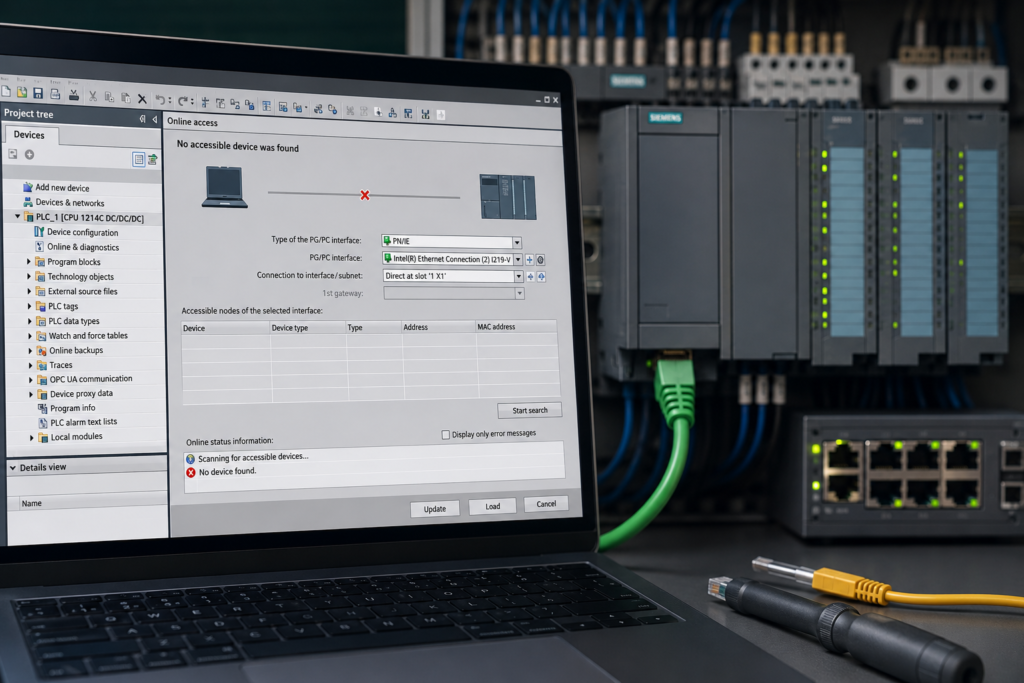
You connect an Ethernet cable to a Siemens PLC, open TIA Portal and select Accessible devices.
Nothing appears.
The CPU has power. Its RUN or STOP LED looks normal. The Ethernet connector may even show an active LINK light, but TIA Portal still cannot find the PLC.
This problem is usually caused by the communication path between the engineering computer and the CPU—not by a failed PLC.
The most common causes are:
- wrong PG/PC network adapter selected;
- computer and PLC configured on different IP subnets;
- firewall, antivirus or VPN interference;
- connection made to the wrong PLC Ethernet interface;
- duplicate IP address;
- damaged Ethernet cable, connector or switch port.
The fastest troubleshooting approach is to begin at the physical connection and work upward:
- Check PLC and port power.
- Check Ethernet LINK LEDs.
- Select the correct PG/PC adapter.
- scan for accessible devices.
- Compare PC and PLC IP settings.
- disable conflicting network interfaces temporarily.
- test direct communication.
- check for duplicate addresses.
- review firewall, routing and VPN restrictions.
Do not factory-reset the PLC before completing these checks. A reset can remove the program and IP configuration without repairing the computer-side communication problem.
Quick Troubleshooting Table
| Symptom | Most likely causes |
|---|---|
| No PLC appears under Accessible devices | Wrong PG/PC adapter, disconnected cable, VPN adapter selected, blocked discovery or no PLC power |
| PLC LINK LED is off | Damaged cable, loose connector, wrong port, failed switch port or unpowered device |
| LINK LED is on, but TIA finds nothing | Wrong PC adapter, firewall/security software, virtual network adapter or routed connection |
| PLC appears, but TIA cannot go online | Different subnet, wrong PLC interface, project-device mismatch, security setting or duplicate IP |
| PLC can be pinged but is absent from Accessible devices | Discovery traffic blocked, wrong TIA adapter, VPN/router boundary or duplicate network path |
| PLC appears in Accessible devices but cannot be pinged | PC and PLC on different subnets, temporary IP needed or incorrect subnet mask |
| Connection works when directly connected but not through the plant network | Switch, VLAN, routing, firewall, duplicate IP or network-security configuration |
| Connection works until VPN is enabled | VPN changes routing or TIA selects the VPN adapter |
| Communication is intermittent | Duplicate IP, loose connector, damaged cable, unstable switch port or power problem |
| Wrong PLC appears when connecting by IP | Duplicate IP address or outdated ARP information |
Understand the Three Different Connection Tests
Before troubleshooting, separate three tests that are often treated as if they mean the same thing.
They do not.
1. Ethernet LINK
A LINK LED confirms that the Ethernet hardware detects a physical connection.
It generally proves that:
- the cable is connected;
- both ports are powered;
- the cable pairs required for the link are functioning;
- Ethernet negotiation has succeeded.
It does not prove that:
- the IP addresses are correct;
- TIA Portal selected the right adapter;
- the PLC project matches the hardware;
- S7 communication is permitted;
- the PLC is reachable through the selected route.
2. Accessible Devices
TIA Portal’s Accessible devices function searches through the selected PG/PC interface and displays devices reachable through that interface. Siemens instructs users to choose the relevant interface and update the accessible-device list; when no devices are found, the displayed connection to the network remains dashed rather than green.
This discovery function is especially useful when:
- the PLC’s IP address is unknown;
- the PC and PLC are not yet in compatible IP subnets;
- a new CPU has not been commissioned;
- you need to identify a device by MAC address.
Discovery relies heavily on local network communication and should not be assumed to work through routers, VPN tunnels or other layer-three boundaries. Siemens notes that TIA Portal uses layer-two protocols for device searches and device initialisation; for routed access, a manually specified IP address may be required instead.
3. Going Online by IP Address
A normal online connection uses the PLC’s configured IP settings.
For direct IP communication, the PC must either:
- be in a compatible subnet;
- have a valid route to the PLC;
- or use an additional temporary IP address on the correct subnet.
Siemens documentation states that when the device and computer adapter are in different subnets, the PG/PC needs an additional address in the device’s subnet before communication can be established. TIA Portal can propose such a temporary address during an online operation.
This explains a common situation:
- TIA Portal discovers the PLC through local layer-two discovery;
- but the computer cannot establish a normal online session because its IP address is in the wrong subnet.
1. Wrong PG/PC Network Adapter
Selecting the wrong PG/PC interface is probably the most common reason TIA Portal cannot find a PLC.
A modern laptop may have many network interfaces:
- built-in Ethernet;
- Wi-Fi;
- USB-to-Ethernet adapter;
- docking-station Ethernet;
- VPN adapter;
- VMware adapter;
- Hyper-V virtual switch;
- VirtualBox adapter;
- mobile hotspot interface;
- PLCSIM virtual interface.
TIA Portal must search through the interface physically or logically connected to the PLC.
If the Ethernet cable is plugged into a USB adapter but TIA Portal searches through Wi-Fi, the CPU will not appear.
How to Select the Correct Adapter
In TIA Portal:
- Expand Online access in the project tree.
- Find the physical Ethernet adapter connected to the PLC.
- Expand that adapter.
- Double-click Update accessible devices.
Alternatively:
- Select Online → Accessible devices.
- Set the PG/PC interface type to PN/IE or the appropriate Industrial Ethernet option.
- Select the exact physical network adapter.
- Start the search.
TIA Portal lists active computer interfaces under Online access, and each interface can be selected separately for device discovery and online communication.
How to Identify the Correct Windows Adapter
Open Windows Command Prompt and enter:
ipconfigFind the adapter that:
- shows Media connected;
- has the IP address you assigned for the PLC network;
- corresponds to the physical Ethernet socket or USB adapter being used.
You can also disconnect the PLC cable and observe which Windows adapter changes to Media disconnected. Reconnect it and confirm the same adapter becomes active.
Disable Unnecessary Adapters Temporarily
When diagnosis is difficult, temporarily disable:
- Wi-Fi;
- VPN adapter;
- unused USB Ethernet interfaces;
- VMware or VirtualBox adapters;
- mobile hotspot;
- other industrial-network adapters.
Leave only the adapter connected to the PLC active.
This prevents TIA Portal and Windows from selecting an unexpected route or interface.
Do not permanently remove virtual adapters that are required by simulation or company IT systems. Re-enable them after testing.
Adapter Missing From TIA Portal
If the physical network adapter does not appear under Online access:
- Confirm it is visible and enabled in Windows.
- update or reinstall its driver.
- close TIA Portal.
- open the Siemens communication or PG/PC interface settings available in your installation.
- confirm the Ethernet adapter is assigned.
- restart TIA Portal.
Siemens states that newly installed interfaces may require configuration in the PG/PC communication settings followed by a TIA Portal restart before they appear under Online access.
Also check whether the interface has simply been hidden. TIA Portal includes a Display/hide interfaces function under Online access.
2. Computer and PLC Are on Different Subnets
The computer and PLC do not need identical IP addresses, but their network settings must allow communication.
Consider this example:
PLC
IP address: 192.168.1.10
Subnet mask: 255.255.255.0
Computer
IP address: 192.168.0.50
Subnet mask: 255.255.255.0
These devices are on different /24 subnets:
- PLC network:
192.168.1.x - PC network:
192.168.0.x
Without a router or additional temporary address, a normal IP connection will fail.
Correct Example
Set the PC Ethernet adapter to something such as:
IP address: 192.168.1.50
Subnet mask: 255.255.255.0
Default gateway: leave blank for a direct local connection
The PLC remains:
IP address: 192.168.1.10
Subnet mask: 255.255.255.0
The addresses are different, but both devices are in the same subnet.
Never assign the PC and PLC the same IP address.
How to Change the Computer IP Address
In Windows:
- Open Network Connections.
- Right-click the Ethernet adapter connected to the PLC.
- Open Properties.
- Select Internet Protocol Version 4 (TCP/IPv4).
- Select Use the following IP address.
- enter a unique IP in the PLC’s subnet.
- enter the correct subnet mask.
- apply the settings.
Record the original company-network settings before changing them.
Use a Temporary IP Address
If the PLC is visible through Accessible devices but sits in another subnet, TIA Portal may offer to assign the computer adapter an additional temporary IP address. Siemens describes this as an IE-PG access address and uses it to permit online communication without permanently replacing the adapter’s existing address.
This can be useful on laptops that must retain their normal factory or office-network configuration.
Check the Subnet Mask Carefully
Two devices may appear to share the first three address groups but still be in different logical networks if their subnet masks differ.
Example:
PC:  192.168.1.50 / 255.255.255.0
PLC: 192.168.1.10 / 255.255.0.0
This may still permit direct communication in a simple arrangement, but mismatched masks can create confusing routing and access behaviour in larger networks.
Use the subnet mask defined in the PLC project and approved network design.
Test With Ping
After setting the PC address, open Command Prompt:
ping 192.168.1.10A successful response confirms basic IP reachability.
A failed ping does not always prove the PLC is unavailable because ICMP may be filtered, but on a direct local commissioning connection it is a useful test.
Test the PC’s own configuration with:
ipconfigThen confirm the PLC’s expected address in:
Device configuration → PROFINET interface → Ethernet addresses
Siemens places the CPU IP address and subnet settings under the PROFINET interface properties in the project.
3. Firewall, Antivirus or VPN Interference
Security software can interfere with PLC discovery or online communication.
Possible sources include:
- Windows Firewall;
- third-party firewall;
- endpoint-security software;
- antivirus network protection;
- company VPN;
- remote-access software;
- network-filter drivers;
- restrictive IT security policies.
Siemens has documented cases where endpoint firewalls blocked communication protocols needed for TIA Portal device detection.
Why a VPN Causes Problems
A VPN can affect PLC communication in two separate ways.
It changes the selected adapter or route
When the VPN connects, Windows may prefer the VPN adapter for traffic that previously used the local Ethernet interface.
TIA Portal may then search through the wrong interface.
Accessible Devices may not cross the VPN
PROFINET discovery uses local layer-two communication that is normally not forwarded through a routed VPN.
This means you may be able to:
- connect directly to a known PLC IP through the VPN;
- but not discover the PLC through Accessible devices.
Siemens’ network guidance distinguishes layer-two device discovery from routed online access and recommends using a manually specified IP address when discovery cannot traverse the network path.
Test Without the VPN
For a local direct connection:
- Disconnect the VPN.
- disable Wi-Fi temporarily.
- leave the physical PLC Ethernet adapter enabled.
- reopen Accessible devices.
- select the physical Ethernet adapter.
If the PLC appears immediately, the VPN or its routing configuration was interfering.
Firewall Test
On an isolated and authorised commissioning network, temporarily disabling the computer firewall can help identify whether security filtering is the cause.
Do not leave the firewall disabled permanently.
If communication works only with the firewall off:
- restore the firewall;
- repair the TIA Portal security configuration;
- allow the Siemens applications and communication services required by the installation;
- coordinate changes with the network administrator.
Siemens provides a procedure for restoring TIA Portal security settings, including firewall, registry, permission and communication-related settings.
TCP Port 102
Normal S7 engineering communication with TIA Portal commonly uses ISO-on-TCP on TCP port 102. Siemens identifies TCP 102 as the S7 protocol port used for PG/HMI communication with TIA Portal.
Across routed or firewalled networks, allowing TCP 102 may be necessary for a normal online connection.
However, opening TCP 102 does not automatically make Accessible devices work through a VPN or router. Layer-two discovery and IP-based S7 communication are different functions.
Do Not Disable Security Blindly
Industrial networks may contain critical production and safety systems.
Do not:
- disable the plant firewall permanently;
- bypass company security policy;
- connect an uncontrolled laptop directly to a production network;
- open all ports as a permanent fix.
Use a temporary direct commissioning connection or request the necessary approved firewall and routing rules.
4. Incorrect Ethernet Interface Selected
Some Siemens CPUs have more than one Ethernet or PROFINET interface.
Examples may include:
- X1 interface;
- X2 interface;
- multiple integrated ports belonging to one interface;
- separate plant and machine networks;
- additional communication processors.
The IP address configured for one interface does not automatically apply to another.
Siemens instructs users connecting to CPUs with multiple IP addresses to select the specific PROFINET-interface address intended for the online connection.
Port vs Interface
Two physical RJ45 sockets may belong to the same integrated switch and the same PROFINET interface.
In that case, both ports share one IP address.
Another CPU may have separate X1 and X2 interfaces, each with:
- its own IP address;
- its own subnet;
- its own network role.
Check the labels carefully.
Typical Wrong-Interface Scenario
The project contains:
X1 interface: 192.168.10.1
X2 interface: 172.16.5.1
The laptop is configured as:
192.168.10.50But the cable is connected to X2.
TIA Portal will not reach 192.168.10.1 through the separate X2 network interface.
How to Check
- Identify the physical CPU port.
- note whether it belongs to X1, X2 or a communication module.
- open the CPU’s device configuration.
- select the corresponding interface.
- read its configured IP and subnet.
- set the PC adapter accordingly.
- select that device address in the Go online dialog.
Interface Disabled or Not Configured
An Ethernet interface may be:
- unconfigured;
- assigned to another subnet;
- used as an I-device interface;
- subject to routing or security rules;
- physically damaged.
Try the interface used in the original project rather than moving the cable randomly between ports.
5. Duplicate IP Address
Two devices on one network must not use the same IP address.
A duplicate IP can produce confusing symptoms:
- TIA Portal finds the wrong device;
- ping works sometimes and fails at other times;
- communication changes when another machine is powered on;
- the PLC disappears and returns;
- downloads go to an unexpected device;
- online access is unstable;
- one device reports an address conflict.
Siemens identifies duplicate CPU IP addressing as one reason a PLC may not be reachable through its configured IP address.
Simple Duplicate-IP Test
Suppose the PLC should be 192.168.1.10.
- Disconnect the PLC Ethernet cable or switch off only its network connection using an approved method.
- From the PC, enter:
ping 192.168.1.10If another device still replies, the address is duplicated or belongs to a different device.
Use caution before powering down equipment on a production network.
Check the ARP Table
Enter:
arp -aFind the PLC IP address and compare the listed MAC address with:
- the MAC address printed on the PLC;
- the address shown in TIA Portal;
- the device found through Accessible devices.
If the MAC address changes between tests, two devices may be answering for the same IP.
Clear outdated local ARP information with an administrator-approved procedure before retesting.
Scan Accessible Devices by MAC Address
TIA Portal can identify local PROFINET devices by their hardware address even when IP configuration is problematic.
Use:
- Accessible devices;
- device name;
- MAC address;
- Flash LED where supported.
This helps confirm that the CPU you are addressing is physically the correct one.
Fixing a Duplicate IP
Assign a unique address based on the approved network plan.
Do not choose a random unused-looking address. It may be reserved for another machine that is currently switched off.
After correcting the address:
- compile the hardware configuration.
- download it to the correct PLC.
- restart communication as required.
- clear outdated ARP information.
- confirm that each address belongs to one MAC address only.
6. Damaged Ethernet Cable or Connector
A network problem may be entirely physical.
Common faults include:
- cable unplugged;
- broken conductor;
- damaged RJ45 latch;
- badly assembled industrial connector;
- crushed cable;
- excessive bending;
- damaged drag-chain cable;
- moisture inside a connector;
- defective switch port;
- failed USB Ethernet adapter.
Check the LINK LEDs
Inspect both ends:
- PLC port;
- computer adapter;
- network switch;
- USB adapter.
No LINK at either end
Suspect:
- cable;
- connector;
- unpowered PLC;
- disabled computer adapter;
- failed port.
LINK at the PLC but not at the switch
Suspect the connector or switch port.
LINK is present but communication is intermittent
Suspect:
- one damaged cable pair;
- loose connector;
- poor field termination;
- cable movement;
- duplicate IP;
- switch instability.
Test With a Known-Good Cable
For diagnosis, connect the laptop directly to the PLC using a short known-good Ethernet cable.
Modern Ethernet interfaces generally support automatic crossover handling, so a standard patch cable is normally suitable for a direct connection.
Then:
- disable Wi-Fi and VPN;
- select the wired PG/PC adapter;
- update Accessible devices;
- set a compatible PC IP address;
- ping the PLC;
- try going online.
If direct communication works, the PLC and laptop are probably healthy.
The fault is likely in:
- plant cable;
- switch;
- VLAN;
- firewall;
- routing;
- patch panel.
Try Another Switch Port
Move the cable only where network procedures permit.
A failed or incorrectly configured switch port can show:
- no LINK;
- link without allowed traffic;
- wrong VLAN;
- blocked MAC address;
- port-security shutdown.
A simple unmanaged switch and a managed plant switch may behave very differently.
Ping Works, but TIA Portal Still Cannot Find the PLC
This is a common and useful symptom.
If ping works, then:
- the IP path is functioning;
- the PLC or another device is responding;
- the cable and basic Ethernet link probably work.
TIA Portal may still fail to show the PLC under Accessible devices because:
- the wrong PG/PC adapter is selected;
- discovery traffic is blocked;
- the PLC is reached through a router or VPN;
- a virtual adapter interferes;
- another device has the duplicate IP;
- Siemens communication components or security settings are damaged.
What to Do
- Confirm the responding MAC address with
arp -a. - compare it with the PLC label.
- select the physical Ethernet adapter manually.
- disable VPN and unnecessary virtual adapters.
- try Go online using the known IP address instead of relying on discovery.
- check firewall rules and TCP 102.
- test through a direct cable.
Accessible-device discovery is convenient, but it is not required for every routed online connection. Siemens allows the device address to be entered manually in the Go online dialog.
TIA Finds the PLC, but Cannot Go Online
If the PLC appears under Accessible devices, the physical discovery path is working.
Check:
- PC and PLC subnets;
- selected device address;
- project CPU type;
- CPU firmware compatibility;
- access protection;
- secure PG/PC communication;
- duplicate IP address;
- wrong project device.
Project CPU Does Not Match the Physical CPU
TIA Portal may discover the PLC but reject the project connection if the configured device is incompatible.
Compare:
- order number;
- CPU model;
- firmware version;
- configured hardware version.
For example, finding an S7-1214C on the network does not prove that a project configured for another S7-1200 model can go online normally with it.
Protected CPU
A protected CPU may appear in Accessible devices but require:
- password;
- authorised user;
- certificate confirmation;
- suitable secure communication settings.
That is a different problem from not finding the PLC at all.
TIA Cannot Find a New PLC With No Known IP Address
For a new or reset CPU:
- connect the PC directly to the CPU or same local switch;
- disable VPN and unnecessary adapters;
- select the physical Ethernet adapter;
- open Accessible devices;
- identify the CPU by MAC address;
- use Flash LED where supported;
- assign the intended IP address;
- configure the computer in the same subnet;
- download the project.
Siemens allows an IP address to be assigned from the Accessible devices functions and recommends updating the list afterward to verify the assigned address.
If the configured CPU IP is inaccessible, supported Siemens tools can assign an emergency or temporary IP address to restore communication and allow a valid hardware configuration to be downloaded.
Do not assign an address until you have checked that it is unique.
Direct-Connection Test Procedure
A direct connection removes switches, routers, firewalls and plant cabling from the path.
Step 1: Make the Machine Safe
Connecting to the PLC should not require stopping it, but downloading or changing its IP address may affect operation.
Step 2: Connect a Known-Good Cable
Connect the laptop directly to the correct CPU Ethernet interface.
Step 3: Check LINK
Confirm LINK LEDs on both devices.
Step 4: Disable Other Interfaces
Temporarily disable:
- Wi-Fi;
- VPN;
- virtual adapters;
- unused Ethernet adapters.
Step 5: Select the Wired Adapter
Choose it under Online access or in the Accessible devices dialog.
Step 6: Scan for Devices
Update Accessible devices.
Step 7: Identify the CPU by MAC Address
Do not rely only on an unknown IP address.
Step 8: Configure the PC IP
Place the PC in the PLC subnet using a unique address.
Step 9: Ping the PLC
ping <PLC IP address>Step 10: Go Online
Select the same PG/PC interface and the correct PLC IP.
If this works, reconnect the original network one section at a time until the fault returns.
Ten-Minute Troubleshooting Checklist
Use this order before changing PLC hardware.
1. Is the PLC powered?
Check CPU LEDs and 24V supply.
2. Are the LINK LEDs on?
If not, replace the cable or test another port.
3. Is the correct PG/PC adapter selected?
Choose the physical wired Ethernet adapter.
4. Are VPN and Wi-Fi disabled for the test?
Remove competing routes temporarily.
5. Does Accessible devices show the PLC?
Identify it by MAC address.
6. Are the PC and PLC in the same subnet?
Compare both IP addresses and subnet masks.
7. Can the PLC be pinged?
Test the known IP.
8. Is the responding MAC address correct?
Use arp -a.
9. Does direct connection work?
Bypass switches and plant cabling.
10. Does the firewall block communication?
Test only under controlled conditions, then restore approved security rules.
Additional Causes Worth Checking
Windows Adapter Set to DHCP
A laptop configured for automatic addressing may receive:
- no usable address;
- a self-assigned
169.254.x.xaddress; - an office-network address unrelated to the PLC.
Set a temporary static address in the PLC subnet.
USB Ethernet Adapter Problem
Some low-cost or damaged USB adapters may:
- disconnect intermittently;
- fail to pass discovery traffic correctly;
- enter power-saving mode;
- use unstable drivers.
Try:
- another USB port;
- updated driver;
- disabling adapter power saving;
- another known-good industrial or business-grade adapter.
Virtual Machine Networking
When TIA Portal runs inside a virtual machine, the PLC-facing adapter normally needs suitable bridged access.
NAT mode may permit some routed communication but often does not pass local discovery traffic as expected.
Also confirm that the physical Ethernet adapter is assigned to the virtual machine rather than only to the host.
Managed Switch or VLAN
The PC and PLC may be plugged into the same physical switch while belonging to different VLANs.
They then behave as if they were on separate networks.
Check:
- port VLAN;
- switch security;
- routing;
- access-control lists;
- industrial-network architecture.
Wrong Network Adapter in Go Online Dialog
The adapter selected under Accessible devices and the one selected when pressing Go online may differ.
Verify both dialogs.
TIA Portal allows a preset connection path to be configured, including the PG/PC interface type and specific adapter.
What Not to Do
Avoid these common mistakes:
- Do not factory-reset the PLC first.
- Do not assign random IP addresses.
- Do not give the PC and PLC the same address.
- Do not download to a device identified only by an unfamiliar IP.
- Do not disable every plant firewall permanently.
- Do not assume ping proves TIA Portal selected the correct adapter.
- Do not assume a green LINK light proves the subnet is correct.
- Do not keep switching CPU ports without checking their configured interfaces.
- Do not replace the PLC before testing a direct cable.
- Do not ignore VPN and virtual adapters.
- Do not change the plant network without recording the original settings.
- Do not connect an uncontrolled laptop to a live industrial network.
The CPU is often the most expensive component in the communication path.
It is rarely the first one that should be replaced.
Why TIA Portal Cannot Find the PLC
When TIA Portal cannot find a Siemens PLC, the problem is usually located in one of four layers:
Physical connection
- damaged cable;
- unpowered port;
- failed switch;
- incorrect CPU socket.
Computer interface
- wrong PG/PC adapter;
- disabled Ethernet interface;
- VPN or virtual adapter selected;
- faulty driver.
IP configuration
- different subnets;
- wrong subnet mask;
- duplicate IP;
- wrong PLC interface address.
Security or routing
- firewall;
- endpoint protection;
- VPN;
- VLAN;
- routed network that does not pass discovery traffic.
Begin with the LINK LEDs and the selected PG/PC adapter.
Then use Accessible devices to identify the CPU by MAC address. After that, place the computer in the correct subnet and test direct IP communication.
The important distinction is:
- Accessible devices proves local discovery.
- Ping proves basic IP reachability.
- Go online proves that TIA Portal can establish an engineering connection to the correct CPU.
Use those tests separately, and the fault becomes much easier to locate.