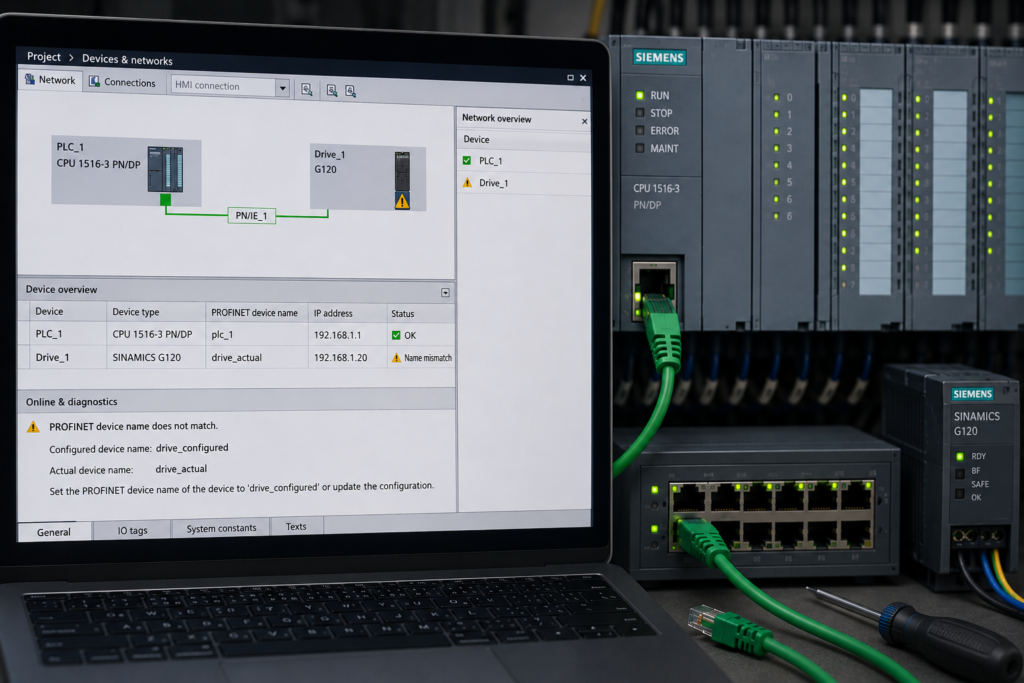
A PROFINET device can have power, show an active Ethernet LINK LED and even respond to ping—yet still remain unavailable to the Siemens PLC.
TIA Portal may report:
- device name does not match;
- wrong PROFINET device name;
- configured device cannot be found;
- IO device not reachable;
- station failure;
- no data exchange;
- device name already assigned;
- duplicate device name.
The BF or BUSF LED may flash, while the CPU shows an ERROR or SF diagnostic.
The problem usually means that the PROFINET device name configured in TIA Portal differs from the name stored inside the physical device.
Common causes include:
- device name in TIA Portal differs from the physical device;
- replacement device still has its factory or previous name;
- two devices have the same PROFINET name;
- automatic device-name generation produces an unexpected name;
- module name was changed without reassigning the physical device;
- device name was assigned to the wrong MAC address;
- TIA Portal converted an invalid configured name.
The central rule is simple:
The PROFINET name stored in the physical IO device must match the name expected by the IO controller. If the name is missing or different, cyclic PROFINET IO data exchange will not start.
Why the PROFINET Device Name Matters
PROFINET uses a logical device name to identify each IO device.
Examples include:
et200sp-line1
conveyor-drive-2
valve-island-01
remote-io-panel-b
During commissioning, the configured name is assigned to a specific physical device, normally identified by its MAC address.
During startup, the IO controller looks for the configured device name. Once it finds the correctly named device, it can associate that device with the IP parameters and hardware configuration stored in the PLC project. Siemens describes the normal sequence as:
- A PROFINET name is configured.
- That name is assigned online to the physical device.
- The hardware configuration is downloaded to the IO controller.
- The controller assigns the corresponding IP address to the named IO device during startup.
This is why manually entering the correct IP address does not always solve a name mismatch.
The IP address answers:
Where is this Ethernet device?
The PROFINET name answers:
Which configured IO device is this?
Quick Troubleshooting Table
| Symptom | Most likely cause |
|---|---|
| LINK is green, but BF flashes | Wrong device name, duplicate name, incorrect controller assignment or configuration mismatch |
| Device appears in Accessible devices but not under its configured project name | Physical device contains another name or no name |
| Fault started after replacing remote I/O | Replacement still has a factory, blank or previous-machine name |
| Fault started after renaming the station in TIA Portal | Automatically generated PROFINET name changed but was not reassigned physically |
| Two identical stations behave unpredictably | Duplicate names or correct name assigned to the wrong MAC address |
| Name shown in device properties differs from the visible module name | Automatic name generation or converted-name rules are active |
| Device can be pinged but is unavailable to the PLC | IP communication works, but the PROFINET identity does not match |
| Correct name cannot be assigned | Wrong PG/PC adapter, DCP blocked, device protection or duplicate network identity |
| Replacement works only after manual naming | Automatic replacement or name-overwrite function is not configured or supported |
| Name changes after editing the module title | “Generate PROFINET device name automatically” is enabled |
The Three Names That Can Cause Confusion
When troubleshooting, technicians often compare the wrong values.
TIA Portal can display several related names.
1. Device or Module Name
This is the project name shown in the device tree.
For example:
Remote_IO_Line_1It helps organise the project, but it is not always identical to the actual name loaded into the physical device.
2. Configured PROFINET Device Name
This is the logical PROFINET identity configured under the Ethernet or PROFINET interface properties.
For example:
remote-io-line-1This is the name expected by the IO controller.
3. Name Stored in the Physical Device
This is the name currently saved in the real ET 200 interface, drive, valve terminal or other PROFINET equipment.
For communication to start, it must match the configured PROFINET name.
The physical name can be read using:
- TIA Portal Accessible devices;
- Assign PROFINET device name;
- Online & Diagnostics;
- PRONETA;
- SIMATIC Automation Tool.
Siemens states that the same name must be assigned in the STEP 7 project and on the physical PROFINET network. If the name is absent or does not match, PROFINET IO data exchange will not run.
1. TIA Portal Name Differs From the Physical Device
This is the most direct form of the fault.
The project expects:
et200sp-line1The physical station contains:
et200sp-line2The cable and IP settings may be correct, but the PLC does not recognise the station as the configured IO device.
How This Happens
- Station was renamed in the project.
- Physical device was not renamed afterward.
- Project was copied from another machine.
- Device was previously used elsewhere.
- Technician assigned the wrong name.
- Download included the controller configuration but not physical name assignment.
- Device was reset and lost its assigned name.
Check the Configured Name
In TIA Portal:
- Open Devices & networks.
- Select the affected IO device.
- Select its PROFINET interface.
- Open Properties.
- Open Ethernet addresses.
- Record the displayed PROFINET device name.
Do not rely only on the descriptive name in the project tree.
Check the Physical Name
Open:
Online → Accessible devices
Then:
- Select the correct PG/PC Ethernet adapter.
- Start the network search.
- Find the device by MAC address.
- Read its current PROFINET name.
- Compare it character by character with the configured name.
Siemens’ assignment procedure uses the physical device’s MAC address to select the correct station before writing the configured PROFINET name to it.
Assign the Correct Name
Use:
Assign PROFINET device name
Then:
- Select the correct network adapter.
- Select the configured device name from the project.
- Scan for accessible devices.
- Select the physical device by MAC address.
- Use Flash LED where supported.
- Confirm the physical location.
- Assign the name.
- Wait for the IO controller to establish data exchange.
Do not identify the device only by IP address. IP addresses can be changed, duplicated or inherited from previous equipment.
The MAC address and flashing identification function provide stronger confirmation.
2. Replacement Device Still Has Its Factory Name
A frequent maintenance scenario looks like this:
- An ET 200 interface module fails.
- An identical spare is installed.
- Power and Ethernet are connected.
- LINK becomes green.
- BF continues flashing.
- The PLC reports that the configured device cannot be reached.
The replacement device may still contain:
- no assigned name;
- a manufacturer factory name;
- an old name from another machine;
- a name belonging to a different station.
A new device does not automatically know whether it should become:
remote-io-1or:
remote-io-7It must either be commissioned manually or identified through a configured automatic replacement function.
Siemens requires PROFINET devices to have an assigned name before they can connect correctly to the CPU.
Manual Replacement Procedure
Step 1: Confirm the replacement hardware
Check:
- complete Siemens order number;
- firmware compatibility;
- interface type;
- module configuration;
- supported replacement method.
Step 2: Power the replacement
Verify:
- electronics supply;
- LINK indication;
- switch connection;
- healthy cable.
Step 3: Scan Accessible Devices
Find the unnamed or incorrectly named station by MAC address.
Step 4: Use Flash LED
Confirm that the selected MAC address belongs to the replacement in front of you.
Step 5: Assign the expected project name
Write the exact configured PROFINET name to the replacement.
Step 6: Allow the controller to assign its IP parameters
Once the controller finds the expected device name, it can apply the corresponding configured IP settings during startup.
Step 7: Verify hardware configuration
The name may be correct while the station remains unavailable because its module arrangement or device type differs from the project.
Used Spare Devices Need Extra Attention
A used spare may contain valid settings—but for another machine.
Possible stored values include:
- old PROFINET name;
- old IP address;
- old drive configuration;
- previous controller assignment;
- device-specific process parameters.
Do not factory-reset an intelligent device until required parameters have been backed up.
Renaming an ET 200 interface is simple.
Resetting a drive containing a complete motor and process configuration may not be.
3. Duplicate PROFINET Device Name
Each active PROFINET IO device must have the correct unique name expected by the controller.
If two physical devices contain the same name, the controller cannot reliably associate that logical identity with the intended station.
Possible symptoms include:
- one station remains unreachable;
- communication changes when another station is powered;
- the wrong physical station appears online;
- BF fault appears intermittently;
- naming operation reports a conflict;
- one device works only when the other is disconnected.
Siemens’ commissioning guidance requires the name to be valid and unique.
Common Causes of Duplicate Names
- Correct name assigned to the wrong station.
- Replacement installed while original device remains connected.
- Project cloned for another production line.
- Two used spare devices came from the same machine position.
- Automatic overwrite assigned names according to incorrect topology.
- Technician selected the wrong MAC address.
- Devices were commissioned on a shared bench and later installed together.
How to Find a Duplicate Name
Method 1: Accessible Devices
Scan the local network and examine:
- device name;
- MAC address;
- device type;
- IP address.
Look for two MAC addresses associated with the same or unexpectedly similar identity.
Method 2: Isolate Devices One at a Time
Where process conditions permit:
- Record the complete network state.
- Disconnect or power down one suspected device.
- Rescan the network.
- Observe which MAC address and device name disappear.
- Repeat with the second station.
Do not disconnect production I/O without controlling the machine’s response.
Method 3: Use Flash LED
TIA Portal can flash the identification LEDs of the selected accessible device.
Use this before assigning or deleting any name.
Correcting the Duplicate
- Identify both physical devices by MAC address.
- Determine the intended project identity of each station.
- Assign the correct unique name to each one.
- verify the IP assignment.
- confirm the module configuration.
- check that both stations enter cyclic data exchange.
- save the corrected commissioning records.
Do not simply rename one device to a random value.
The assigned name must match a configured IO device in the PLC project.
4. Automatic Name Generation Causes Confusion
TIA Portal can generate the PROFINET device name automatically from project information.
When Generate PROFINET device name automatically is enabled, the PROFINET name is derived from the configured device, interface and, in some configurations, IO-system names.
Siemens gives the general structure as:
<Device name>.<Interface name>.<IO system name>The exact result depends on the hardware and project arrangement. When automatic generation is enabled, the resulting PROFINET name cannot be edited directly; it must be changed indirectly by modifying the relevant device or interface name.
Example
The device was originally named:
ET200SP_Line1TIA Portal generated:
et200sp-line1Later, someone changed the project device name to:
ET200SP_Conveyor1The automatically generated PROFINET name may now become:
et200sp-conveyor1The physical station may still contain:
et200sp-line1After the updated project is downloaded, the controller searches for the new name and reports the device as missing.
How to Check Automatic Generation
- Select the device’s PROFINET interface.
- Open Properties → Ethernet addresses.
- Find the PROFINET device-name settings.
- Check whether Generate PROFINET device name automatically is enabled.
- Compare the displayed generated name with the name stored in the physical device.
If the name must be set independently from the project module name, Siemens instructs users to disable automatic PROFINET-name generation.
When Automatic Generation Is Useful
It helps:
- maintain consistent naming;
- reduce manual project-entry errors;
- organise large IO systems;
- keep names linked to the project structure.
When It Can Cause Problems
It can create confusion when:
- project devices are renamed casually;
- the generated name is not reviewed;
- multiple interfaces are present;
- project is copied to another machine;
- module title is mistaken for the physical device name;
- the physical device is not renamed after project changes.
Before changing the name of an online PROFINET device in a working project, record the generated PROFINET name and plan the physical reassignment.
5. TIA Portal Displays a Converted Name
PROFINET names must follow defined naming rules.
TIA Portal may convert a configured name if it does not comply with the applicable PROFINET naming rules.
Siemens states that converted names can be generated when a configured name contains unsupported formatting or begins in an unsuitable way. The converted name—not necessarily the visible project title—is the name actually loaded into the device.
Common Naming Rules
A PROFINET device name generally uses:
- lowercase letters;
- numbers;
- hyphens;
- dots separating name labels.
Names should avoid:
- uppercase letters;
- spaces;
- underscores;
- unsupported special characters;
- formatting that conflicts with PROFINET naming conventions.
TIA Portal may automatically convert an unsuitable name rather than loading it exactly as typed.
Example
Project name:
Remote_IO_Line_1Converted PROFINET name:
remote-io-line-1A technician may compare the physical device with the first value and conclude that the name is wrong, even though TIA Portal expects the converted value.
Where to Find the Converted Name
Open the PROFINET-interface properties and inspect:
- configured device name;
- automatically generated name;
- converted name.
Use the value TIA Portal identifies as the actual PROFINET device name when checking or assigning the physical station.
6. Name Changed in the Project but Not on the Device
Changing an offline project property does not necessarily rewrite the identity already stored in the field device.
The sequence may be:
- Change the device name in TIA Portal.
- Compile the project.
- Download the controller configuration.
- CPU begins searching for the new name.
- Physical device still contains the old name.
- Station becomes unavailable.
Siemens states that when changing a device name manually, the name is first changed in the configuration and must then be assigned to the physical IO device using an approved online or memory-card procedure.
Correct Renaming Procedure
- Record the original device name.
- Change the configured name in the project.
- compile the hardware.
- identify the physical device by MAC address.
- assign the new name to that device.
- download the controller configuration.
- verify the controller assigns the expected IP.
- confirm cyclic communication.
Depending on the plant and device, the order may need to be coordinated to minimise downtime.
7. Correct Name Assigned to the Wrong Device
This fault is common when several identical devices are connected.
A machine may contain:
- eight identical ET 200 stations;
- six identical drives;
- multiple valve terminals;
- repeated machine modules.
Accessible devices shows similar hardware, and the technician selects the wrong MAC address.
The intended name is then written to the wrong station.
Symptoms
- Original station remains unreachable.
- Another previously healthy station becomes unavailable.
- Two device names appear swapped.
- Inputs and outputs appear under the wrong physical machine section.
- Topology diagnostics show incorrect neighbors.
- Name assignment seems successful, but the original fault remains.
Preventing the Error
Before assigning a name:
- Compare the MAC address.
- Use Flash LED.
- check the switch port.
- verify the physical cabinet or machine position.
- disconnect only the intended device where safe.
- compare topology information.
- label the commissioned station.
Siemens’ device-name assignment workflow specifically includes selecting the intended online device and verifying the correct physical unit before assigning the project name.
Serious Process Risk
Incorrectly named I/O can create more than a communication alarm.
The controller may associate configured process addresses with the wrong physical station.
For example:
- conveyor 1 command reaches conveyor 2;
- valve-island outputs operate the wrong process section;
- sensor data appears under another machine module.
Make the process safe before renaming devices on an operational network.
8. Automatic Device-Name Overwriting
Supported Siemens controllers can be configured to overwrite PROFINET device names automatically during commissioning or device replacement.
This can reduce maintenance work, but it must be used carefully.
With the appropriate option enabled, the IO controller can overwrite names on assigned IO devices after checking that the connected device type matches the configured type. Siemens warns that all configured devices must be available and wired according to the configured topology; otherwise, incorrectly connected devices can receive the wrong name.
When Automatic Overwriting Helps
- serial machine commissioning;
- planned device replacement;
- repeated machine modules;
- topology-controlled installations;
- maintenance without a programming device.
When It Can Cause Confusion
- devices are connected to the wrong ports;
- topology does not match the real wiring;
- partial commissioning is being performed;
- two stations are temporarily cross-connected;
- used spares still contain old names;
- not all configured devices are available.
Check Whether the Function Is Enabled
Inspect the IO controller’s PROFINET properties for an option such as:
Permit overwriting of PROFINET device names of all assigned IO devices
The exact wording and availability depend on:
- CPU family;
- firmware;
- TIA Portal version;
- configured IO-system function.
Do not enable automatic overwriting merely to clear a name fault.
First confirm:
- device positions;
- topology;
- hardware types;
- all configured stations;
- cabling.
Step-by-Step Troubleshooting Procedure
Step 1: Make the Machine Safe
Renaming an IO device can restore outputs and inputs suddenly.
Account for:
- motors;
- valves;
- cylinders;
- heaters;
- brakes;
- suspended loads;
- safety devices.
Step 2: Read the PLC Diagnostics
Open:
Online & Diagnostics → Diagnostic buffer
Record:
- expected device name;
- station number;
- hardware identifier;
- interface;
- first incoming event.
Step 3: Open the Online Device View
Determine whether:
- the entire device is unavailable;
- only one module is faulty;
- another station has unexpectedly taken its name.
Step 4: Record the Configured PROFINET Name
Open the affected interface properties and copy the exact name.
Check:
- automatic generation;
- converted name;
- interface suffix;
- IO-system suffix.
Step 5: Scan Accessible Devices
Select the correct PG/PC Ethernet adapter.
Record:
- physical device name;
- MAC address;
- IP address;
- device type.
Step 6: Compare the Names Exactly
Look for:
- extra hyphen;
- missing number;
- incorrect suffix;
- old line name;
- uppercase conversion;
- automatic interface or IO-system addition.
Step 7: Identify the Physical Device
Use Flash LED and confirm its location.
Step 8: Check for Duplicate Names
Review all devices found on the local PROFINET network.
Step 9: Assign the Correct Name
Write the configured name to the correct MAC address.
Step 10: Allow IP Assignment
Wait for the controller to associate the named device with the project IP configuration.
Step 11: Check Hardware Compatibility
If the station remains unavailable, compare:
- device order number;
- firmware;
- modules;
- submodules;
- drive telegram.
Step 12: Confirm Communication
Check:
- BF LED off;
- station green in TIA Portal;
- outgoing diagnostic event;
- valid process data;
- correct I/O operation.
Symptom-Based Troubleshooting
Replacement Device Has LINK but BF Flashes
Check:
- physical device name;
- project device name;
- MAC address;
- automatic replacement settings;
- hardware compatibility.
Device Can Be Pinged but Is Not Reachable by the PLC
Check:
- PROFINET name;
- controller assignment;
- duplicate name;
- hardware configuration;
- correct CPU interface.
Ping proves IP reachability.
It does not prove that the controller recognises the unit as the configured PROFINET IO device.
Name Changed After Renaming the Device in TIA Portal
Check whether automatic name generation is enabled.
The generated PROFINET name may have changed together with the project module name.
Assigned Name Looks Different From the Project Title
Check the configured and converted names in the Ethernet-interface properties.
TIA Portal may have converted spaces, underscores, uppercase letters or other unsuitable formatting.
Two Stations Fail After Naming One Device
Suspect:
- duplicate name;
- wrong MAC address selected;
- names swapped between physical stations.
Name Is Correct but Device Remains Unavailable
Check:
- duplicate IP;
- wrong controller;
- hardware mismatch;
- missing module;
- cable or power problem;
- incorrect topology;
- device still starting.
What Not to Do
Avoid these common mistakes:
- Do not change only the IP address.
- Do not assign a name based only on the current IP.
- Do not ignore the MAC address.
- Do not give two devices the same name.
- Do not rename every device at once.
- Do not assume the project-tree name is always the loaded PROFINET name.
- Do not overlook automatic name generation.
- Do not ignore the converted name.
- Do not enable automatic overwriting without checking topology.
- Do not factory-reset a drive before backing up its parameters.
- Do not rename live I/O without controlling the process.
- Do not disable the device in the project merely to remove the diagnostic.
The objective is not simply to make the BF LED turn off.
The objective is to ensure that the correct physical device receives the correct logical identity.
Why the PROFINET Device Name Does Not Match
A PROFINET device-name mismatch occurs when the name expected by the Siemens IO controller differs from the name stored in the physical IO device.
The most common causes are:
- project and physical names differ;
- replacement retains a factory or previous name;
- duplicate name exists;
- automatic name generation changed the expected value;
- TIA Portal created a converted name;
- correct name was assigned to the wrong MAC address;
- automatic overwrite used incorrect topology.
Use this troubleshooting order:
Configured name → generated or converted name → Accessible devices → MAC address → physical name → duplicate check → assign correct name
Remember:
The PLC uses the PROFINET device name to identify the configured IO device. Once the name matches, the controller can associate the device with its configured IP parameters and begin cyclic data exchange.
The IP address tells you where the Ethernet station is.
The PROFINET name tells the controller which station it is.