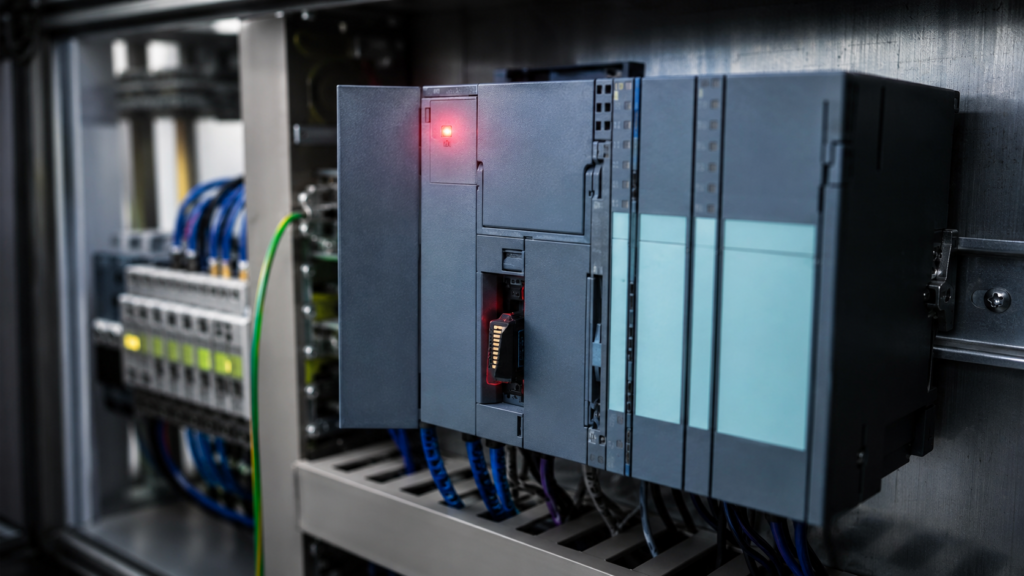
A Siemens CPU reports a SIMATIC Memory Card error, remains in STOP or refuses to load the user program.
Depending on the CPU family and fault, you may see:
- red ERROR or SF indication;
- flashing RUN/STOP, ERROR or MAINT LEDs;
- memory-card symbol on the CPU display;
- CPU remains in STOP after power-up;
- firmware update does not complete;
- project on the card is rejected;
- TIA Portal reports that the memory card cannot be read;
- diagnostic buffer reports an incompatible or invalid configuration.
The most common causes are:
- card was formatted incorrectly;
- unsupported or ordinary SD card was installed;
- card is damaged or its file system is corrupted;
- project on the card is invalid or incompatible;
- firmware update was interrupted;
- card was removed while the CPU or engineering computer was writing to it.
Do not immediately format the card.
On some systems, the SIMATIC Memory Card contains the only available copy of:
- hardware configuration;
- PLC program;
- data blocks;
- technology-object configuration;
- device certificates;
- firmware-update files;
- user files.
The first objective is to preserve the card’s contents and identify whether the problem is caused by the card itself, the files stored on it or the CPU evaluating those files.
Quick Troubleshooting Table
| Symptom | Most likely causes |
|---|---|
| CPU reports that the card cannot be read | Corrupted file system, damaged card, deleted system files or poor card contact |
| Card worked until it was formatted on a PC | Windows or third-party formatting destroyed the Siemens card structure |
| Ordinary SD card is not accepted | CPU requires an original, preformatted SIMATIC Memory Card |
| CPU enters STOP after inserting the card | Card evaluation, invalid project, incompatible project version or normal insertion response |
| CPU remains in STOP after power-up | Invalid program, missing required card, firmware problem or configuration mismatch |
| Fault started after copying another machine’s project | CPU type, firmware, protection or project on the card is incompatible |
| Firmware-update LEDs continue flashing | Update still active, update failed or firmware files are invalid |
| Fault appeared after power loss during update | Firmware or card contents may be incomplete |
| Fault appeared after pulling the card from a running CPU | Card was removed during access or required load memory was removed |
| Card is readable on a PC but not by the CPU | Wrong format, missing Siemens system files or unsupported card |
| Replacement card works | Original card is damaged or incorrectly formatted |
| Replacement card shows the same fault | Project, firmware or CPU configuration is the real cause |
S7-1200 and S7-1500 Memory Cards Are Not Used in Exactly the Same Way
Before troubleshooting, identify the CPU family.
S7-1500
For an S7-1500 CPU, the SIMATIC Memory Card contains the load memory. A compatible SIMATIC Memory Card must be inserted for the CPU to operate. The program, data blocks and hardware configuration are stored in load memory on that card and transferred into the CPU’s work memory for execution.
Removing or losing the S7-1500 card is therefore not comparable to removing an optional data-storage card from a consumer device.
The card is part of the controller’s operating configuration.
S7-1200
An S7-1200 has internal load memory and can use a SIMATIC Memory Card in several ways:
- transfer card;
- program card;
- firmware-update card.
A transfer card copies a program into internal CPU load memory. A program card becomes external load memory; if that program card is removed, the program stored on it is no longer available to the CPU.
This difference matters during diagnosis.
A missing S7-1500 card normally prevents normal CPU operation. An S7-1200 may operate without a card unless it was configured to use that card as its program memory.
Start With the Diagnostic Buffer
Before removing, formatting or replacing anything, connect with TIA Portal where possible and open:
Online & Diagnostics → Diagnostics → Diagnostic buffer
Look for events such as:
- memory card missing;
- memory card cannot be evaluated;
- invalid project;
- unknown or incompatible CPU configuration;
- firmware update failed;
- card write operation interrupted;
- card is write-protected;
- program on memory card caused an error.
Record:
- exact event text;
- event ID;
- CPU operating mode;
- card type;
- configured CPU and firmware;
- time the error occurred;
- whether the event appeared during startup, download or firmware update.
The first card-related event is usually more valuable than later messages saying only that the CPU entered STOP.
Observe the CPU LEDs and Display
Record whether:
- RUN/STOP is green, yellow or flashing;
- ERROR is red or flashing;
- MAINT is active;
- card-access or ACT indication is active;
- CPU display shows a card, lock or update symbol.
Do not remove the card while an access indication shows that it is being read or written.
1. SIMATIC Memory Card Was Incorrectly Formatted
One of the most common card failures occurs when someone inserts the card into a computer and uses the normal Windows formatting command.
The card may then appear completely healthy in Windows, but the Siemens CPU no longer accepts it.
Siemens states that SIMATIC Memory Cards are supplied with a special preformatted structure. Formatting an S7-1500 SIMATIC Memory Card using Windows or another ordinary formatting utility initially makes it unusable as CPU storage. Deleting or formatting required Siemens system files can have the same effect.
Common Ways the Formatting Is Damaged
- Windows asks to format the card and the user accepts.
- Card is reformatted as FAT, FAT32, exFAT or NTFS.
- Disk-management software recreates the partition.
- Camera or phone formats the card.
- Card-cloning software changes the partition structure.
- Hidden Siemens files are manually deleted.
- Antivirus or cleanup software removes unfamiliar system files.
Do Not Trust the Windows Message
Windows may display:
“You need to format the disk before you can use it.”
Do not click Format disk.
That message does not prove the card is empty or defective. It may simply mean that Windows does not understand part of the Siemens card structure.
Deleting Files Is Not the Same as Formatting
On an S7-1500 SIMATIC Memory Card, Siemens permits ordinary project files and folders to be deleted when the correct procedure is followed, but required system files must not be removed. Siemens specifically identifies card system information that the CPU needs and warns that deleting it can make the card unusable until it is repaired through the Siemens formatting procedure.
Do not use Select all → Delete unless you understand exactly which card files must remain.
Correct Formatting Method
For an S7-1500 card that is still recognised by a compatible CPU, use the Siemens function:
Online & Diagnostics → Functions → Format memory card
The CPU must be in STOP for this operation. Formatting deletes the program and other card contents, so preserve a valid backup first.
An incorrectly formatted card may sometimes be repairable using:
- a compatible S7-1500 CPU;
- TIA Portal;
- Siemens’ documented repair process.
If the CPU does not recognise the card at all, the recovery path depends on the card condition and CPU model.
Before Formatting
Confirm that you possess:
- current TIA Portal project;
- correct CPU hardware configuration;
- required firmware;
- PLC passwords;
- certificates where applicable;
- safety-program backup;
- process initial values and recipes.
Formatting the card is not a harmless diagnostic test.
It can turn a card problem into a complete recommissioning job.
2. Unsupported Card Installed
A standard SD card may physically fit into a Siemens CPU slot but still be unsupported.
Siemens S7-1200 and S7-1500 CPUs support the corresponding preformatted SIMATIC Memory Cards rather than arbitrary consumer SD cards. Siemens explicitly states that the S7-1200 supports only SIMATIC Memory Cards and that the S7-1500 supports preformatted SIMATIC Memory Cards.
Why an Ordinary SD Card Is Not Equivalent
The card may differ in:
- Siemens formatting and system structure;
- industrial temperature rating;
- write-cycle endurance;
- data-retention characteristics;
- card identification;
- compatibility with CPU functions.
Even when a consumer card is visible in Windows, that does not make it a valid CPU load-memory card.
Check the Card Identification
Inspect:
- Siemens marking;
- complete order number;
- memory capacity;
- physical damage;
- write-protection slider;
- whether the card belongs to the correct CPU generation.
Do not rely only on the blue plastic housing or SD-card shape.
Counterfeit or relabelled cards can also create inconsistent behaviour.
Wrong Card From Another Siemens System
A genuine Siemens card may still be unsuitable if:
- it belongs to another controller family;
- it contains an incompatible S7-1200 generation project;
- it was prepared as another card type;
- it contains firmware for another module;
- its capacity is insufficient for the project.
For example, Siemens warns that an S7-1200 project card is not automatically compatible with an S7-1200 G2 CPU. Inserting an incompatible project card can produce a CPU error.
Check the Write-Protection Slider
An S7-1500 card may be physically write-protected by its slider.
A write-protected card may prevent:
- project download;
- block deletion;
- log writing;
- firmware-file changes;
- formatting.
Siemens requires the slider to be outside the lock position for normal write operations and shows a write-protection indication on supported CPU displays.
Do not confuse write protection with card damage.
3. The Memory Card Is Damaged
Industrial memory cards can still fail.
Possible causes include:
- worn flash memory;
- electrical damage;
- electrostatic discharge;
- contamination;
- bent or damaged contacts;
- moisture;
- excessive heat;
- vibration;
- mechanical damage;
- repeated interrupted write operations.
Signs of a Physically Damaged Card
- CPU and card reader both fail to recognise it.
- Card appears and disappears when touched.
- Files cannot be copied reliably.
- Capacity is reported incorrectly.
- Read operations produce errors.
- Card becomes unusually hot.
- Card housing is cracked or warped.
- Fault follows the card to another compatible CPU.
Card Fault vs CPU Slot Fault
Do not assume the card is defective until you separate the two components.
A dirty or damaged CPU card slot can produce similar symptoms.
Where authorised and supported:
- Power down or place the CPU in STOP according to the manual.
- Remove the card using ESD precautions.
- Inspect the card contacts without touching or abrading them.
- inspect the CPU slot for contamination or damage.
- test the card using an approved reader or compatible CPU.
- test a known-good Siemens card in the original CPU.
Interpret the result:
- Original card fails elsewhere, known-good card works: original card is likely defective.
- Both cards fail in the original CPU: slot or CPU may be defective.
- Original card reads in a PC but not the CPU: format, project or card compatibility may be wrong.
- Original and replacement cards show the same project error: card hardware is probably not the main cause.
Do Not Repair Contacts Aggressively
Do not:
- scrape contacts;
- use abrasive paper;
- spray general-purpose cleaner into the CPU;
- bend the card;
- force it into the slot.
Card and CPU-slot contacts are precision components.
Defective Card Can Force STOP
A defective SIMATIC Memory Card can produce a system diagnostic and place affected Siemens CPUs into STOP. Siemens documents this behaviour in its procedures for replacing defective S7-1500 memory cards.
4. Invalid or Incompatible Project on the Card
The card itself may be healthy while the stored project is unusable by the CPU.
Possible causes include:
- project belongs to another CPU model;
- CPU firmware does not support the project;
- project was created for another controller generation;
- hardware configuration is invalid;
- protected configuration data does not match the CPU;
- project download to the card was incomplete;
- wrong machine project was copied;
- card contains mixed or outdated files.
Example: Wrong CPU Generation
A memory card prepared for one CPU generation may not be accepted by another.
Siemens documents that an S7-1200 V3.0 program card is incompatible with an S7-1200 V4.x CPU. Inserting the incompatible card produces a CPU error. The project must be converted using the appropriate TIA Portal device-change process rather than copied directly.
The same principle applies more broadly:
A project that looks similar is not necessarily compatible.
“Unknown or Incompatible Version of CPU Configuration”
This diagnostic can appear when the CPU evaluates a project that it cannot use.
Siemens identifies examples including:
- loading an invalid CPU project version;
- confidential configuration protection in the project differing from the CPU;
- incompatible project on a transfer or program card.
For an invalid S7-1200 program card, Siemens may require removing the invalid card and recovering or resetting the CPU before downloading a valid project.
Check the Project Before Reusing the Card
Confirm:
- complete CPU order number;
- CPU generation;
- firmware version;
- standard or fail-safe CPU;
- project TIA Portal version;
- configured hardware version;
- confidential configuration password state;
- card type.
Do not prepare a card by copying only the visible SIMATIC.S7S folder from another machine unless the documented Siemens procedure specifically requires it.
Wrong Machine Project
This can be more dangerous than a simple startup failure.
If the project is compatible enough to run but belongs to another machine, it may contain:
- wrong I/O configuration;
- different drive addresses;
- different safety program;
- wrong network names;
- incorrect process parameters.
Identify the project using:
- project archive;
- machine serial number;
- CPU type;
- card label;
- hardware comparison;
- offline documentation.
Do not place the CPU in RUN merely because the card error disappears.
5. Firmware Update Was Interrupted
A SIMATIC Memory Card can be used to update CPU or module firmware.
During an update, the card and target device must remain powered and undisturbed until the documented completion indication appears.
An interrupted update can occur because of:
- power failure;
- card removed too early;
- CPU reset;
- damaged firmware file;
- incorrect firmware package;
- unstable 24V supply;
- card read error.
Never Interrupt an Active Firmware Update
Do not:
- remove the card;
- switch off CPU power;
- reset the CPU;
- remove the updated module;
- press the mode selector repeatedly;
- overwrite the firmware folder.
Wait for the documented LED or display indication confirming that the update has finished.
Firmware updates can take longer than expected. Flashing LEDs do not automatically mean the CPU has frozen.
Check the Diagnostic Buffer
Siemens records firmware-update attempts in the diagnostic buffer. If the update fails, the diagnostic entry can provide the reason. On supported S7-1200 G2 systems, removing the update card without the required power-off sequence leaves the CPU in STOP.
Record:
- firmware file version;
- target CPU order number;
- current CPU firmware;
- update start time;
- LED sequence;
- power interruptions;
- exact diagnostic event.
Verify the Firmware Package
Confirm that the firmware is intended for the exact:
- CPU or module;
- order number;
- hardware version;
- supported update path.
Do not rename arbitrary firmware files or combine update folders from different packages.
After an Interrupted Update
Possible recovery steps depend on the CPU and the state reached:
- Leave the CPU powered until you are sure no update is still active.
- read the display and diagnostic buffer.
- verify the card contents using the original Siemens firmware package.
- prepare a clean supported firmware-update card if required.
- repeat the update using stable power.
- activate the firmware according to the device procedure.
- verify the firmware version online.
- compile and download the matching project configuration.
Do not repeatedly attempt different firmware versions without recording what is currently installed.
Power-Supply Stability
Measure CPU voltage during the update if power quality is in doubt.
Check:
- 24V supply capacity;
- loose terminals;
- electronic circuit protection;
- shared loads;
- voltage dips when contactors energise;
- UPS condition where used.
A supply that appears normal while idle may collapse during another machine event.
6. Card Removed During Operation
Removing a SIMATIC Memory Card at the wrong time can corrupt data or immediately stop the CPU.
The risk depends on:
- CPU family;
- card type;
- CPU operating mode;
- whether a write operation is active;
- whether the card contains the CPU’s load memory.
S7-1500 Removal Rules
Siemens instructs users to remove an S7-1500 SIMATIC Memory Card only when the CPU is powered off or in STOP and when no writing function is active. Removing the card during a write operation can leave individual files incomplete, make them unreadable or corrupt the entire card content.
Writing functions can include:
- downloading a block;
- deleting a block;
- test functions;
- logging;
- user-file operations;
- firmware preparation;
- online card operations.
Even in STOP, confirm that no engineering operation is accessing the card.
Removing the S7-1500 Program Card
Because the S7-1500 load memory is located on the card, removing it removes the available user program from the CPU’s load-memory source. A SIMATIC Memory Card is required for normal S7-1500 operation.
S7-1200 Insertion and Removal
Inserting a memory card into a running S7-1200 causes the CPU to transition immediately to STOP so that it can evaluate the card. Siemens warns that this can disrupt the controlled process.
Do not insert or remove cards from a machine that is actively controlling hazardous motion.
Retentive Data Can Be Affected
When an S7-1500 card is inserted or removed in STOP, the CPU reevaluates the card and compares its configuration with the retained CPU data.
If the configurations differ, the CPU can automatically perform a memory reset, delete retained data and remain in STOP.
This means that moving a card between CPUs can affect:
- production counters;
- calibration values;
- learned positions;
- retained recipes;
- machine state;
- startup data.
Back up important retained values before exchanging cards.
Card Removed From a Windows Computer Without Ejecting
Card corruption is not limited to the PLC.
When using a card reader, Windows may cache writes temporarily.
Siemens recommends using the operating system’s Eject function before removing the SIMATIC Memory Card from a Windows computer. Removing it without ejecting can cause data loss.
Wait until:
- file copying has completed;
- TIA Portal is no longer writing;
- Windows confirms the device can be removed;
- the card-reader access LED is inactive.
7. Required Siemens System Files Were Deleted
A user may avoid formatting the card but manually delete hidden files or system folders.
This can still make the card unusable.
On supported S7-1500 cards, the CPU requires specific Siemens system information. Siemens warns that deleting required system files such as the card-information structures prevents the CPU from using the card until it is repaired through the proper formatting process.
How This Happens
- Hidden files were made visible and deleted.
- Antivirus quarantined an unfamiliar file.
- Backup software copied only visible folders.
- Card was cloned incompletely.
- User deleted everything to “make space.”
- File synchronisation software replaced the card contents.
Correct Recovery
Do not recreate the system files manually.
Use:
- Siemens-supported card formatting;
- a compatible CPU;
- TIA Portal;
- an official card-repair procedure.
Manually creating folders with the same names does not reproduce the required card structure.
8. Card Has Insufficient Capacity or Too Many Files
A card can be valid and readable but unable to hold the intended project or user data.
Possible causes include:
- project grew beyond card capacity;
- data logs filled the card;
- recipe archives accumulated;
- firmware files remain after an update;
- service data or trace files consume space;
- card contains files from an earlier machine.
Check Card Usage
In TIA Portal or the approved card reader view, check:
- total capacity;
- free space;
- project size;
- firmware folders;
- user files;
- log archives.
Do not delete unknown system folders to create space.
Instead:
- archive required files;
- remove only documented user or update files;
- use TIA Portal’s card functions;
- replace the card with a supported larger SIMATIC Memory Card if needed.
For S7-1500 systems, card capacity determines the available load-memory size.
Complete Step-by-Step Troubleshooting Procedure
Step 1: Make the Machine Safe
A card insertion, removal or CPU restart can stop program execution or later restore outputs.
Control:
- motors;
- valves;
- cylinders;
- heaters;
- brakes;
- suspended loads;
- remote stations.
Step 2: Do Not Format the Card
Preserve the only available project copy until its contents have been evaluated.
Step 3: Record LEDs and Display Messages
Photograph:
- CPU LEDs;
- card symbol;
- update indication;
- operating mode;
- diagnostic text.
Step 4: Read the Diagnostic Buffer
Identify whether the CPU reports:
- card unreadable;
- unsupported card;
- incompatible configuration;
- firmware-update failure;
- project error;
- write-protected card.
Step 5: Identify the CPU Family
Determine whether it is:
- S7-1200;
- S7-1200 G2;
- S7-1500;
- S7-1500 F-CPU;
- S7-1500R/H;
- SIMATIC Drive Controller.
Card functions and recovery procedures differ.
Step 6: Identify the Card Type
For systems supporting multiple functions, determine whether the card is prepared as:
- transfer card;
- program card;
- firmware-update card.
Step 7: Confirm It Is a Supported SIMATIC Card
Check the complete Siemens order number and capacity.
Step 8: Check Write Protection
Confirm the physical slider is not in the locked position when writing is required.
Step 9: Preserve Card Contents
Where the card remains readable:
- create an approved backup;
- record directory structure;
- copy user files carefully;
- preserve the original card untouched where possible.
Do not use ordinary disk-imaging or formatting utilities unless the Siemens recovery procedure specifically calls for them.
Step 10: Verify the Project
Compare:
- CPU type;
- firmware;
- project version;
- hardware configuration;
- safety configuration;
- confidential password state.
Step 11: Inspect Recent Events
Ask whether anyone recently:
- formatted the card;
- copied another project;
- updated firmware;
- removed the card;
- changed the CPU;
- replaced the memory card;
- lost power during a download.
Step 12: Test the Card and CPU Separately
Use approved compatible equipment to distinguish:
- card fault;
- CPU-slot fault;
- invalid project;
- formatting problem.
Step 13: Repair or Replace the Card
Use a Siemens-supported procedure.
Do not return a card with repeated read errors to permanent service.
Step 14: Load the Approved Project
Compile hardware and software completely before loading.
Step 15: Confirm CPU Startup
Check:
- CPU enters RUN;
- card diagnostic clears;
- firmware is correct;
- retained values are valid;
- HMI and I/O communication recover.
Step 16: Test the Complete Machine
Confirm that the correct project—not merely a compatible project—is running.
Symptom-Based Troubleshooting
Card Worked Until It Was Inserted Into a Laptop
Check:
- whether Windows formatted it;
- whether hidden Siemens files were deleted;
- whether it was removed without Eject;
- antivirus or cleanup history;
- whether TIA Portal still recognises it.
Ordinary SD Card Is Not Accepted
Replace it with a genuine compatible SIMATIC Memory Card.
Formatting a consumer SD card does not convert it into a supported Siemens card.
CPU Goes to STOP Immediately After Card Insertion
Check:
- whether this is the CPU’s normal card-evaluation response;
- card type;
- project compatibility;
- diagnostic buffer;
- whether the card contains an invalid program.
CPU Remains in STOP With the Card Inserted
Check:
- invalid or incompatible project;
- confidential configuration password mismatch;
- failed firmware update;
- damaged card;
- missing required program;
- CPU startup diagnostics.
Card Cannot Be Read After Power Failure
Check whether the power failure occurred during:
- firmware update;
- project download;
- data logging;
- file transfer;
- card formatting.
The file system may have been left incomplete.
Card Error Appears After CPU Replacement
Check:
- CPU order number;
- firmware;
- CPU generation;
- confidential protection;
- project on the card;
- whether the replacement CPU has old configuration data.
Card Error Appears After Firmware Update
Check:
- correct firmware package;
- update-completion indication;
- diagnostic buffer;
- stable power;
- whether the update card was removed at the documented time;
- current online firmware version.
Card Works in Another CPU
Suspect:
- original CPU card slot;
- CPU hardware;
- CPU firmware;
- protection or configuration mismatch.
Do not immediately conclude that the project is correct for both CPUs.
Replacement Card Shows the Same Error
Suspect:
- invalid project;
- incompatible firmware;
- CPU fault;
- incorrect card preparation;
- protection mismatch.
What Not to Do
Avoid these common mistakes:
- Do not accept the Windows prompt to format the card.
- Do not use an ordinary SD card in place of a SIMATIC Memory Card.
- Do not delete hidden Siemens system files.
- Do not remove the card while an access operation is active.
- Do not remove an S7-1500 card from a running CPU.
- Do not interrupt a firmware update.
- Do not assume every flashing LED means the update has failed.
- Do not copy a project from another machine without checking compatibility.
- Do not format the only available card before locating the project backup.
- Do not place the CPU in RUN without verifying the machine project.
- Do not reuse a card that repeatedly corrupts files.
- Do not force the card into the slot.
- Do not assume that a readable Windows card is valid for a Siemens CPU.
- Do not rely on a used replacement card being empty.
- Do not ignore retained process values after exchanging cards.
The objective is not simply to clear the memory-card alarm.
The objective is to restore a reliable load-memory source containing the correct, approved PLC configuration.
Why a SIMATIC Memory Card Error Occurs
A SIMATIC Memory Card error occurs when the CPU cannot recognise the card, read its required structure or use the project and firmware stored on it.
The most common causes are:
- Windows or third-party formatting;
- unsupported memory card;
- damaged flash memory or contacts;
- invalid CPU project;
- incompatible CPU or firmware version;
- interrupted firmware update;
- card removal during a write operation;
- missing Siemens system files.
Use this diagnostic order:
Preserve the card → read diagnostics → identify CPU and card type → verify Siemens card → check formatting → verify project → check update history → test card and CPU separately
For S7-1500 systems, remember that the SIMATIC Memory Card provides the CPU load memory and is required for operation. For S7-1200 systems, first determine whether the card is being used as a transfer, program or firmware-update card.
The safest rule is simple:
Never format, remove or overwrite a SIMATIC Memory Card until you know what is stored on it and whether the CPU is currently accessing it.