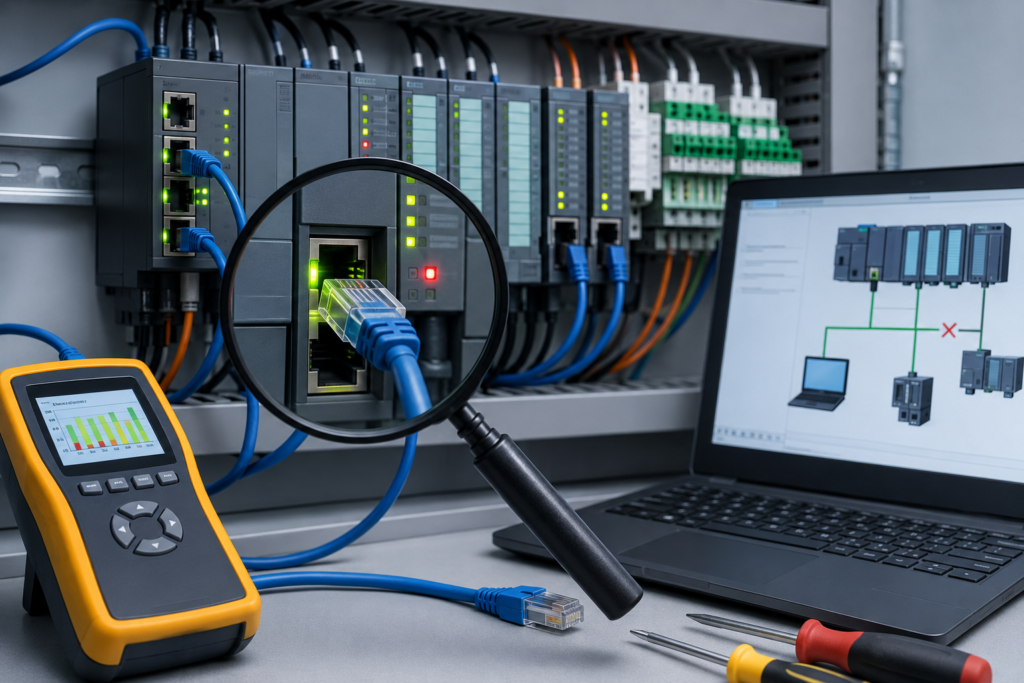
The PLC is in RUN mode. The machine was working ten minutes ago. Now the HMI shows red warning symbols everywhere, the engineering laptop cannot connect, and somebody is already asking how long production will be stopped.
Classic Ethernet problem.
Or at least, it looks like one.
PLC communication faults can come from something as boring as a loose RJ45 connector, but they can also involve duplicate IP addresses, mismatched subnet settings, failed switches, firmware incompatibility or a device that has quietly returned to its factory-default configuration.
The fastest way to solve the problem is not to start changing random settings. That usually creates a second fault on top of the first one.
Instead, troubleshoot the network in layers, beginning with the cable and working upward toward software and controller configuration.
Start With the Physical Connection
Yes, checking the cable sounds almost too obvious.
Do it anyway.
Industrial cabinets vibrate. Maintenance work pulls on cables. RJ45 locking clips break. Connectors that appear to be inserted may not actually be seated properly.
Check the Ethernet connection at both ends:
- PLC Ethernet port
- Network switch
- HMI
- Remote I/O station
- Engineering laptop
- Any intermediate patch panel or coupler
Remove and reconnect the cable. You should feel or hear the connector click into place.
Then inspect the port LEDs.
Most Ethernet devices have at least one link indicator and one activity indicator. The exact colours vary by manufacturer, but a steady or flashing green or amber LED usually means that a physical network link has been established.
No link light normally points toward a physical-layer problem, such as:
- Disconnected cable
- Broken conductor
- Damaged RJ45 connector
- Failed switch port
- Disabled Ethernet interface
- Device without power
- Incorrect cable type on older equipment
Do not assume a cable is good because it looks good. A conductor may be broken internally, particularly near a connector or where the cable repeatedly bends.
The quickest test is often to replace it temporarily with a known working cable.
Check the Device Power Before Blaming Ethernet
A network device cannot communicate if it is not powered correctly.
That sounds painfully obvious, but it catches people more often than anyone likes to admit.
Check that the PLC, HMI, Ethernet switch and remote devices have their expected supply voltage. A device may still show one faint LED while repeatedly restarting because its 24 V DC supply is unstable.
Measure the supply at the device terminals, not only at the power supply output.
A loose terminal, damaged fuse or overloaded power supply can create a voltage drop that only appears when the equipment is operating.
Watch for devices that repeatedly boot, disconnect and reconnect. What looks like an intermittent Ethernet problem may actually be a power problem wearing an Ethernet costume.
Use a Known Working Cable and Port
When there is no link, isolate one item at a time.
First, try another Ethernet cable.
If that does not help, move the cable to another switch port. Industrial Ethernet switch ports can fail, especially after electrical disturbances, poor grounding or accidental connection work.
A quick test may look like this:
- Keep the same device and replace only the cable.
- Keep the replacement cable and try another switch port.
- Connect the laptop directly to the PLC, where practical.
- Bypass patch panels, wall sockets and intermediate switches.
- Restore one network component at a time.
This approach tells you where the fault begins.
Replacing three things at once may restore communication, but then you still do not know what actually failed.
Confirm the PLC IP Address
Once the physical connection is working, check the IP configuration.
Every device on the same Ethernet network must have a unique IP address.
For example:
- PLC: 192.168.1.10
- HMI: 192.168.1.20
- Remote I/O: 192.168.1.30
- Engineering laptop: 192.168.1.100
Two devices cannot normally use the same IP address at the same time.
Duplicate IP addresses are particularly annoying because the network may not fail completely. Communication can appear normal for a while and then disappear when the second device responds.
You may see symptoms such as:
- HMI communication dropping randomly
- PLC appearing and disappearing from network scans
- Ping replies changing or timing out
- Engineering software connecting to the wrong device
- Duplicate-address warnings
- A machine working until another device is powered up
If communication became unstable after replacing a PLC, HMI, drive or remote I/O module, check for duplicate addresses immediately.
The replacement device may still have the same default IP address as another component.
Verify the Laptop Network Settings
Your laptop must be configured for the same network range as the PLC.
Suppose the PLC uses:
- IP address: 192.168.1.10
- Subnet mask: 255.255.255.0
A suitable temporary laptop configuration could be:
- IP address: 192.168.1.50
- Subnet mask: 255.255.255.0
The final number must be different from the PLC and every other device on the network.
A laptop configured as 192.168.0.50 will usually not communicate directly with a PLC at 192.168.1.10 when both use a 255.255.255.0 subnet mask.
They are on different subnets.
Also check whether your laptop has several active network interfaces:
- Wired Ethernet
- Wi-Fi
- VPN adapter
- Virtual-machine network
- USB-to-Ethernet adapter
- Docking-station Ethernet
- VirtualBox or VMware adapter
Engineering software occasionally tries to use the wrong interface.
During troubleshooting, it may help to disable unnecessary adapters temporarily. Just remember to turn them back on later. Nobody enjoys solving the PLC problem and then wondering why the office Wi-Fi has mysteriously vanished.
Understand the Subnet Mask
The subnet mask tells each device which part of an IP address identifies the network and which part identifies the individual device.
In many small industrial networks, the subnet mask is:
255.255.255.0
With this mask, devices such as the following are normally on the same local network:
- 192.168.1.10
- 192.168.1.25
- 192.168.1.150
However, this device would be on a different subnet:
- 192.168.2.10
A wrong subnet mask can create confusing behaviour. A laptop may communicate with some devices but not others, or local communication may work while routed communication fails.
Compare the complete network configuration, not only the IP address:
- IP address
- Subnet mask
- Default gateway
- DNS settings, when relevant
For a direct laptop-to-PLC connection, the default gateway is often not required. On larger routed networks, it may be essential.
Ping the PLC
The ping command is one of the simplest network tests available.
On a Windows computer, open Command Prompt and enter:
ping 192.168.1.10Replace the example address with the actual PLC IP address.
A successful response confirms that basic IP communication exists between the laptop and the target device.
You may see something similar to:
Reply from 192.168.1.10: bytes=32 time<1ms TTL=64A failed ping may show:
Request timed out.or:
Destination host unreachable.These messages do not always mean the same thing.
Request timed out generally means that no reply was received.
Destination host unreachable may indicate that your laptop cannot find a route to the target network or cannot resolve the target device on the local network.
Be aware that some devices or company networks block ping traffic. A failed ping is useful evidence, but it is not absolute proof that the PLC is offline.
Check the ARP Table
The Address Resolution Protocol table can reveal whether your computer has found a hardware address for the PLC.
After trying to ping the device, enter:
arp -aLook for the PLC IP address.
If the address appears with a MAC address, your laptop has at least detected a device using that IP on the local network.
This can also help identify duplicate-address problems. If the MAC address associated with the PLC IP keeps changing, two devices may be fighting over the same address.
You can clear the local ARP cache with:
arp -d *Administrator rights may be required.
Then ping the PLC again and inspect the refreshed table.
Can You Ping the PLC but Not Connect With Software?
This is a common situation.
A successful ping proves that basic IP communication works. It does not prove that the engineering protocol, software driver or controller access settings are correct.
When ping works but programming software cannot connect, check:
- Correct communication driver
- Correct laptop network adapter
- Correct PLC family or CPU type
- Required TCP or UDP ports
- Firewall settings
- Controller access protection
- Firmware compatibility
- Project version compatibility
- Routing path inside the engineering software
- PLC communication service status
For Rockwell Automation systems, confirm that FactoryTalk Linx or RSLinx is using the correct Ethernet driver.
For Siemens systems, confirm that TIA Portal is assigned to the correct PG/PC interface.
For other PLC brands, the same general rule applies: select the physical network adapter that is actually connected to the PLC network.
Auto-detection is helpful when it works. When it does not, it can send you on a surprisingly long walk in the wrong direction.
Look for Duplicate IP Addresses
Duplicate IP addresses deserve their own troubleshooting step because they cause such strange symptoms.
Disconnect the suspected PLC from the network and ping its IP address again.
If you still receive replies, another device is using the same address.
You can also compare MAC addresses in the ARP table or inspect the address table of a managed switch.
Another practical method is to power down new or recently replaced equipment one device at a time. If the communication problem disappears when a particular device is disconnected, check its IP configuration.
Keep in mind that many factory-fresh devices use common default addresses, including:
- 192.168.0.1
- 192.168.1.1
- 192.168.1.10
- 192.168.0.100
Connecting several unconfigured devices at once can immediately create conflicts.
Configure replacement equipment separately before placing it on the live machine network.
Inspect the Ethernet Switch
Industrial Ethernet switches are usually reliable, but they are not immortal.
Check:
- Switch power supply
- Power LED
- Port link LEDs
- Error indicators
- Redundant-ring status
- Fibre-optic connection status
- Alarm relay
- Cabinet temperature
- Visible physical damage
Try moving the connection to another port.
For an unmanaged switch, there may be little more you can inspect beyond power and link status.
A managed switch can provide much more information, including:
- Port errors
- Dropped packets
- Link speed
- Duplex mode
- MAC address table
- Broadcast traffic
- Port mirroring
- VLAN assignment
- Ring redundancy status
- Disconnection history
If one port shows a rapidly increasing number of CRC errors, suspect the cable, connector, shielding or electromagnetic interference.
Check Speed and Duplex Settings
Most modern devices use auto-negotiation to select the correct link speed and duplex mode.
Older PLCs, switches and communication modules may not always negotiate correctly.
A mismatch may create a connection that technically remains active but performs poorly.
For example:
- One device operates at full duplex
- The other device operates at half duplex
Possible symptoms include:
- Slow downloads
- Intermittent timeouts
- Packet retransmissions
- HMI update delays
- Communication that fails under heavy traffic
- High error counts on the switch port
Where possible, use auto-negotiation on both devices. If fixed settings are required, make sure both ends use matching values.
Do not force one side to 100 Mbps full duplex while leaving the other side in an incompatible mode.
Check for Damaged Cables Near Moving Machinery
Intermittent Ethernet faults are often mechanical.
Pay particular attention to cables installed near:
- Robot arms
- Sliding doors
- Cable chains
- Moving gantries
- Machine hinges
- Vibrating motors
- Conveyor frames
- Frequently opened cabinets
A cable may pass a basic continuity test while stationary and fail when bent.
Standard office patch cables are also not always suitable for continuous-flex applications. A cable that survives happily behind a desk may not enjoy being dragged through a cable carrier eight thousand times per shift.
Inspect for:
- Crushed cable jackets
- Sharp bends
- Loose shield connections
- Damaged connector latches
- Poor field-installed plugs
- Oil or coolant damage
- Cable tension
- Separation from high-power conductors
For moving applications, use industrial Ethernet cable designed for continuous flexing.
Consider Electrical Noise and Grounding
Industrial Ethernet operates in an electrically noisy environment.
VFD output cables, contactors, large motors, welding equipment and poorly grounded machinery can introduce interference.
Ethernet is fairly resistant to noise, but poor installation can still cause packet errors and intermittent communication.
Check that:
- Shielded cable is used where required
- Cable shields are terminated correctly
- Ethernet cable is separated from motor and VFD output cables
- Cabinet grounding is sound
- The switch and PLC have proper functional-earth connections
- Cable routing follows the manufacturer’s recommendations
- Connectors maintain shield continuity
Do not run an Ethernet cable tightly alongside a VFD motor cable for several metres and then act surprised when the network becomes temperamental.
Cross power cables at approximately 90 degrees where separation cannot be maintained.
Verify the PLC Is Actually Running Normally
The Ethernet connection may be fine while the PLC itself is not.
Check the controller LEDs:
- RUN
- STOP
- ERROR
- FAULT
- BF or bus fault
- SF or system fault
- Maintenance indicators
A PLC in STOP mode may still respond to ping but fail to control the machine.
A CPU experiencing repeated restarts may connect for a few seconds and then disappear.
Review the diagnostic buffer or fault history, where available. Look for:
- Power interruptions
- Memory errors
- Communication-module faults
- Watchdog trips
- Configuration mismatches
- Firmware errors
- Duplicate device names
- Missing remote I/O
Do not treat every red HMI symbol as proof of an Ethernet cable problem. The PLC may be connected perfectly and simply refusing to execute the program.
Confirm the Correct Protocol Is Configured
Ethernet is only the physical and networking foundation. The devices must also speak a compatible industrial protocol.
Common protocols include:
- EtherNet/IP
- PROFINET
- Modbus TCP
- Ethernet TCP/IP
- OPC UA
- S7 communication
- Mitsubishi SLMP
- Omron FINS
- Beckhoff ADS
Two devices can share the same switch and subnet yet still fail to exchange data because their protocol settings do not match.
Check:
- Device role, such as scanner, adapter, client or server
- Correct IP address in the PLC project
- Correct rack and slot values
- Correct port number
- Correct assembly instances
- Correct Modbus unit identifier
- Correct PROFINET device name
- Correct data size
- Correct connection interval
- Required licenses or security certificates
A successful ping proves that the front door exists. It does not prove that you have the correct key.
Check PROFINET Device Names
PROFINET uses device names as well as IP addresses.
A remote device may be physically connected and visible in TIA Portal, yet still appear as not reachable because its assigned PROFINET name does not match the name expected by the PLC project.
Compare:
- Device name in the hardware configuration
- Actual device name stored in the field device
- IP address assigned by the controller
- Device replacement settings
A replacement remote I/O module may need its PROFINET device name assigned before the PLC can communicate with it.
Spelling matters. Hyphens matter. Even a small mismatch can keep the device offline.
Check Firewalls, Antivirus and VPN Software
Laptop security software can block engineering communication.
This often happens when:
- A company firewall policy changes
- New antivirus software is installed
- A VPN is active
- Windows classifies the connection as a public network
- Engineering software was updated
- A new USB Ethernet adapter is used
Temporarily disabling the firewall can be a useful test, but do so only when permitted by site policy and only on a trusted industrial network.
A safer long-term solution is to add the required engineering software and communication services to the firewall allow-list.
Also disconnect unnecessary VPN connections during local PLC troubleshooting. A VPN can change routing priorities and send traffic somewhere it was never supposed to go.
Verify Firmware and Software Compatibility
Older PLCs and communication modules do not always communicate correctly with much newer engineering software.
Likewise, a project created for one firmware revision may not download to a CPU running another revision without conversion or an additional software package.
Check:
- PLC firmware revision
- Communication-module firmware
- HMI firmware
- Engineering software version
- Installed device-support packages
- Hardware catalogue version
- Electronic data sheet files
- GSD or GSDML files
- Add-on profiles
Do not update firmware casually on a production machine.
A firmware update may require:
- A valid backup
- Compatible project conversion
- Device reconfiguration
- Safety approval
- Machine downtime
- Recovery media
- Updated HMI or remote-device firmware
Firmware can solve compatibility problems, but it can also create an extremely long afternoon when handled without preparation.
Use Manufacturer Discovery Tools
Most PLC platforms provide tools that can scan the local network and detect compatible devices.
Examples include:
- FactoryTalk Linx or RSLinx RSWho
- Siemens Accessible Devices
- Siemens PRONETA
- Schneider Electric Device Discovery
- BOOTP/DHCP utilities
- Omron Network Configurator
- Mitsubishi Ethernet diagnostic tools
- CODESYS gateway scans
These utilities can reveal:
- Detected IP address
- MAC address
- Device type
- Device name
- Firmware revision
- Network path
If the PLC appears in a discovery tool but not in the programming project, the physical connection is probably fine. Focus on software routing, project configuration, access protection or protocol settings.
If the device does not appear anywhere, return to the basics: power, cable, switch port and IP configuration.
Use Wireshark for Difficult Problems
Wireshark captures and displays network packets.
It is not always the first tool you should reach for. Checking the cable and IP address is much faster than analysing several thousand packets.
For stubborn or intermittent problems, though, Wireshark can be incredibly useful.
It can reveal:
- Duplicate IP warnings
- ARP requests without replies
- TCP connection resets
- Repeated retransmissions
- Broadcast storms
- Modbus TCP exceptions
- Failed connection attempts
- Devices repeatedly disconnecting
- Unexpected traffic
- Excessive network load
On a switched network, your laptop normally sees only traffic addressed to it, plus broadcasts and multicasts.
To capture communication between a PLC and another device, use a managed switch with port mirroring or a suitable network tap.
Packet captures should be interpreted carefully. A red or black line in Wireshark does not automatically mean you have found the fault. The program highlights many normal events as well.
Direct-Connect the Laptop to the PLC
A direct connection is one of the best isolation tests.
Disconnect the PLC from the machine network and connect your laptop directly to the controller using a known working Ethernet cable.
Configure the laptop with a compatible static IP address, then test:
- Ping
- Device discovery
- Engineering-software connection
- Upload or online monitoring
If direct communication works, the problem is probably somewhere in the wider network:
- Switch
- Router
- VLAN
- Firewall
- Cabling
- Duplicate address
- Incorrect routing
If direct communication still fails, focus on the PLC, laptop interface and local configuration.
Be careful when disconnecting a live production PLC. Removing it from the network may stop HMIs, drives, remote I/O or supervisory systems.
Check VLAN and Router Configuration
Larger factories often divide networks using VLANs and routers.
A PLC and laptop may have valid IP addresses but still be unable to communicate because they are assigned to different VLANs or because routing rules block the required traffic.
This usually requires support from the site’s IT or operational-technology network team.
Provide them with useful information:
- Source IP address
- Destination IP address
- Protocol
- Port number
- Time of failed connection
- Switch port numbers
- Whether ping works
- Whether communication works locally
Saying “the PLC network is broken” gives them very little to work with.
Saying “TCP communication from 192.168.20.45 to 192.168.30.10 on port 502 times out, while ICMP ping succeeds” gives them something concrete.
A Sensible PLC Ethernet Troubleshooting Order
When communication disappears, work through the problem in this order:
1. Check power
Confirm that the PLC, switch, HMI and remote devices have stable power.
2. Inspect link LEDs
No link light usually means a cable, connector, port or power issue.
3. Replace the cable
Use a short, known working Ethernet cable.
4. Try another switch port
A single port may have failed or been disabled.
5. Confirm IP settings
Check the PLC IP address, laptop IP address and subnet masks.
6. Look for duplicate addresses
Disconnect the target and ping its address again.
7. Ping the PLC
Confirm basic IP connectivity.
8. Check the engineering-software interface
Make sure the software uses the correct Ethernet adapter and network path.
9. Inspect PLC diagnostics
Check controller mode, fault LEDs and diagnostic records.
10. Bypass the network
Connect directly to the PLC where it is safe to do so.
11. Inspect switches and managed-network settings
Check port errors, VLANs, ring status and link negotiation.
12. Use advanced tools
Use manufacturer discovery software, managed-switch diagnostics or Wireshark.
This order prevents a great deal of wasted time.
There is little benefit in opening Wireshark when the Ethernet plug is hanging halfway out of the PLC.
Field Tips That Save Time Later
A few habits make future Ethernet problems much easier to solve.
Label every cable
Label both ends of each Ethernet cable. Include the device name or port destination.
A cabinet full of identical blue cables becomes unpleasant very quickly when nothing is marked.
Keep an IP address list
Maintain a current network document containing:
- Device name
- IP address
- Subnet mask
- Gateway
- MAC address
- Switch port
- Protocol
- PLC rack or slot
- PROFINET device name
- Firmware version
Store a copy somewhere accessible even when the machine network is unavailable.
Record default addresses
Keep a list of factory-default IP addresses for commonly used replacement devices.
Some HMIs, drives and communication modules arrive with a preset address. Others require a BOOTP, DHCP or vendor-specific assignment tool.
Configure replacement devices separately
Do not connect several unconfigured devices to the live network at once.
Configure each replacement device using a direct connection or isolated switch first.
Carry a small unmanaged switch
A compact unmanaged switch is extremely useful when you need to connect a PLC, HMI and laptop during testing.
It is one of those tools that seems unnecessary right up until the exact moment it saves the day.
Keep known working cables
Carry at least one short industrial Ethernet cable that you trust.
Mark it as a test cable and do not quietly install it permanently in a machine. Otherwise, your trusted cable will eventually disappear into a cabinet and become part of the mystery.
Back up network configurations
Back up:
- PLC project
- HMI project
- Managed-switch configuration
- Drive parameters
- Router configuration
- Device-name assignments
- Safety-controller project
A replacement switch is much easier to commission when the previous configuration is available.
Common Symptoms and Likely Causes
| Symptom | Likely causes |
|---|---|
| No Ethernet link LED | Bad cable, failed port, no power or disabled interface |
| PLC responds to ping but programming software cannot connect | Wrong software driver, firewall, access protection or protocol settings |
| Communication drops randomly | Duplicate IP, damaged cable, unstable power or network noise |
| HMI cannot communicate after PLC replacement | Wrong PLC IP, incompatible program, missing tags or incorrect connection path |
| Device works when directly connected but not through the network | Switch, VLAN, router, cabling or duplicate-address problem |
| New PROFINET device is visible but not running | Wrong or missing PROFINET device name |
| Downloads are extremely slow | Duplex mismatch, packet loss, bad cable or high network traffic |
| Several devices fail at once | Switch failure, network power loss, ring failure or upstream connection problem |
| One remote device repeatedly disconnects | Local power problem, damaged cable, failing port or device fault |
| PLC disappears and returns every few seconds | Unstable supply, CPU restart, firmware issue or duplicate IP |
Final Thoughts
PLC Ethernet troubleshooting becomes much easier when you stop treating the network as one mysterious object.
It is a chain.
Power feeds the devices. Cables connect the ports. Switches forward the traffic. IP settings identify each device. Industrial protocols carry the actual control data. Engineering software then adds another layer of drivers, interfaces, firmware support and access permissions.
A failure at any point can produce the same frustrating message: communication error.
Begin with what you can touch. Check power, connectors, link lights and cables. Then verify IP addresses and subnet settings. Only after those basics are confirmed should you start investigating firmware, protocol configuration, managed switches or packet captures.
Most faults are not exotic.
Quite often, the grand industrial network mystery turns out to be one damaged cable, one repeated IP address or one laptop stubbornly using the wrong adapter.