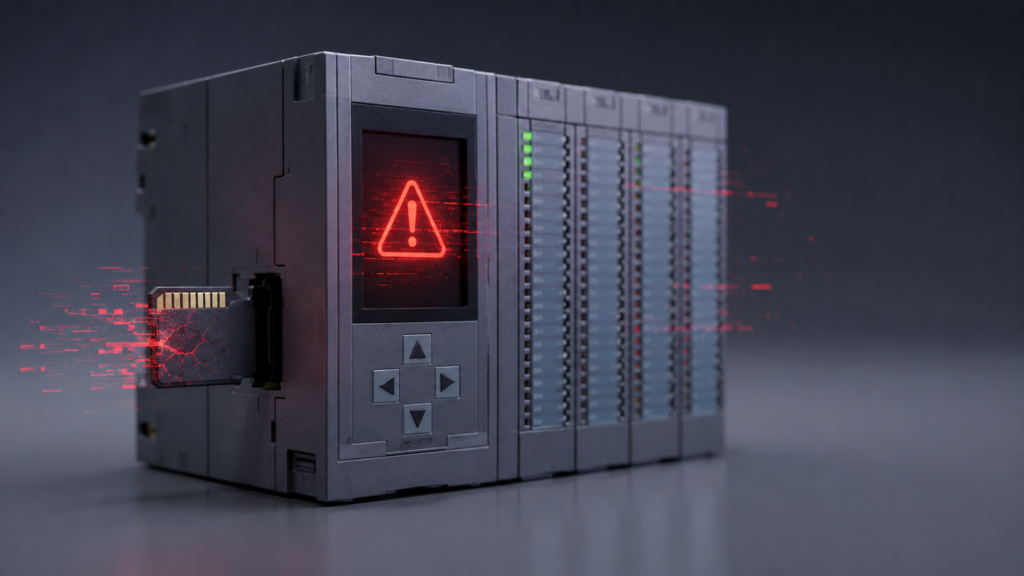
A Siemens S7-1500 CPU suddenly entering DEFECTIVE mode is the sort of fault that gets everyone’s attention rather quickly.
In this case, the diagnostic buffer reports:
Event ID: 16#02:401A
Temporary CPU error: Serious firmware exception
CPU changes to DEFECTIVE mode
The affected controller is:
- CPU: 1511-1 PN
- Article number: 6ES7511-1AK00-0AB0
- Installed firmware: V1.6.0
- Hardware version: 5
The good news is that Siemens documented a firmware correction for this exact CPU model and this type of sporadic serious firmware exception.
Which Firmware Version Should You Install?
For the CPU with article number 6ES7511-1AK00-0AB0, the appropriate final firmware version is:
Firmware V1.8.5
Siemens states that V1.8.5 is specifically for this older CPU article number and corrects a sporadic “Serious firmware exception” behaviour.
Do not download firmware V2.9 or V3.1 simply because it is newer.
Those versions belong to newer hardware variants such as:
- 6ES7511-1AK01-0AB0
- 6ES7511-1AK02-0AB0
- Later CPU 1511-1 PN revisions
The complete article number matters. Your 6ES7511-1AK00-0AB0 cannot be upgraded beyond its supported V1.8 firmware family. For this model, V1.8.5 is the correct target.
What Does “Serious Firmware Exception” Mean?
This message indicates that the CPU’s operating firmware encountered an internal exception it could not handle normally.
As a protective response, the controller changes to DEFECTIVE mode rather than continuing to execute the automation program in an uncertain state.
This is different from an ordinary user-program fault such as:
- Division by zero
- Invalid array index
- Watchdog timeout
- Missing I/O module
- Programming error
The system code shown in the diagnostic entry is mainly intended for Siemens support and firmware developers. It normally does not identify a ladder-logic or structured-text instruction that the user can repair directly.
Recommended Recovery Procedure
Before modifying the controller, place the machine in a safe condition. A CPU returning to RUN may restore output commands, depending on the program and machine design.
1. Save the Diagnostic Evidence
Before clearing or resetting anything, record:
- Complete diagnostic-buffer entry
- CPU serial number
- Article number
- Hardware version
- Existing firmware version
- Date and time of the event
- CPU LED states
- Events immediately before the exception
Export the diagnostic buffer if possible. Siemens support may request the complete internal codes if the problem returns.
2. Back Up the Current Project
Upload and save the program currently inside the CPU before updating firmware.
Also preserve any important:
- Recipes
- Retentive values
- Calibration parameters
- Technology-object settings
- Safety configuration
- Hardware configuration
Confirm that the offline project really belongs to this machine.
3. Download Firmware V1.8.5
Use the firmware package intended specifically for:
6ES7511-1AK00-0AB0
Do not select a package merely because the description says “CPU 1511-1 PN.” Several different hardware revisions share that CPU name but support different firmware versions.
4. Use a Stable Power Supply
Do not perform the update while the control supply is unstable.
Check the 24 V DC supply at the CPU terminals and make sure it remains within the CPU’s permitted range. Siemens lists a nominal 24 V DC supply with a permissible range of 19.2–28.8 V for this CPU.
Avoid:
- Loose power terminals
- Repeated power cycling
- Switching large solenoid loads from the same weak supply
- Interrupting the firmware update
- Removing the SIMATIC Memory Card during writing
5. Update the Firmware
The firmware can be transferred using an approved Siemens method, such as TIA Portal or a properly prepared SIMATIC Memory Card.
Allow the complete update and restart process to finish. Do not remove power because the display appears inactive for a short period.
Afterward, confirm in Online & Diagnostics that the CPU reports:
Firmware V1.8.5
Then compile and download the correct hardware and software configuration if required.
What If the CPU Still Will Not Accept the Hardware Configuration?
If firmware recovery succeeds but hardware downloading fails, inspect the SIMATIC Memory Card.
A forum user reported recovering a similar situation by reinstalling the firmware and then formatting the memory card through:
Online & Diagnostics → Functions → Format memory card
Formatting must be treated as a last recovery step because it erases the card’s contents.
Use TIA Portal or another Siemens-approved method. Siemens warns that formatting a SIMATIC Memory Card with ordinary Windows formatting tools initially makes it unusable by the CPU. The card is also mandatory for normal S7-1500 CPU operation.
Never format the card unless a verified project backup exists.
Check the Electrical Installation Too
Even though V1.8.5 addresses the known firmware issue, recurring CPU defects should not automatically be blamed only on software.
Inspect:
- CPU supply voltage
- 0 V bonding
- Protective-earth connection
- Cabinet grounding
- Shield termination
- VFD and motor-cable routing
- Welding equipment nearby
- Electromagnetic interference
- Loose backplane or module connections
- SIMATIC Memory Card condition
A short voltage disturbance or severe interference can cause controller resets and misleading secondary faults.
If the exception returns after installing V1.8.5, send the new diagnostic-buffer export to Siemens through a formal Support Request. The internal system codes allow Siemens to distinguish a known firmware defect from hardware, memory or environmental problems.
Should You Replace the CPU?
Not immediately.
Replace the CPU only after:
- Updating or reinstalling V1.8.5
- Checking the SIMATIC Memory Card
- Verifying the 24 V supply
- Inspecting grounding and EMC conditions
- Reloading a verified project
- Sending recurring diagnostic information to Siemens
A single event on firmware V1.6.0 is not enough to prove that the CPU hardware is defective—especially when Siemens released V1.8.5 specifically to correct a sporadic serious firmware exception for this article number.
Final Thoughts
For a Siemens CPU 1511-1 PN with article number 6ES7511-1AK00-0AB0, running firmware V1.6.0 and reporting Event ID 16#02:401A, the first practical action is to upgrade to firmware V1.8.5.
That is the correct—and highest relevant—firmware branch for this exact CPU version.
Back up the project, preserve the diagnostic information and perform the update with a stable power supply. If the fault returns after the upgrade, investigate the memory card, control voltage, grounding and electromagnetic environment before replacing the processor.