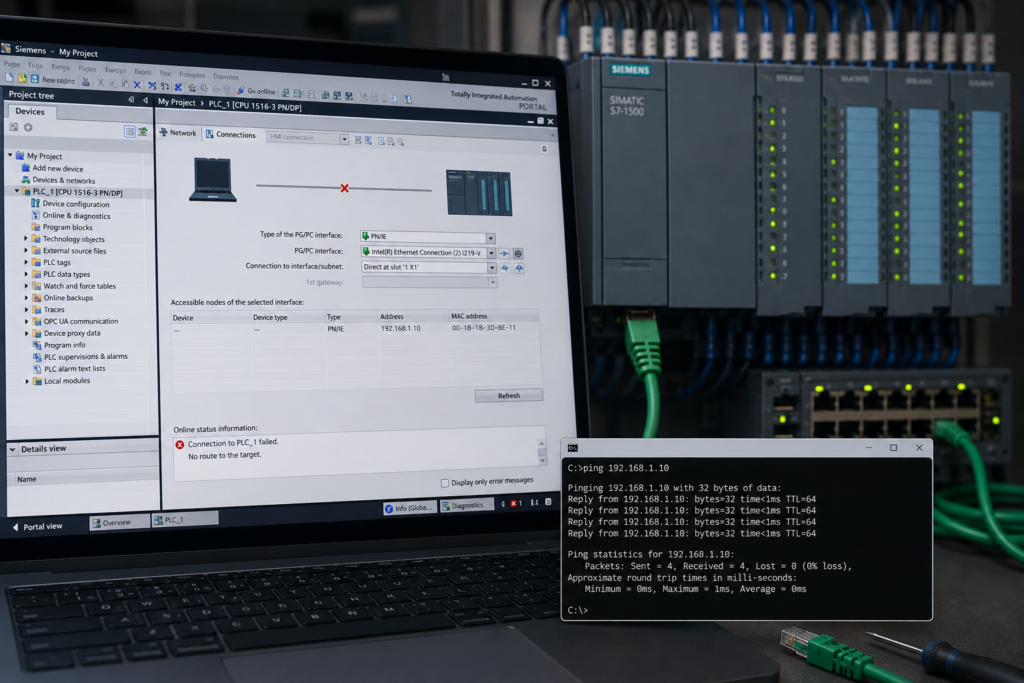
A successful ping can be reassuring.
You type the PLC’s IP address into Command Prompt, receive four replies and confirm that the response time is only a few milliseconds.
Then you open TIA Portal.
The PLC does not appear under Accessible devices, the Go online function fails, or TIA Portal reports that no compatible device can be found.
This seems contradictory, but it is entirely possible because ordinary IP communication, PROFINET device discovery and TIA Portal engineering communication are not the same thing.
A successful ping proves only that an IP device at that address responded to an ICMP echo request.
It does not prove that:
- TIA Portal is using the correct network adapter;
- PROFINET discovery is working;
- the Siemens communication services are running;
- S7 engineering communication is allowed through the firewall;
- the responding device is actually the intended PLC;
- the project CPU matches the physical CPU;
- the installed TIA Portal version supports the CPU and its firmware;
- secure PG/PC communication is compatible.
The most common causes are:
- wrong PG/PC network adapter selected;
- PROFINET discovery services not operating;
- firewall or endpoint-security interference;
- VPN or virtual adapter conflict;
- device and project incompatibility;
- unsupported TIA Portal or CPU firmware version;
- secure communication mismatch;
- duplicate IP address;
- wrong PLC interface selected.
The correct diagnosis begins by separating the different communication tests.
Ping, PROFINET Discovery and TIA Portal Online Access
These three functions use different mechanisms.
Ping
Ping uses ICMP at the IP network layer.
It tests whether a device at a specific IP address can respond through the available network route.
A successful ping usually confirms:
- basic Ethernet communication;
- compatible IP routing;
- a responding IP device;
- at least part of the cable and switch path.
It does not identify the responding device beyond its IP address.
PROFINET device discovery
TIA Portal’s Accessible devices search uses PROFINET Discovery and Configuration Protocol, commonly called DCP.
DCP is used to discover PROFINET devices and apply basic settings such as device names. Siemens documents DCP as a Layer 2 protocol using Ethernet frames and special multicast MAC addresses rather than ordinary routed IP communication.
Because DCP operates at Layer 2, it is normally limited to the local Ethernet network.
It may not pass through:
- routers;
- ordinary VPN tunnels;
- routed firewalls;
- VLAN boundaries;
- network ports configured to block DCP forwarding;
- some virtual-machine network modes.
Siemens also documents port-boundary settings that deliberately prevent DCP discovery frames from being forwarded, making downstream devices disappear from Accessible devices.
TIA Portal engineering connection
Going online with the CPU requires an engineering communication path between TIA Portal and the PLC.
For conventional Siemens S7 communication, the S7 protocol uses ISO-on-TCP on TCP port 102 for PG/HMI communication with TIA Portal.
Newer S7-1200 and S7-1500 CPUs may also use secure PG/PC communication depending on:
- CPU firmware;
- configured firmware;
- TIA Portal version;
- CPU security settings;
- certificates.
A computer can therefore ping a PLC successfully while TIA Portal’s discovery or engineering connection is blocked.
Quick Troubleshooting Table
| Symptom | Most likely causes |
|---|---|
| PLC replies to ping but does not appear under Accessible devices | Wrong network adapter, DCP discovery blocked, VPN, virtual adapter or stopped PROFINET discovery service |
| PLC appears under Accessible devices but Go online fails | Project-device mismatch, incompatible firmware, security settings, wrong connection path or insufficient access rights |
| PLC can be reached by IP but not discovered remotely | Routed network, VPN or DCP traffic not forwarded |
| TIA Portal finds another device at the same IP | Duplicate IP address or stale ARP information |
| Connection works after disabling VPN | VPN changed the route or TIA selected the VPN adapter |
| Connection works with firewall disabled | Security software is blocking discovery or engineering communication |
| Older TIA version cannot connect to newer CPU | Unsupported CPU firmware, unsupported secure communication or missing hardware support |
| Connection works through one CPU interface but not another | Wrong X1/X2 interface, different subnet or separate network configuration |
| Other Siemens tools also cannot discover the PLC | Siemens discovery or S7DOS components may not be running correctly |
| Ping works intermittently | Duplicate IP, damaged cable, unstable switch port or power interruption |
1. Confirm That Ping Reaches the Correct PLC
Before changing TIA Portal settings, confirm that the device replying to ping is really the intended CPU.
A duplicate IP address can make ping appear successful even when the PLC is disconnected.
Check the ARP table
Open Command Prompt and enter:
arp -aFind the PLC’s IP address and note the corresponding physical or MAC address.
Compare it with:
- the MAC address printed on the CPU;
- the address shown in Accessible devices;
- the address recorded in the project;
- the address shown on the CPU display, where available.
If the MAC address does not belong to the PLC, another device is using that IP address.
Disconnect test
Where it is safe and permitted:
- Disconnect the PLC’s Ethernet cable.
- Ping the same IP address again.
- Check whether replies continue.
If the address still replies, the network contains another device using that IP or a different device was being pinged from the beginning.
Do not perform this test on a live production network without understanding how communication loss will affect the process.
Clear stale ARP information
Windows may temporarily retain an old IP-to-MAC association.
After correcting an address conflict, the local ARP cache may need to be refreshed before testing again.
The important point is simple:
Ping proves that something replied. It does not automatically prove that the intended Siemens CPU replied.
2. Select the Correct PG/PC Network Adapter
TIA Portal must use the physical or virtual network interface that has a valid path to the PLC.
A modern engineering laptop may contain:
- built-in Ethernet;
- USB Ethernet;
- docking-station Ethernet;
- Wi-Fi;
- VPN adapter;
- VMware adapter;
- VirtualBox adapter;
- Hyper-V virtual switch;
- mobile hotspot;
- PLCSIM virtual interface.
Ping may use one interface while TIA Portal searches through another.
Select the adapter in Accessible Devices
In TIA Portal:
- Open Online → Accessible devices.
- Set the PG/PC interface type to PN/IE.
- Select the exact network adapter connected to the PLC.
- Select Start search.
Siemens requires the interface type and the specific PG/PC interface to be selected when searching for accessible devices. The search results apply only to the chosen interface.
Check Online Access
You can also use the project tree:
- Expand Online access.
- Find the correct Ethernet adapter.
- Expand the adapter.
- Double-click Update accessible devices.
TIA Portal lists the computer’s active interfaces separately under Online access.
Identify the adapter in Windows
Open Command Prompt:
ipconfigFind the adapter that:
- shows Media connected;
- has the expected engineering-network IP address;
- corresponds to the physical Ethernet connector being used.
A simple method is to unplug the PLC cable and observe which Windows adapter changes to Media disconnected.
Reconnect the cable and confirm that the same adapter becomes active.
Disable competing adapters temporarily
For a controlled direct test, temporarily disable:
- Wi-Fi;
- VPN;
- unused Ethernet adapters;
- VMware or VirtualBox interfaces;
- mobile hotspot;
- unrelated industrial-network adapters.
Leave only the PLC-facing Ethernet adapter active.
Then restart the Accessible devices search.
This is often faster than trying to guess which route Windows or TIA Portal has selected.
Use Extended Go Online
If TIA Portal remembers an old connection path, select:
Online → Extended go online
Then manually choose:
- PG/PC interface type;
- specific network adapter;
- CPU interface;
- target IP address.
TIA Portal can reuse a previously selected connection path, so opening the extended dialog is useful when the laptop, docking station or USB adapter has changed.
3. Understand Why Accessible Devices May Fail While Ping Works
Accessible devices does not rely only on the PLC’s IP address.
It searches for devices through the selected local interface using PROFINET discovery.
Because DCP uses Layer 2 Ethernet frames, discovery can fail even when ordinary IP traffic travels successfully through the network.
Common situations
PLC is reached through a router
Ping crosses the router because the router forwards IP packets.
DCP discovery normally remains on the local Ethernet segment.
PLC is reached through a VPN
The VPN carries routed IP traffic, but it may not carry Ethernet multicast frames used for PROFINET discovery.
Laptop and PLC are on different VLANs
Routing between the VLANs may permit ping and TCP connections, but DCP broadcasts or multicast discovery frames may not cross the VLAN boundary.
Managed switch blocks DCP
A switch or PROFINET device may be configured with a discovery boundary that prevents DCP frames from being forwarded.
Going online without Accessible Devices
If the PLC’s IP address is known and a valid route exists, you may not need Accessible devices.
Use Extended go online and enter or select the PLC IP address directly.
The PLC can be reachable for IP-based engineering even when local PROFINET discovery is unavailable.
Do not spend hours trying to make Layer 2 discovery pass through a routed corporate network if the approved connection method is direct IP access.
4. Check Siemens PROFINET and S7 Communication Services
TIA Portal installs background components that support device discovery and online communication.
Siemens installation documentation identifies components including:
- SIMATIC PnDiscovery Service for PROFINET discovery;
- S7DOS Helper Service;
- S7DOS event and parameter handling;
- communication access-point components.
If these components are stopped, damaged or blocked, Windows may still ping the PLC while TIA Portal fails to discover or connect to it.
Check Windows Services
Open:
services.mscLook for relevant Siemens services, particularly:
- SIMATIC PnDiscovery Service;
- S7DOS Helper Service or the version-specific S7DOS service;
- other Siemens communication services installed with your TIA version.
Exact service names can vary between versions and installed components.
Check whether the relevant services are:
- present;
- running;
- configured normally;
- repeatedly stopping.
Restart the computer first
Before manually changing Siemens services, close TIA Portal and restart the engineering computer.
A restart clears:
- locked communication processes;
- failed adapter bindings;
- stale VPN routes;
- incomplete updates;
- temporary S7DOS errors.
Then test again with:
- VPN disconnected;
- correct Ethernet adapter selected;
- firewall in its normal approved state.
When services are missing
If the SIMATIC PnDiscovery or S7DOS components are absent, do not download random DLL files or copy services from another computer.
Use:
- TIA Portal repair installation;
- Siemens installation media;
- the installed-version update package;
- approved Siemens support procedures.
A missing discovery component is an installation problem, not a PLC problem.
Compare with another Siemens tool
Where available, test with:
- SIMATIC Automation Tool;
- another correctly installed engineering laptop;
- another TIA Portal installation of the same supported version.
If another computer connects immediately through the same cable and switch port, the fault is probably on the original engineering computer.
5. Check the Firewall and Endpoint Security
A firewall can allow ping while blocking the communication needed by TIA Portal.
Ping uses ICMP.
Conventional S7 engineering communication uses ISO-on-TCP over TCP port 102, while PROFINET DCP uses Layer 2 Ethernet frames rather than an ordinary TCP or UDP port.
Allowing one does not automatically allow the others.
Possible security interference
- Windows Defender Firewall;
- third-party firewall;
- antivirus network inspection;
- endpoint-detection software;
- company security agent;
- network-access-control software;
- VPN packet filter;
- hardened corporate laptop policy.
Controlled firewall test
On an isolated and authorised commissioning network:
- Disconnect the laptop from public or office networks.
- connect directly to the PLC or isolated machine switch.
- temporarily disable the firewall.
- test Accessible devices.
- test Go online.
- re-enable the firewall immediately.
If TIA Portal works only while the firewall is disabled, repair the firewall rules rather than leaving it off.
The final solution should allow the required Siemens software and protocols while preserving network security.
Check TCP port 102
For conventional S7 PG/HMI communication, test whether TCP port 102 is allowed between the computer and PLC.
A basic Windows PowerShell test is:
Test-NetConnection 192.168.1.10 -Port 102Replace the address with the actual PLC IP.
A successful result suggests that TCP port 102 is reachable.
A failed result while ping succeeds points toward:
- firewall blocking TCP;
- PLC security or communication setting;
- routed access restriction;
- wrong destination device;
- network access-control rule.
Secure communication settings on newer CPUs may add further compatibility requirements, so a successful port test does not prove the complete TIA connection will work.
Restore Siemens security settings
If communication stopped after:
- antivirus installation;
- Windows hardening;
- firewall modification;
- TIA Portal repair;
- Windows update;
use Siemens-supported repair or security-restoration procedures.
Do not create a permanent “allow everything” rule for an industrial engineering laptop.
6. Disconnect the VPN
VPN software commonly causes this exact symptom:
- ping succeeds;
- TIA Portal cannot discover or connect.
The VPN may:
- become Windows’ preferred route;
- install a packet-filter driver;
- prevent local subnet access;
- force traffic into the tunnel;
- block Ethernet multicast;
- cause TIA Portal to select the VPN adapter.
Test without VPN
- Disconnect the VPN.
- close TIA Portal.
- disable the VPN adapter temporarily.
- disable Wi-Fi.
- restart TIA Portal.
- select the physical Ethernet adapter.
- test Accessible devices and Go online.
If communication works, the VPN configuration is the likely cause.
Remote connection limitation
A PLC may be reachable by its known IP address through an approved routed VPN while remaining invisible to Accessible devices.
That is expected when the VPN carries Layer 3 IP traffic but not Layer 2 PROFINET DCP frames.
Use a manually configured online path rather than discovery.
7. Check the Project Device Against the Physical PLC
TIA Portal may discover and ping the CPU but reject the project connection because the configured device does not match the physical hardware.
Compare:
- CPU family;
- full Siemens order number;
- CPU firmware;
- configured device version;
- interface address;
- project version.
Typical mismatches
- Project contains CPU 1212C, but physical device is CPU 1214C.
- Project contains an older S7-1200 firmware version.
- Replacement S7-1500 has newer firmware.
- Project was copied from another machine.
- CPU was changed, but Change device was not completed.
- Project points to the wrong CPU interface.
- Software controller is confused with a physical CPU.
- Different failsafe or technology CPU variant is installed.
TIA Portal’s Change device function displays compatibility information when replacing one configured CPU or module with another.
Compare the full order number
Do not compare only:
- S7-1200;
- S7-1500;
- CPU 1511;
- CPU 1214C.
Compare the complete order number and firmware version.
Small differences can affect:
- supported functions;
- project compatibility;
- security behavior;
- available interfaces;
- online access.
Upload as a new station
When the PLC is reachable but the original project is unavailable or uncertain, use the supported upload procedure where appropriate:
Online → Upload device as new station
TIA Portal requires the PG/PC interface type and the specific interface to be selected during this process.
Do not overwrite the existing project before preserving a backup.
8. Check the TIA Portal Version
A computer can ping any ordinary IP device regardless of whether the installed TIA Portal version understands that PLC.
TIA Portal must support:
- the CPU hardware;
- the actual firmware version;
- the configured firmware version;
- the project version;
- the instructions and technology objects used.
Siemens states that full online functionality requires compatibility between the installed TIA Portal version, the project, the physical hardware and its firmware.
Typical version problems
- Older TIA Portal installed than the project requires.
- CPU firmware newer than the installed hardware catalogue supports.
- Project upgraded but optional packages were not upgraded.
- Safety or motion package version differs.
- Required hardware-support package is missing.
- TIA Portal updates are inconsistent.
- Project was created in a newer release.
Check these values
Record:
- TIA Portal major version;
- installed update level;
- project version;
- CPU order number;
- CPU firmware;
- configured CPU version.
A project opening successfully does not guarantee that every online function is compatible with the physical plant.
Do not downgrade firmware casually
Changing CPU firmware can affect:
- program compatibility;
- security;
- communication;
- safety validation;
- supported features.
It is usually better to install the correct TIA Portal version or update package than to downgrade production hardware without a controlled plan.
9. Check Secure PG/PC Communication
Modern Siemens CPUs support secure engineering communication.
For newer S7-1500 CPUs, the default connection mechanism can allow only secure PG/HMI communication. The engineering partner must also support that secure mechanism.
Siemens documents that TIA Portal V17 and later can automatically use secure communication with S7-1200 CPUs from firmware V4.5 and S7-1500 CPUs from firmware V2.9, with legacy communication used only under particular compatibility conditions.
Possible symptoms
- CPU replies to ping.
- PLC appears under Accessible devices.
- TIA Portal begins connecting but fails.
- Certificate or security message appears.
- Older engineering laptop cannot connect.
- Newer laptop connects successfully.
- Online functions are restricted.
- Password or access-level prompt appears.
Check CPU security settings
In the project, inspect:
CPU Properties → Protection & Security → Connection mechanisms
Depending on the CPU and project, review:
- secure PG/HMI communication;
- legacy communication permission;
- PLC communication certificate;
- access-control level;
- password or user management;
- secure communication compatibility.
Do not weaken CPU security permanently simply to make an older laptop connect.
Use a compatible TIA Portal version and approved security configuration.
Certificate issues
A secure connection can fail when:
- the certificate is missing;
- certificate is expired;
- project contains another certificate;
- CPU was replaced;
- system date and time are incorrect;
- project was restored without the expected security material.
Follow the project’s security procedure rather than generating replacement certificates casually.
10. Check the Correct PLC Ethernet Interface
Some Siemens CPUs have more than one PROFINET or Industrial Ethernet interface.
They may be labelled:
- X1;
- X2;
- X3;
- integrated PN interface;
- communication-processor interface.
Two physical Ethernet sockets may belong to one integrated switch and share one IP address.
Another pair of interfaces may be completely separate, with different:
- IP addresses;
- subnets;
- security settings;
- controller roles.
Example
The project contains:
X1: 192.168.10.1
X2: 172.20.5.1
The computer is configured as:
192.168.10.50But the cable is connected to X2.
The PLC may still be pingable through another network path, while TIA Portal’s configured project connection points toward the wrong interface.
Check the interface in TIA Portal
- Open Device configuration.
- select the CPU.
- open each PROFINET interface.
- record its IP address and subnet.
- identify which physical ports belong to that interface.
- select the same address in Extended go online.
When a CPU has several addresses, the intended interface must be selected for the online connection.
11. Test With a Direct Connection
A direct cable test removes much of the network from the diagnosis.
It bypasses:
- plant switches;
- routers;
- VPNs;
- VLANs;
- managed-port restrictions;
- firewall appliances;
- long cable runs.
Direct test procedure
Step 1: Make the machine safe
Changing an IP address or downloading can affect operation. Control hazardous outputs before proceeding.
Step 2: Connect directly
Use a short, known-good Ethernet cable between the engineering computer and the correct CPU interface.
Step 3: Disable other adapters
Temporarily disable:
- Wi-Fi;
- VPN;
- virtual interfaces;
- unused Ethernet adapters.
Step 4: Set a compatible PC address
Example:
PLC: 192.168.1.10
PC:  192.168.1.50
Mask: 255.255.255.0
Step 5: Confirm LINK LEDs
Both ports should show a physical Ethernet link.
Step 6: Ping the PLC
ping 192.168.1.10Step 7: Select the correct adapter
Use the physical Ethernet adapter in Accessible devices and Extended go online.
Step 8: Test port 102
Test-NetConnection 192.168.1.10 -Port 102Step 9: Attempt online access
If direct communication works, the PLC and engineering software are probably functional.
Reconnect the original network path gradually to find the point where communication fails.
12. A Step-by-Step Diagnostic Workflow
Step 1: Confirm the IP address
Make sure you are pinging the intended PLC address.
Step 2: Confirm the MAC address
Use arp -a and compare it with the CPU.
Step 3: Check the cable and LINK LEDs
Ping may travel through another adapter or route. Confirm the physical path you intend to use.
Step 4: Select the PG/PC adapter manually
Use the exact physical Ethernet adapter in TIA Portal.
Step 5: Disable VPN and virtual adapters
Simplify the routing table.
Step 6: Try Accessible devices
Remember that this tests local PROFINET discovery, not only IP communication.
Step 7: Try Extended go online by IP
This tests the engineering connection directly.
Step 8: Test TCP port 102
A failed port test with successful ping suggests filtering or a communication-path problem.
Step 9: Check Siemens services
Confirm that PROFINET discovery and S7DOS components are operating.
Step 10: Check firewall and security software
Perform only a controlled temporary test.
Step 11: Compare the project with the real CPU
Check order number, firmware and interface.
Step 12: Verify TIA Portal compatibility
Confirm the installed version and update level support the CPU.
Step 13: Check secure communication
Review certificates, access levels and connection mechanisms.
Step 14: Test directly
Bypass the plant network using a known-good cable.
Step 15: Compare with another engineering computer
This quickly separates a PLC/network problem from a computer installation problem.
Symptom-Based Troubleshooting
Ping works, but Accessible Devices is empty
Check:
- selected PG/PC adapter;
- SIMATIC PnDiscovery Service;
- VPN;
- virtual adapters;
- DCP boundaries;
- routed network;
- firewall or endpoint filter.
Accessible Devices finds the PLC, but Go Online fails
Check:
- project CPU model;
- firmware compatibility;
- TIA Portal version;
- secure PG/PC communication;
- access rights;
- selected project interface.
Ping and port 102 both work, but TIA still fails
Check:
- wrong project device;
- CPU access protection;
- certificate problem;
- incompatible project;
- damaged TIA installation;
- incorrect secure communication mechanism.
Another laptop connects successfully
Suspect:
- network-adapter selection;
- Siemens services;
- firewall;
- VPN;
- TIA Portal installation;
- missing updates;
- version incompatibility on the original laptop.
Connection works directly but not through the plant network
Suspect:
- routing;
- VLAN;
- firewall appliance;
- port security;
- DCP filtering;
- duplicate IP;
- managed-switch configuration.
Connection fails only with VPN enabled
Suspect:
- route priority;
- local-subnet blocking;
- VPN packet filter;
- TIA Portal selecting the VPN interface.
PLC appeared before a TIA update but not afterward
Check:
- update completed correctly;
- matching service-pack levels;
- Siemens communication services;
- firewall rules;
- repaired PG/PC interface settings;
- installation repair.
What Not to Do
Avoid these common mistakes:
- Do not assume ping proves TIA Portal communication is healthy.
- Do not factory-reset the PLC.
- Do not assign random IP addresses.
- Do not give the laptop and PLC the same IP.
- Do not disable the firewall permanently.
- Do not downgrade CPU firmware without a compatibility plan.
- Do not enable legacy communication permanently just to support an outdated laptop.
- Do not download to a device identified only by an IP address.
- Do not ignore the responding MAC address.
- Do not reinstall Windows before checking the selected adapter and Siemens services.
- Do not replace the CPU before testing another engineering computer.
- Do not expect Accessible devices to work through every router or VPN.
- Do not copy Siemens service files from another PC.
A successful ping is useful evidence.
It is simply not the whole diagnosis.
Why the PLC Can Be Pinged but TIA Portal Cannot Connect
Ping, PROFINET discovery and TIA Portal online communication test different parts of the connection.
- Ping proves that an IP device responded to ICMP.
- Accessible devices uses PROFINET DCP discovery through the selected local network interface.
- Go online requires a compatible S7 engineering connection, correct project hardware, supported firmware and suitable CPU security settings.
When ping works but TIA Portal cannot connect, check the system in this order:
- Confirm the MAC address of the responding device.
- select the correct PG/PC network adapter.
- disable VPN and competing virtual adapters.
- check the SIMATIC PnDiscovery and S7DOS services.
- test firewall and TCP port 102.
- compare the physical CPU with the project.
- verify the TIA Portal and CPU firmware versions.
- check secure PG/PC communication and access rights.
- test using a direct Ethernet connection.
The reply from ping says:
“An IP device is reachable.”
It does not yet say:
“TIA Portal can identify, authenticate and engineer this Siemens PLC.”