Backups are the maintenance technician’s safety net — known-good
copies of the PLC and HMI programs that let you recover from a failure
or a mistake — and understanding how and when to make them is essential
to safe, responsible maintenance. A backup you can restore is worth more
than any amount of careful work, because it lets you recover, and a
machine without a current backup is one bad moment from a lengthy,
difficult recovery. This chapter covers backups from the maintenance
perspective.
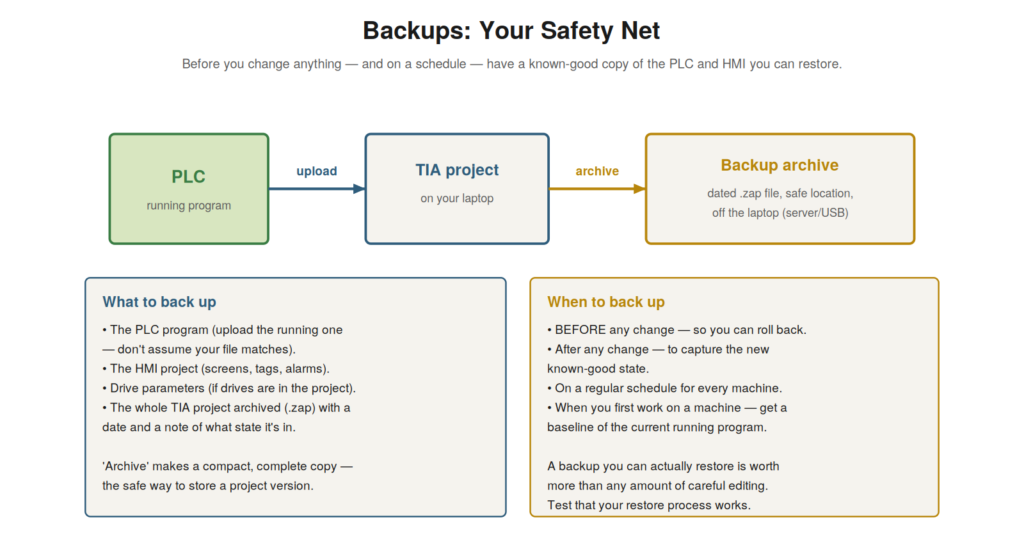
program, archive the whole project as a dated file in a safe location
off the laptop. Back up before any change (to roll back), after any
change (to capture the new state), on a schedule, and when you first
work on a machine.
What to back up
A complete backup captures everything needed to restore a machine’s
control system, and understanding what to include ensures your backup is
actually useful. The essentials: the PLC program (uploaded from the
running PLC, so it is the actual running version — not assumed from a
possibly-outdated laptop file), the HMI project (screens, tags, alarms),
and, if the project includes drives, their parameters. The whole TIA
Portal project should be archived — TIA Portal’s archive function
creates a compact, complete copy (a .zap file) of the entire project,
which is the proper way to store a version. The archive should be dated
and noted with what state it represents. So a complete backup is the
archived whole project, with the PLC program uploaded from the actual
running machine. Understanding what to back up — the whole project
archived, with the PLC program from the running machine — ensures a
useful backup. It reinforces backing up the complete project (PLC, HMI,
drives) via the archive function, with the PLC program uploaded from the
running machine, dated and noted. Understanding what to back up — the
complete archived project, with the actual running PLC program — ensures
your backup can genuinely restore the machine, capturing everything
needed rather than a partial or outdated copy, so that when you need to
restore, the backup contains the real, complete control system as it was
running, which is what makes a backup a genuine safety net rather than a
false reassurance.
When to back up
Knowing when to back up ensures you always have a current known-good
copy when you need it, and understanding the key moments makes backing
up a habit. Back up before any change — so you can roll back if the
change goes wrong; this is the most important backup, your ability to
undo. Back up after any change — to capture the new known-good state, so
your backup stays current. Back up on a regular schedule — so every
machine has a reasonably current backup regardless of changes. And back
up when you first work on a machine — to establish a baseline of the
current running program, which you may not have. These moments — before
and after changes, on schedule, and at first contact — ensure a current
backup is always available. Understanding when to back up — before
changes (to roll back), after changes (to stay current), on schedule,
and at first contact — makes backing up a reliable habit. It reinforces
backing up at these key moments, especially before any change (to enable
rollback) and to keep the backup current after changes. Understanding
when to back up — the key moments that ensure a current known-good copy
is always available — makes backups a reliable safety net, so that
whenever something goes wrong, you have a recent backup to restore,
particularly the crucial before-change backup that lets you undo a
change that goes wrong, which is the maintenance technician’s protection
against the mistakes and failures that make a restorable backup so
valuable.
Backups you can actually restore
A backup is only valuable if you can actually restore it, and
understanding this — and the practices that ensure it — protects against
the false security of untested backups. A backup that cannot be restored
when needed is worthless, so the ability to restore is what matters, not
just the making of backups. Practices that ensure restorable backups:
store them safely (off the laptop — on a server or other reliable
location — so a laptop failure does not lose them), keep them organized
and dated (so you can find the right one), and, importantly, verify that
your restore process actually works (knowing how to restore, and having
confidence it will work, ideally tested). A backup stored safely,
findable, and restorable is a genuine safety net; one that is lost,
unfindable, or unrestorable is false security. Understanding that
restorability is what matters — and the practices ensuring it — makes
your backups genuinely protective. It reinforces that backups must be
restorable to be valuable: stored safely off the laptop, organized and
dated, with a verified restore process. Understanding that a backup you
can actually restore — stored safely, findable, and with a working
restore process — is what provides real protection ensures your backups
are a genuine safety net rather than false security, so that when you
need to recover, the backup is there, findable, and restorable, which is
the whole point of backing up and what distinguishes a real safety net
from the illusion of one that untested or poorly-stored backups
provide.
The memory card and retentive data
Two hardware-related aspects of backups deserve understanding: the
CPU’s memory card and retentive data, because they affect what a full
recovery requires. Modern Siemens CPUs use a memory card that holds the
program — it is where the program actually resides — so the memory card
is itself, in a sense, the program’s home in the CPU. Understanding this
matters for recovery: replacing a CPU may involve the memory card, and a
spare card programmed with the backup can speed recovery. Retentive data
is another consideration: some data (certain values, counts, states) is
retentive — retained through power loss — and represents the machine’s
accumulated state, which a program backup alone does not capture (it
captures the program, not the live retentive values). So a full
understanding of recovery includes the memory card (where the program
lives) and retentive data (the accumulated state). Understanding the
memory card and retentive data — the program’s residence and the
retained state — completes the picture of what backup and recovery
involve. It reinforces that the program lives on the memory card
(relevant to CPU replacement) and that retentive data is accumulated
state beyond the program backup. Understanding the memory card and
retentive data — the hardware home of the program and the retained
machine state — rounds out your understanding of backups and recovery,
clarifying that recovering a machine involves not just the program
backup but potentially the memory card (the program’s residence) and an
awareness of retentive data (the accumulated state that a program backup
does not capture), which matters for a complete recovery of a machine’s
control system beyond just restoring the program logic.
Scenario: the backup that saved a recovery
A scenario shows a backup enabling a recovery. A machine’s CPU failed
and had to be replaced — but a replacement CPU is blank, without the
program. Because the technician’s team had kept a current backup (a
recent archived project, uploaded from the machine), the recovery was
straightforward: they installed the replacement CPU and downloaded the
backed-up program to it, restoring the machine’s control. Within a short
time, the machine was running again on the restored program. Had there
been no backup, recovery would have been far harder — potentially
requiring the program to be recreated or obtained from elsewhere, a
lengthy and uncertain process. The backup had turned a CPU failure from
a potential disaster into a routine recovery. This scenario shows a
backup enabling a straightforward recovery from a CPU failure.
Understanding the value of backups — having a current one ready — let
the team recover quickly by restoring the program to a replacement CPU.
It reinforces that backups are the safety net that makes recovery from
failures possible, turning a potential disaster into a routine restore.
The scenario reinforces the value of backups: a current backup turned a
CPU failure into a routine recovery by allowing the program to be
restored to a replacement CPU, illustrating exactly why backups matter —
they are the safety net that makes recovery possible, without which a
hardware failure could mean a lengthy, uncertain effort to recreate or
find the lost program.
Organizing and labeling backups
A practical aspect of backups that greatly affects their usefulness
is organizing and labeling them well, because a backup you cannot
identify or find is nearly useless. A collection of backups needs
organization: each backup clearly labeled with the machine, the date,
and ideally a note of its state (what version, what was changed, whether
it is a known-good running version). Stored in an organized way (by
machine, chronologically), so you can find the right one when needed.
Without this, you may have backups but be unable to identify which is
the current known-good version for a given machine, or find it quickly
in a crisis. Good labeling and organization turn a pile of backups into
a usable library from which you can confidently retrieve the right
version. So organizing and labeling backups — clear identification and
orderly storage — makes them genuinely usable. Understanding the
importance of organizing and labeling backups — clear identification and
orderly storage — ensures your backups are usable when needed.
Understanding how to organize and label backups — with clear machine,
date, and state identification, stored in an orderly way — ensures they
are genuinely usable, so that when you need to restore, you can quickly
find and confidently identify the right known-good backup for the
machine, rather than facing a confusing pile of unlabeled files in a
crisis, which is what turns a set of backups into a reliable, usable
safety net from which the correct version can be retrieved with
confidence.
Backups as professional responsibility
Consolidating the backup material, keeping good backups is a
professional responsibility — part of maintaining machines properly —
and understanding it this way emphasizes taking it seriously. A
machine’s control program is essential to its operation, and protecting
it against loss (through backups) is part of maintaining the machine
responsibly, just as protecting its mechanical and electrical integrity
is. A technician or team that keeps good, current, restorable backups is
maintaining the machines properly; one that neglects backups is leaving
the machines vulnerable to a loss that could cause extended downtime. So
backups are not an optional extra but a professional responsibility,
part of proper maintenance. Taking this seriously — keeping good backups
as a matter of course — is part of being a responsible technician. It
protects the machines and the operation against a real and avoidable
risk. Understanding backups as professional responsibility — part of
maintaining machines properly — emphasizes taking them seriously.
Understanding good backups as a professional responsibility — part of
maintaining machines properly, like protecting their mechanical and
electrical integrity — emphasizes taking them seriously, so that you
keep good, current, restorable backups as a matter of course rather than
an optional extra, recognizing that protecting a machine’s control
program against loss is part of responsible maintenance and that
neglecting it leaves the machines vulnerable to avoidable, potentially
extended downtime, which is why backups are a professional
responsibility that a good maintenance technician takes seriously as
part of maintaining the machines in their care.