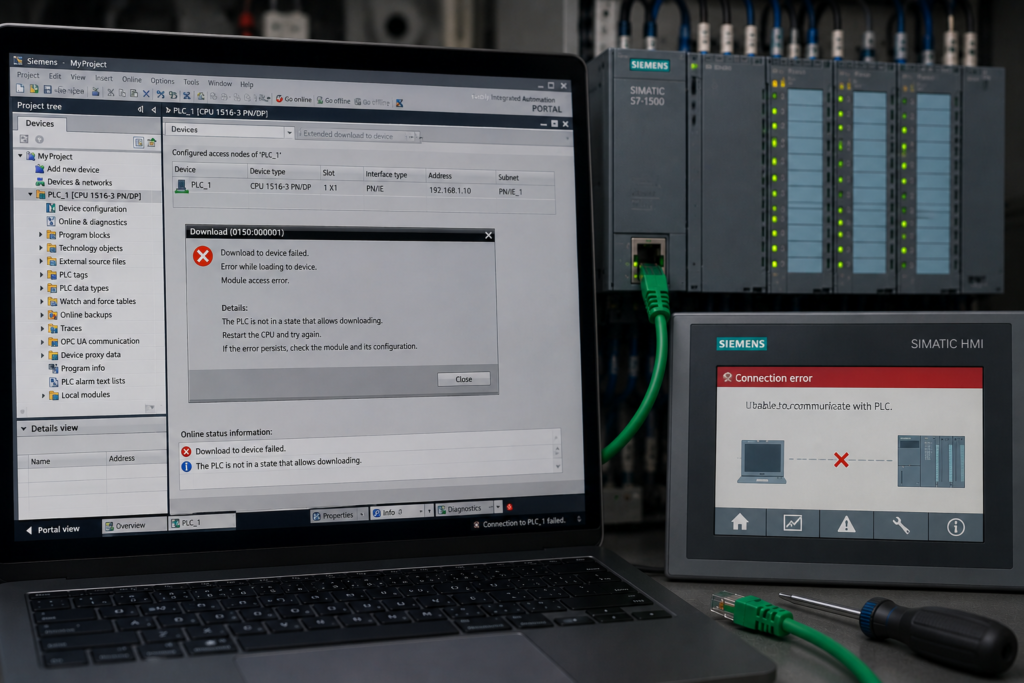
A project compiles, the PLC responds to ping and TIA Portal appears to find the CPU.
Then the download fails.
You may see messages such as:
- no compatible device found;
- target device does not match;
- firmware version differs;
- insufficient access rights;
- connection could not be established;
- loading aborted;
- configuration is inconsistent;
- compile errors prevent loading;
- password or user authentication required.
A failed download does not have one universal cause.
The failure can occur at several different stages:
- TIA Portal cannot compile valid device data.
- The wrong network interface or target CPU is selected.
- The physical CPU does not match the configured CPU.
- The PLC rejects the connection because of protection settings.
- The project or device version is incompatible.
- The connection is interrupted during transfer.
- The CPU cannot accept the selected changes in its current operating state.
The most common causes of a TIA Portal download failure are:
- CPU type or firmware mismatch;
- protected CPU;
- insufficient access level;
- incorrect PG/PC interface selected;
- incompatible project or TIA Portal version;
- hardware or software compilation errors.
The fastest troubleshooting approach is to read the exact failure stage rather than pressing Load repeatedly.
Quick Troubleshooting Table
| Download symptom | Most likely causes |
|---|---|
| No target device appears | Wrong PG/PC adapter, incorrect interface, cable problem, wrong subnet or firewall interference |
| Device appears but is marked incompatible | Wrong CPU type, order number or firmware version |
| Password or authentication prompt appears | CPU protection, user administration or confidential configuration protection |
| Download starts but access is denied | Insufficient access level or wrong user role |
| Load preview shows unresolved errors | Hardware or software compilation failure |
| Project opens but cannot be downloaded | Incompatible project version, missing hardware support or unsupported device |
| Software-only download unexpectedly includes hardware | CPU has no valid matching hardware configuration |
| Download requires STOP | Selected changes cannot be applied safely in RUN |
| Transfer stops partway through | Network interruption, unstable power, security session failure or target restart |
| Download worked before CPU replacement | Replacement CPU type, firmware, security or address does not match the project |
First Identify Where the Download Fails
A TIA Portal download is not one single action.
Several checks occur before data reaches the PLC.
Stage 1: Compilation
TIA Portal converts the offline hardware configuration and program into data the selected device can execute.
If compilation produces errors, there may be no valid data to transfer. Hardware configuration and software can be compiled separately or together.
Stage 2: Target Search
TIA Portal searches through the selected PG/PC interface for the destination device.
The correct:
- interface type;
- physical network adapter;
- PLC interface;
- subnet or route;
must be selected.
Siemens’ download procedure requires the user to select the PG/PC interface, specific adapter and connection to the relevant subnet when establishing the download path.
Stage 3: Compatibility Check
TIA Portal compares the configured target with the physical PLC.
It may check:
- CPU family;
- order number;
- firmware;
- configured device version;
- hardware configuration;
- project version.
A reachable PLC can still be rejected as an incompatible download target.
Stage 4: Authentication and Protection
The CPU checks whether the connected engineering user has sufficient rights.
A successful ping or online discovery does not grant permission to modify the PLC.
Stage 5: Load Preview
TIA Portal displays the required actions before loading.
These may include:
- stopping the CPU;
- loading hardware configuration;
- reinitialising data blocks;
- deleting online objects;
- replacing program blocks;
- restarting modules.
Read the load preview carefully.
It often explains exactly why the download cannot continue.
Stage 6: Transfer and Restart
The data is transferred and activated.
A failure here points more strongly toward:
- network interruption;
- power loss;
- CPU restart;
- memory-card issue;
- certificate or secure-session failure;
- internal device error.
Before Retrying the Download
Do not begin with a factory reset.
First record:
- complete error message;
- error code;
- current CPU RUN/STOP state;
- CPU order number;
- online firmware version;
- configured offline device version;
- selected PG/PC adapter;
- TIA Portal version and update level;
- compile results;
- recent hardware or software changes.
Also save the current project under a new revision before making compatibility or security changes.
A failed download often becomes more difficult to diagnose after:
- clearing the CPU;
- upgrading the project;
- changing firmware;
- overwriting the online program;
- deleting the existing device configuration.
1. CPU Type or Firmware Mismatch
The CPU configured in the TIA Portal project must be compatible with the physical CPU receiving the download.
The project may contain:
- the wrong CPU model;
- the wrong order-number revision;
- an unsupported firmware version;
- an older predecessor device;
- a standard CPU instead of an F-CPU;
- a technology CPU instead of a standard variant.
Example
The project is configured for:
CPU 1214C DC/DC/DC
Firmware V4.4
The physical device is:
CPU 1212C AC/DC/Rly
Firmware V4.5
Both belong to the S7-1200 family, but they are not the same CPU.
TIA Portal should not treat the second CPU as a valid direct target for the first configuration.
Compare the Complete Order Number
Do not compare only:
- S7-1200;
- S7-1500;
- CPU 1214C;
- CPU 1511.
Check the complete Siemens order number printed on the CPU and displayed online.
Small differences may represent changes in:
- onboard I/O;
- power supply;
- output type;
- memory;
- communications;
- safety capability;
- supported firmware.
Check the Online Firmware Version
Open:
Online & Diagnostics → General
Record the actual firmware.
Then open the CPU properties offline and check the configured version.
Siemens permits certain newer hardware or firmware revisions to act as compatible replacements, but compatibility depends on the device type and configured version. An incompatible installed module can prevent normal startup.
Do not assume:
- newer firmware is always compatible;
- the same front label means the same device;
- a project that opens can be downloaded to every CPU in that family.
Use Change Device
When the physical CPU is intentionally different:
- Back up the project.
- Select the configured CPU.
- Choose Change device.
- Select the exact physical CPU and firmware.
- Review the compatibility information.
- Check replaced or unsupported features.
- Compile hardware and software completely.
- Correct all resulting errors.
- Download only after validating the converted project.
Changing the configured CPU can affect:
- memory addresses;
- supported instructions;
- motion-control functions;
- communication settings;
- technology objects;
- security;
- onboard I/O.
Missing Device or Firmware in the Catalogue
If the required version is not available, the installed TIA Portal release may not support it.
Possible solutions include:
- install the required TIA Portal update;
- install an official hardware support package where applicable;
- open the project in the required TIA version;
- change the configured device to a supported compatible version.
Do not select a vaguely similar CPU simply because the exact one is absent.
Avoid Casual Firmware Downgrades
Downgrading the CPU is not normally the first solution.
Firmware changes can affect:
- security mechanisms;
- project compatibility;
- technology functions;
- communication;
- safety approval;
- memory-card contents.
It is generally safer to establish which TIA Portal and configured device versions support the installed CPU before changing production firmware.
2. The CPU Is Protected
A protected CPU may be completely reachable over Ethernet while refusing downloads.
Protection can include:
- password-based access levels;
- local user administration;
- user roles;
- confidential PLC configuration protection;
- secure PG/PC communication;
- fail-safe program protection;
- block know-how protection.
These protections are not interchangeable.
A password that opens the project may not be the password required by the physical CPU.
Access Protection
Depending on the CPU and configuration, permissions may allow:
- full access;
- read-only access;
- HMI access;
- diagnostic access;
- no access;
- specific operations through user roles.
Siemens documents that the full-access level provides unrestricted CPU access to an authorised user with the corresponding password.
If the current user has only read or HMI rights, the user may be able to:
- find the CPU;
- read diagnostics;
- monitor limited information;
but not download hardware or software.
CPU Password vs Project Password
Several passwords may be involved:
- project protection password;
- CPU access-level password;
- user-account credentials;
- safety-program password;
- confidential configuration password;
- know-how-protected block password.
Entering the wrong type of password does not grant download permission.
Read the authentication dialog carefully.
Confidential PLC Configuration Protection
Modern CPUs can protect sensitive PLC configuration data using a project-specific password or secret.
A mismatch between the project and CPU protection data can prevent loading and may place some CPUs into a startup-inhibited or error condition until the protection information is corrected. Siemens documents recovery by aligning or removing the online CPU’s confidential-configuration password using Online & Diagnostics before downloading a valid program.
Do not reset this protection casually.
Resetting protected configuration can affect stored certificates and require them to be generated or assigned again.
Secure PG/PC Communication
Newer CPU and TIA Portal combinations can use secure TLS-based engineering communication.
Siemens documents secure PG/HMI communication for TIA Portal V17 and newer, while older engineering versions may require legacy communication to be explicitly permitted by the CPU configuration.
A download may fail because:
- old TIA Portal version does not support the CPU’s secure connection;
- legacy PG/PC communication is disabled;
- certificate is not trusted;
- project certificate differs from the CPU;
- engineering computer date or certificate store is incorrect.
Do not permanently weaken CPU security simply to support an outdated engineering computer.
Use a compatible engineering version and the correct authentication material.
3. Insufficient Access Level
A CPU may accept the user’s credentials but still reject the requested download.
This means authentication succeeded, but the active role does not permit that operation.
Read Access Is Not Download Access
A user may be permitted to:
- open diagnostics;
- compare online and offline blocks;
- read process values;
- monitor the program;
without being allowed to modify the controller.
The required permission depends on what is being downloaded:
- software blocks;
- hardware configuration;
- user administration;
- security configuration;
- safety program;
- certificates.
Local User Administration
On newer Siemens CPUs, users and roles can be configured more precisely than older fixed password levels.
Check:
- which user is logged in;
- assigned roles;
- CPU function rights;
- whether the account is disabled;
- whether the password has expired;
- whether the project user matches the online CPU configuration.
A login that works for one CPU may not be valid for another CPU in the same project.
Hardware and Security Changes May Need Higher Rights
Changing:
- CPU protection;
- certificates;
- anonymous-user rights;
- communication settings;
- hardware configuration;
can require higher privileges and, in some cases, a STOP transition.
Siemens notes that some user-configuration changes can be downloaded in RUN only when the hardware configuration remains unchanged; otherwise, STOP may be required.
Failsafe CPUs
An F-CPU may require:
- appropriate safety access;
- correct safety password;
- consistent F-signature;
- valid safety compilation;
- authorised safety download.
Do not attempt to bypass safety access protection.
Changes to the safety program may require revalidation of the machine’s safety functions.
How to Fix an Access-Level Failure
- Read the exact access message.
- Identify the user currently logged in.
- confirm which operation is denied.
- obtain the authorised credentials.
- reconnect using the proper role or access level.
- repeat the online comparison.
- review the load preview before downloading.
Do not repeatedly guess passwords.
Repeated failed authentication may trigger security policies or make later troubleshooting less clear.
4. Incorrect PG/PC Interface Selected
TIA Portal may communicate through a different network adapter from the one physically connected to the PLC.
An engineering computer can contain:
- built-in Ethernet;
- USB Ethernet;
- docking-station Ethernet;
- Wi-Fi;
- VPN;
- VMware adapter;
- VirtualBox adapter;
- Hyper-V switch;
- PLCSIM interface.
Ping may succeed through one route while TIA Portal attempts the download through another interface.
Check Extended Download to Device
Select:
Online → Extended download to device
Then confirm:
- PG/PC interface type;
- specific network adapter;
- connection to interface or subnet;
- target device IP;
- correct CPU Ethernet interface.
Siemens’ CPU download procedure requires selecting the PG/PC interface type, the adapter and the interface/subnet connection used to reach the CPU.
Identify the Correct Windows Adapter
Open Command Prompt:
ipconfigFind the adapter that:
- shows Media connected;
- has an address in the PLC network;
- corresponds to the cable being used.
A simple test is to unplug the PLC cable and observe which adapter changes to Media disconnected.
Disable Competing Interfaces Temporarily
For a direct commissioning test, temporarily disable:
- Wi-Fi;
- VPN;
- unused Ethernet adapters;
- virtual machine interfaces.
Leave only the PLC-facing adapter enabled.
Then reopen the extended download dialog.
Check the CPU Interface
Some CPUs have separate interfaces such as:
- X1;
- X2;
- X3.
Each interface may have its own:
- IP address;
- subnet;
- security configuration;
- network role.
The project may attempt to download through X1 while the cable or network route reaches X2.
Check the physical port labels and configured interface addresses.
Wrong Subnet
A PLC can appear under local accessible-device discovery while a normal engineering connection fails because the PC and PLC have incompatible IP settings.
Example:
PLC: 192.168.10.20
Mask: 255.255.255.0
PC: 192.168.20.50
Mask: 255.255.255.0Without routing, they are in different subnets.
Assign the PC a unique address in the PLC subnet or use the approved routed connection.
Wrong Target Device Selected
When several identical CPUs exist on the network, TIA Portal may show multiple compatible targets.
Verify:
- IP address;
- MAC address;
- CPU name;
- order number;
- physical location.
Do not download based only on a familiar IP address.
Duplicate IPs and copied machine projects can make the wrong CPU appear plausible.
5. Incompatible Project Version
TIA Portal projects are tied to software versions.
A project created or upgraded in a newer TIA Portal version cannot necessarily be edited, downloaded or maintained using an older version.
Siemens states that older projects must be upgraded before use in a current release, while sufficiently old projects may need to be opened and upgraded through an intermediate TIA Portal version first.
Common Version Problems
- Project was created in a newer TIA Portal release.
- Project was upgraded but another engineer still uses the old release.
- CPU contains blocks generated by a newer project version.
- Required STEP 7 or WinCC package is missing.
- Optional Safety, Motion or other engineering package has the wrong version.
- CPU firmware requires a later hardware catalogue.
- Project archive was restored into an unsupported version.
Download Can Upgrade Online Compatibility
When software created in a newer TIA version is loaded to a CPU previously engineered with an older version, the online program may be converted to the newer project format.
Siemens warns that after the newer-format software is downloaded, earlier TIA Portal versions may no longer be able to use or upload those blocks normally.
Before downloading from a newer TIA Portal version:
- Preserve the original project.
- identify the project version currently on the CPU.
- confirm all maintenance computers can support the new version.
- review third-party libraries and option packages.
- plan how the plant will be supported afterward.
A technically successful download can still create a maintenance problem if every other engineering laptop becomes incompatible.
Missing Software Components
A project may open only partially if it requires software components that are not installed.
Examples include:
- STEP 7 Professional;
- WinCC package;
- Safety Advanced;
- Startdrive;
- motion or technology packages;
- required hardware support.
Siemens notes that projects may require additional software components before they can be opened and edited completely.
A partially available project should not be treated as ready for download.
Correct Upgrade Procedure
- Create an archive of the original project.
- open it in the supported TIA version.
- perform the project upgrade.
- review the upgrade report.
- compile every device’s hardware using Rebuild all.
- compile all software.
- correct compatibility errors.
- test the project offline or in simulation where appropriate.
- perform a controlled download.
Siemens specifically recommends rebuilding the hardware configuration after upgrading projects so that old or inconsistent device information is regenerated.
6. Configuration Compilation Errors
A download can fail before any data leaves the engineering computer because the project does not compile consistently.
Compilation converts the project into data that the CPU can execute.
Typical Hardware Compilation Errors
- duplicate I/O addresses;
- invalid module arrangement;
- missing module parameter;
- unsupported device combination;
- wrong PROFINET assignment;
- technology module configured incorrectly;
- overlapping address ranges;
- inconsistent network configuration;
- incompatible module firmware;
- safety configuration error.
Typical Software Compilation Errors
- missing block;
- invalid block call;
- changed FB interface;
- instance DB no longer matches its FB;
- missing PLC data type;
- invalid tag or address;
- unsupported instruction;
- incorrect data conversion;
- failed library-type update;
- syntax error.
Siemens notes that changing the interface of a called block can create compilation errors in dependent blocks and that inconsistent DB or PLC data-type timestamps and interfaces must be corrected before valid code can be generated.
Compile More Than the Last Edited Block
A block can compile by itself while the overall project remains inconsistent.
For example:
- An FB input is changed from
INTtoREAL. - The FB compiles.
- Several calling blocks still pass
INT. - The instance DB contains the old interface.
- Full compilation fails.
Compile the complete software, not only the block that was edited.
Use Rebuild All
A reliable diagnostic compile sequence is:
- Select the PLC.
- Choose Compile → Hardware (rebuild all).
- correct every hardware error.
- choose Compile → Software (rebuild all).
- correct every software error.
- compile hardware and software together.
- review warnings that may affect loading.
Rebuild all is especially useful after:
- project upgrade;
- CPU replacement;
- library update;
- DB or UDT change;
- device migration;
- unexplained internal inconsistency.
Compilation Errors vs Warnings
Errors normally prevent a valid download.
Warnings may still permit loading, but they should not be ignored automatically.
Important warnings can relate to:
- reinitialisation;
- missing optional devices;
- unused hardware;
- security;
- changed block interfaces;
- data loss;
- required CPU STOP.
Read the complete load preview.
Fix the First Compilation Error
One original error can generate dozens of secondary messages.
For example:
- PLC data type cannot compile.
- Global DB based on that type fails.
- FB using the DB fails.
- OB calling the FB fails.
- HMI tags linked to the DB become invalid.
Fix the first dependency error, then compile again.
7. Online and Offline Configurations Do Not Match
The offline project may be valid but different from the project already loaded in the CPU.
This is common when:
- several engineers have different project copies;
- changes were made directly online;
- an old backup was opened;
- CPU was replaced;
- program was downloaded from another laptop;
- hardware configuration was changed.
Use Online/Offline Comparison
Before downloading:
- Go online with the CPU.
- open Compare → Offline/online.
- compare hardware and software.
- identify blocks existing only online.
- identify blocks existing only offline.
- check version compatibility.
- decide which project is authoritative.
Do not assume the newest file timestamp means the project is the correct one.
Preserve Online Data Where Necessary
A full download can:
- replace online blocks;
- delete blocks not present offline;
- reinitialise DB values;
- change retained data;
- change hardware configuration.
Back up current values and online data where the process requires them.
8. The Selected Download Requires CPU STOP
Some changes can be downloaded in RUN.
Others require STOP.
Possible STOP-requiring changes include:
- hardware configuration;
- major block-interface changes;
- safety configuration;
- user or security configuration;
- memory layout changes;
- changes not supported by download-in-RUN.
The load preview should state the required CPU action.
Do not treat a required STOP as a communication failure.
CPU Cannot Be Stopped
A download may fail because:
- physical mode selector prevents software control;
- user lacks permission to change operating mode;
- redundant or safety system conditions are not satisfied;
- another engineering session controls the CPU;
- process policy prohibits STOP.
Make the machine safe and obtain the necessary operational approval.
Do not force STOP on a running production process without understanding the output response.
9. Network Connection Fails During Download
If compilation and compatibility checks succeed but transfer stops partway through, inspect the communication path.
Possible causes include:
- loose Ethernet connector;
- damaged cable;
- unstable USB Ethernet adapter;
- VPN route change;
- Wi-Fi or wired-route conflict;
- firewall session interruption;
- managed-switch port problem;
- duplicate IP address;
- CPU or switch power interruption.
Direct Connection Test
Where safe:
- Connect the laptop directly to the correct CPU port.
- use a short known-good Ethernet cable.
- disable VPN and unnecessary adapters.
- select the physical Ethernet adapter.
- confirm the PLC’s MAC and IP.
- repeat the download.
If direct loading works, the problem is likely in:
- plant switch;
- VLAN;
- router;
- cable path;
- security appliance.
Do Not Interrupt Power During Transfer
A power loss during:
- hardware download;
- firmware operation;
- memory-card update;
- configuration activation;
can leave the CPU without a valid startup configuration.
Verify the PLC and networking equipment have stable power before repeating the process.
10. Memory Card or CPU Configuration Problem
Some downloads depend on the CPU’s memory-card state.
Possible issues include:
- missing required SIMATIC memory card;
- incompatible card;
- damaged card;
- card contains another CPU configuration;
- firmware-update files remain on the card;
- protected or corrupt card contents.
Siemens documents memory-card evaluation errors for missing, incorrect, incompatible or protected card contents during S7-1200 loading and startup.
Before formatting or replacing a card:
- Read the CPU diagnostic buffer.
- identify the card’s role.
- back up the card or project.
- confirm compatibility with the exact CPU.
- follow the model-specific recovery procedure.
Do not format the only available production memory card as an initial troubleshooting step.
Complete Step-by-Step Troubleshooting Procedure
Step 1: Read the Exact Error
Open:
Inspector window → Info → Compile or Load
Record the complete message and code.
Step 2: Determine the Failure Stage
Is the problem occurring during:
- compilation;
- target search;
- compatibility check;
- authentication;
- load preview;
- transfer;
- activation?
Step 3: Compile Hardware Completely
Use:
Compile → Hardware (rebuild all)
Correct every error.
Step 4: Compile Software Completely
Use:
Compile → Software (rebuild all)
Correct dependent block and data-type errors.
Step 5: Check the Physical CPU
Record:
- order number;
- firmware;
- CPU type;
- standard or fail-safe version.
Step 6: Compare With the Offline Device
Use Change device only if the physical hardware is intentionally different.
Step 7: Select the Correct Interface
Open Extended download to device and choose:
- interface type;
- physical adapter;
- PLC interface;
- subnet.
Step 8: Confirm the Correct Target
Check:
- IP address;
- MAC address;
- device name;
- CPU type.
Step 9: Authenticate Correctly
Use the authorised:
- user account;
- CPU password;
- safety credentials;
- configuration-protection credentials.
Step 10: Review Project Compatibility
Check:
- TIA Portal version;
- project version;
- installed updates;
- option packages;
- supported CPU firmware.
Step 11: Compare Online and Offline
Preserve online data before replacing it.
Step 12: Read the Load Preview
Review:
- STOP requirement;
- reinitialisation;
- object deletion;
- complete hardware load;
- security changes.
Step 13: Make the Process Safe
Account for every output and actuator before continuing.
Step 14: Perform the Download
Monitor the load messages without disconnecting the engineering computer.
Step 15: Read Diagnostics After Failure
If loading still fails, open the CPU diagnostic buffer before resetting or power cycling it.
Symptom-Based Troubleshooting
“No Compatible Device Found”
Check:
- selected PG/PC adapter;
- correct PLC interface;
- CPU order number;
- configured firmware;
- subnet and IP;
- TIA Portal hardware support.
“Target Device Does Not Match”
Check:
- physical CPU model;
- configured CPU model;
- firmware;
- standard vs fail-safe version;
- project opened from the correct machine.
“Insufficient Access Rights”
Check:
- active user;
- assigned CPU role;
- full-access credentials;
- safety access where applicable;
- confidential configuration protection.
“Compilation Failed”
Check:
- first hardware error;
- first software dependency error;
- changed block interfaces;
- instance DB consistency;
- PLC data types;
- full rebuild.
“Project Version Is Incompatible”
Check:
- project’s original TIA version;
- current TIA version;
- required intermediate upgrade;
- CPU’s online project compatibility;
- missing engineering packages.
Download Starts and Then Stops
Check:
- cable and switch;
- USB Ethernet adapter;
- duplicate IP;
- VPN;
- firewall;
- CPU and switch power;
- memory card;
- diagnostic buffer.
Download Requires STOP
Check:
- selected changes;
- physical mode selector;
- permission to change operating mode;
- machine safety;
- load-preview details.
Software Download Tries to Load Hardware Too
The CPU may not contain a valid hardware configuration matching the offline project. Siemens notes that when no valid hardware configuration is found on the CPU, hardware can also be loaded during a software download.
Confirm:
- correct CPU;
- current hardware configuration;
- project source;
- effects of loading hardware.
What Not to Do
Avoid these common mistakes:
- Do not factory-reset the CPU first.
- Do not downgrade firmware blindly.
- Do not select a similar CPU merely because it appears compatible.
- Do not keep guessing protected-CPU passwords.
- Do not disable security permanently.
- Do not ignore the full order number.
- Do not compile only the most recently edited block.
- Do not ignore load-preview warnings.
- Do not download an upgraded project without preserving the old version.
- Do not overwrite an online program before comparing it.
- Do not use Wi-Fi, VPN or a random virtual adapter when a direct Ethernet interface is available.
- Do not stop a production CPU without controlling the process.
- Do not format the SIMATIC memory card before backing it up.
- Do not assume that ping proves the download target is compatible.
A successful network connection only proves that TIA Portal can reach a device.
It does not prove that the device will accept the project.
Why TIA Portal Download Fails
A TIA Portal download fails when the engineering project cannot be converted into valid target data, the selected CPU cannot be reached correctly, or the PLC refuses the project because of compatibility, security or access restrictions.
The most common causes are:
- configured CPU does not match the physical CPU;
- firmware is unsupported or incompatible;
- CPU is protected;
- logged-in user lacks download permission;
- wrong PG/PC interface is selected;
- project was created with an incompatible TIA Portal version;
- hardware or software contains compilation errors.
Use this order:
Compile → verify CPU → select interface → authenticate → check versions → compare online/offline → review load preview → download
The final Load button is only the last step.
Most download failures are decided before that button becomes useful.