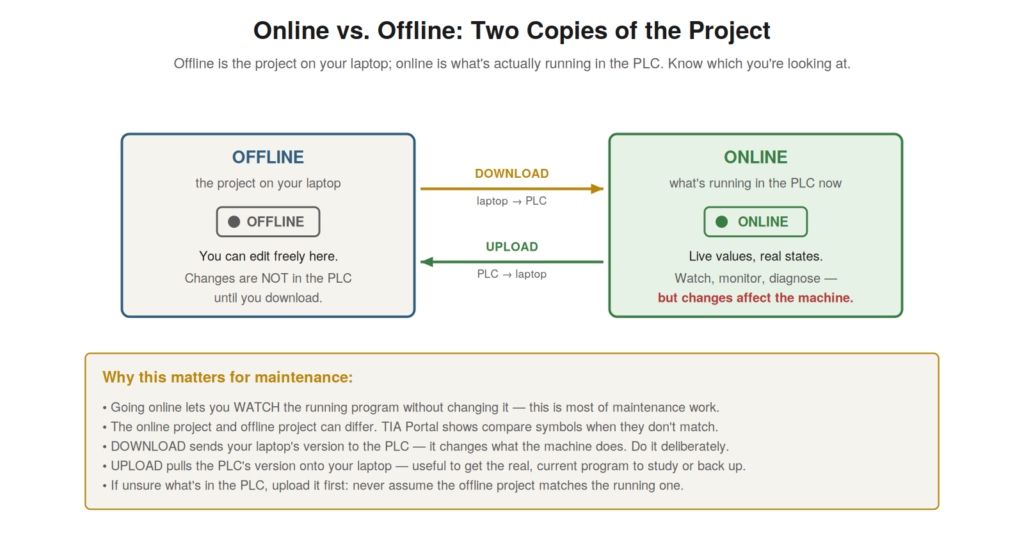
One of the most important concepts in TIA Portal — and a common
source of confusion and error — is the distinction between online and
offline, between the project on your laptop and the program running in
the PLC. Understanding this distinction, and always knowing which you
are looking at, is fundamental to safe and effective work, because
confusing them leads to mistakes, and understanding them enables the
whole online workflow. This chapter makes the distinction clear.
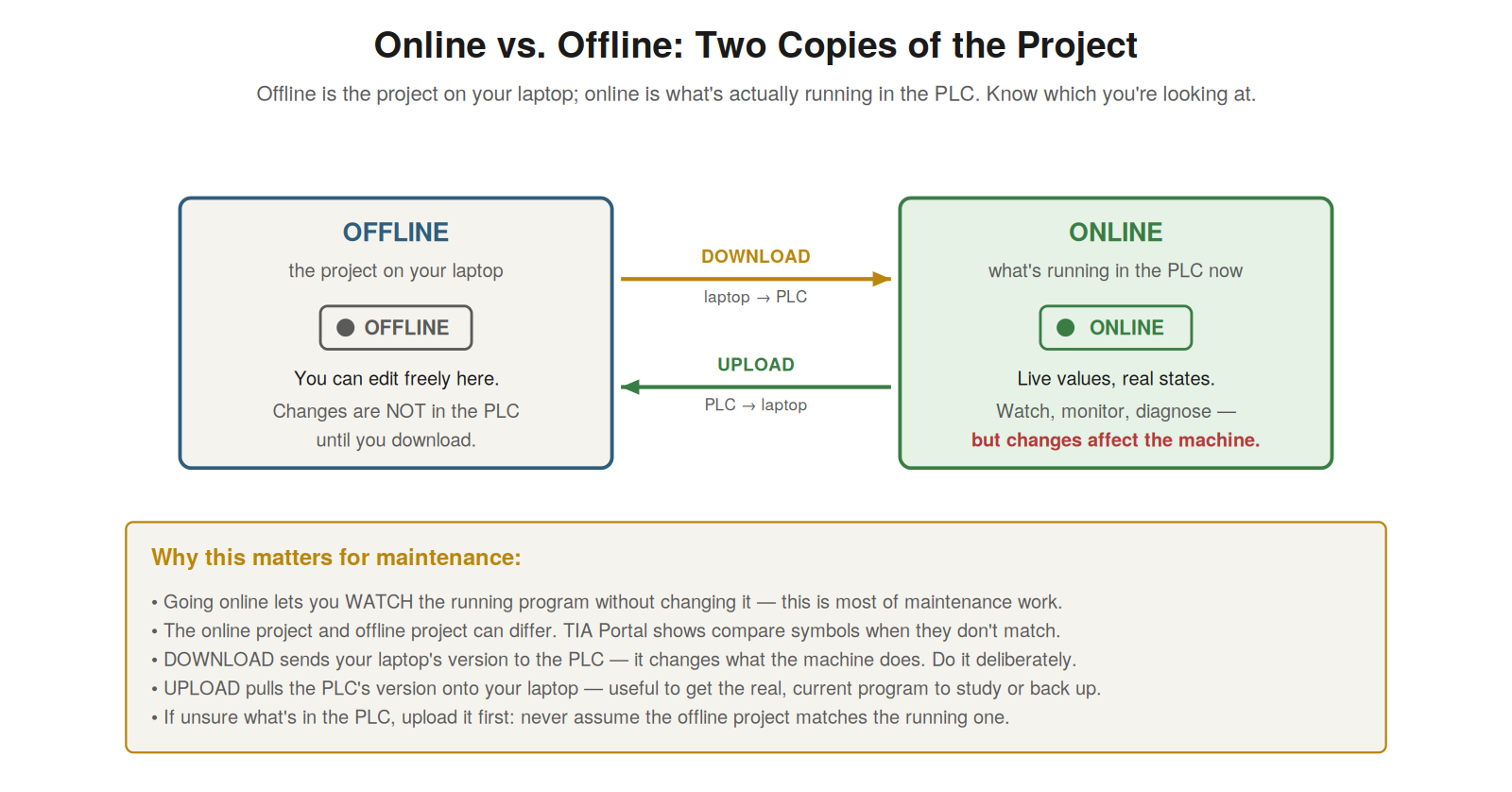
laptop (edit freely; changes aren’t in the PLC until you download);
online is what’s running in the PLC now (live values; changes affect the
machine). Download sends laptop to PLC; upload sends PLC to
laptop.
Two copies of the project
The key to the online/offline distinction is understanding that there
are two copies of the project: the offline copy on your laptop, and the
online copy running in the PLC. The offline copy is the project as it
exists in TIA Portal on your laptop — the program, configuration, and
everything else, which you can view and edit freely, but which is just a
file on your laptop, not affecting any machine. The online copy is the
program actually running in the PLC, controlling the real machine right
now. These two copies are separate: editing the offline copy does not
change the PLC, and the PLC’s running program is not affected until you
deliberately transfer your changes to it. Understanding that there are
two separate copies — offline on your laptop, online in the PLC — is the
foundation of the distinction. It reinforces that the project you edit
on your laptop (offline) and the program running in the machine (online)
are separate copies, and that changes to one do not automatically affect
the other. Understanding this two-copies concept — the offline laptop
copy and the online running copy, separate from each other — is
fundamental, because it underlies everything about the online workflow:
what monitoring shows (the online copy), what editing changes (the
offline copy), and what download and upload do (transfer between them),
making the clear understanding of the two separate copies the basis for
all safe online work.
Download and upload
The two copies are transferred between laptop and PLC by download and
upload, and understanding these — their direction and their effect — is
essential, because they are how the copies are synchronized and how a
download can change a machine. Download sends the offline copy from your
laptop to the PLC, replacing the running program with your version — so
a download changes what the machine does, transferring your laptop’s
program into the controller. Upload does the reverse, bringing the PLC’s
running program up to your laptop, so you have the actual running
version to view or archive. The direction matters greatly: download
(laptop to PLC) changes the machine and must be done carefully; upload
(PLC to laptop) is safe, just copying the running program to your laptop
for study or backup. Understanding download and upload — their opposite
directions and very different consequences — is essential to the online
workflow. It reinforces that download (laptop to PLC) changes the
running machine, while upload (PLC to laptop) safely retrieves the
running program, so that you use upload freely to get the real program,
and download carefully because it changes the machine. Understanding the
direction and effect of download and upload — download changes the
machine, upload retrieves the program — is essential to working with the
two copies safely, distinguishing the safe retrieval (upload) from the
machine-changing transfer (download) that must be done deliberately,
which is central to the safe online workflow that respects the
difference between reading the machine’s program and changing it.
Knowing which you’re looking at, and whether they
match
A practical necessity in online work is always knowing whether you
are looking at the online or offline copy, and whether the two match —
and understanding TIA Portal’s compare indicators helps you keep track.
When online, TIA Portal shows the relationship between the online and
offline copies using compare symbols: indicators that show whether a
block or element is the same in both copies or different. These symbols
let you see at a glance whether your offline project matches what is
running in the PLC — which is important, because they can differ
(someone edited one, a change was downloaded, and so on), and assuming
they match when they do not leads to confusion and error. If they
differ, you can investigate which is correct and reconcile them.
Understanding the compare symbols — and the general need to know which
copy you are viewing and whether they match — keeps your online work
clear. It reinforces that you must always know whether you are looking
at online or offline data, and use the compare symbols to see whether
the two copies match, because they can differ and confusing them causes
errors. Understanding the importance of tracking which copy you are
viewing, and using the compare indicators to see whether online and
offline match, keeps your online work accurate, so that you are never
confused about whether you are seeing the running program or your
laptop’s copy, and you notice when they differ — which matters because
the running machine is controlled by the online copy, and a mismatch
with your offline copy is something to understand before acting.
The danger of assuming they match
A particularly important point deserves emphasis: the danger of
assuming the online and offline copies match when they may not, because
this assumption causes real mistakes. It is tempting to assume that the
project on your laptop matches what is running in the PLC — but they can
differ, for many reasons: someone edited the offline project without
downloading, a change was downloaded that is not in your copy, you have
an old version of the project, or another technician made changes. If
you assume they match when they do not, you can make serious errors:
studying logic that is not what is actually running (so your diagnosis
is wrong), or downloading your copy (overwriting the actual running
program with a different version, changing the machine unexpectedly). So
assuming they match is dangerous. The safe practice is to verify — use
the compare symbols, or upload the running program to be sure you have
the actual one. Understanding the danger of assuming they match — that
they can differ and the assumption causes errors — reinforces verifying
rather than assuming. It reinforces that online and offline can differ,
and that assuming they match leads to wrong diagnosis or unexpected
downloads, so you should verify (compare, or upload) rather than assume.
Understanding the danger of assuming online and offline match — and the
practice of verifying instead — protects against the serious errors that
this common assumption causes, ensuring you know what is actually
running before you diagnose from it or download over it, which is why
verifying the match, rather than assuming it, is an important discipline
in online work.
Scenario: the mismatch that misled
A scenario shows the danger of an online/offline mismatch. A
technician studied a machine’s logic in their offline project to
understand a fault, worked out how it should behave, and was puzzled
that the machine did not match their analysis. The reason emerged when
they checked the compare symbols online: their offline project did not
match the running program — someone had downloaded a modified version to
the PLC that was not in their offline copy. So they had been studying
the wrong logic; the actual running program was different. Uploading the
real running program, they saw the actual logic, which explained the
machine’s behavior. The mismatch had misled them until they recognized
it. This scenario shows an online/offline mismatch misleading a
diagnosis until recognized and resolved by checking the compare and
uploading the real program. Understanding that online and offline can
differ — and checking rather than assuming — revealed the mismatch and
got the technician the actual running logic. It reinforces the danger of
assuming the copies match, and the value of checking the compare symbols
and uploading the running program to be sure. The scenario reinforces
the importance of verifying online versus offline: the technician was
misled by studying an offline copy that did not match the running
program, until they checked and uploaded the real one, illustrating
exactly why assuming the copies match is dangerous and why verifying —
via the compare symbols or an upload — is essential to diagnosing from
the actual running logic.
Reconciling a difference
When you find that online and offline differ, a practical question is
how to reconcile them — deciding which is correct and making them match
— and understanding the approach handles this common situation. If the
compare shows differences, first understand what differs and why: has
the offline project fallen behind a change downloaded to the PLC, or
does the offline project have changes not yet downloaded, or has someone
modified one copy? Then decide which is the correct, authoritative
version. Usually the running program in the PLC is the current reality,
so if your offline copy is out of date, you upload the running program
to update your offline copy (making offline match online). If, instead,
your offline copy has a reviewed, intended change not yet in the PLC,
you might download it (carefully) to update the PLC. The key is deciding
deliberately which version is correct, then making them match in that
direction. Understanding how to reconcile a difference — understand what
differs, decide which is authoritative, make them match — handles this
common situation. Understanding how to reconcile an online/offline
difference — by understanding the difference, deciding which version is
correct, and updating in that direction (usually uploading the running
program to refresh an out-of-date offline copy) — handles the common
situation of a mismatch, so that you resolve differences deliberately
rather than being confused by them, making the copies match by uploading
or downloading as appropriate once you have decided which version is the
authoritative one, which is the practical way to handle the mismatches
that arise in real online work.
Clarity about which copy you’re in
Consolidating the online/offline material, maintaining clarity about
which copy you are working in — and whether they match — is a discipline
that prevents a whole class of errors, and understanding its importance
reinforces the habit. Confusion between online and offline underlies
many mistakes: diagnosing from the wrong copy, downloading unexpectedly,
assuming a match that is not there. The discipline of always knowing
which copy you are in, and using the compare to know whether they match,
prevents these errors. It is a matter of habitual awareness: at every
moment, knowing whether you are viewing the running program (online) or
your laptop copy (offline), and whether they agree. This clarity keeps
your work accurate and prevents the confusion-based mistakes. So
maintaining clarity about the copies is a valuable discipline.
Understanding the importance of clarity about which copy you are in —
preventing a class of confusion-based errors — reinforces this
discipline. Understanding the importance of maintaining clarity about
which copy you are working in — online or offline, and whether they
match — reinforces a discipline that prevents a whole class of errors,
so that habitual awareness of whether you are viewing the running
program or your laptop copy, and whether they agree, keeps your work
accurate and free of the confusion-based mistakes (wrong-copy diagnosis,
unexpected downloads, false assumptions of matching) that unclear
awareness of the online/offline distinction causes, making this clarity
a valuable ongoing discipline in all online work.